
Start here
Log in to the portal →Or go to directlegal.legalconnect.com and log in with your email address and password. Use a current version of Chrome, Edge, Firefox or Safari.
What you will need
- Your email address and password
- Administrator access, to change your firm’s account information, payment methods or other users’ settings
- The card details, if you are adding a payment method
1 Open My Profile
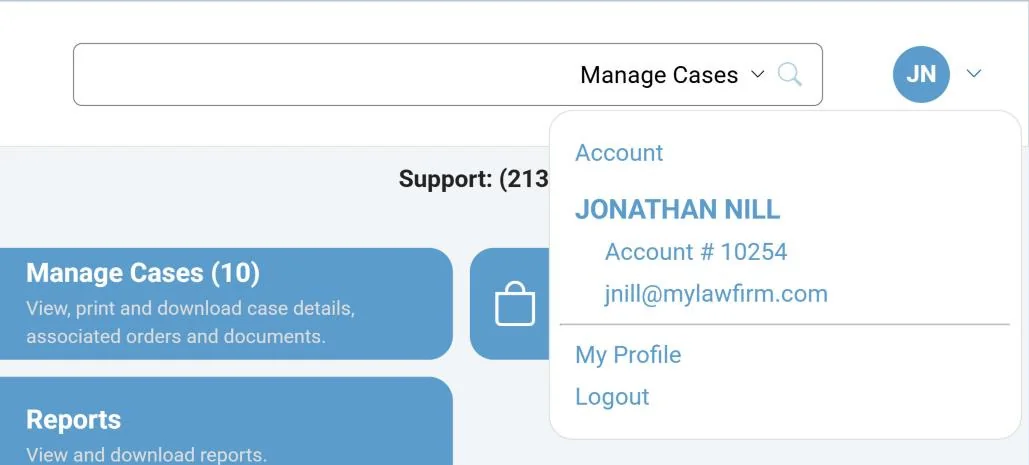
Log in to your account. At the top right of any page, click your initials, then click My Profile.
Your user settings
2 Edit your user settings
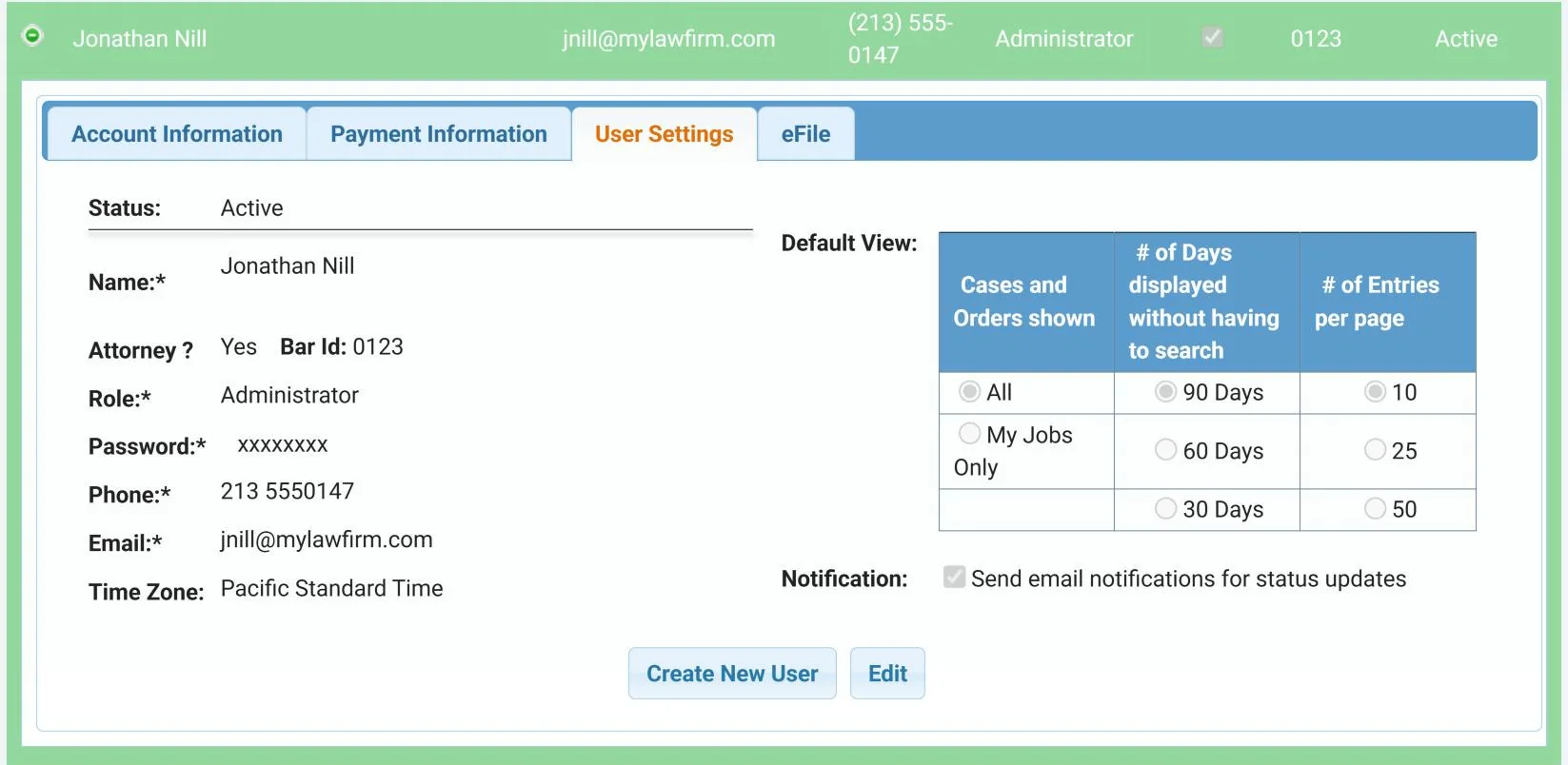
Open the User Settings tab and click Edit. Here you can change your password, phone number, email address and Time Zone, choose your default views, and choose whether to get email notifications for status updates.
3 Choose your default views
Default views set which orders you see without having to search, so your lists fit the way you work.
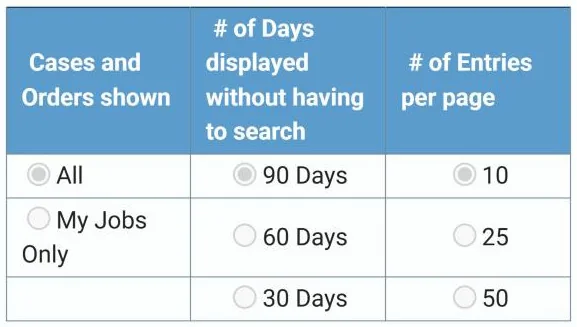
- Cases and Orders shown: choose All to see the orders placed by every user in your firm, or My Jobs Only to see only the orders you placed.
- # of Days displayed: see the orders placed in the last 30, 60 or 90 Days.
- # of Entries per page: show 10, 25 or 50 entries on each page.
Save your changes when you are done.
For administrators: your firm’s account information
4 Click Edit on the Account Information tab
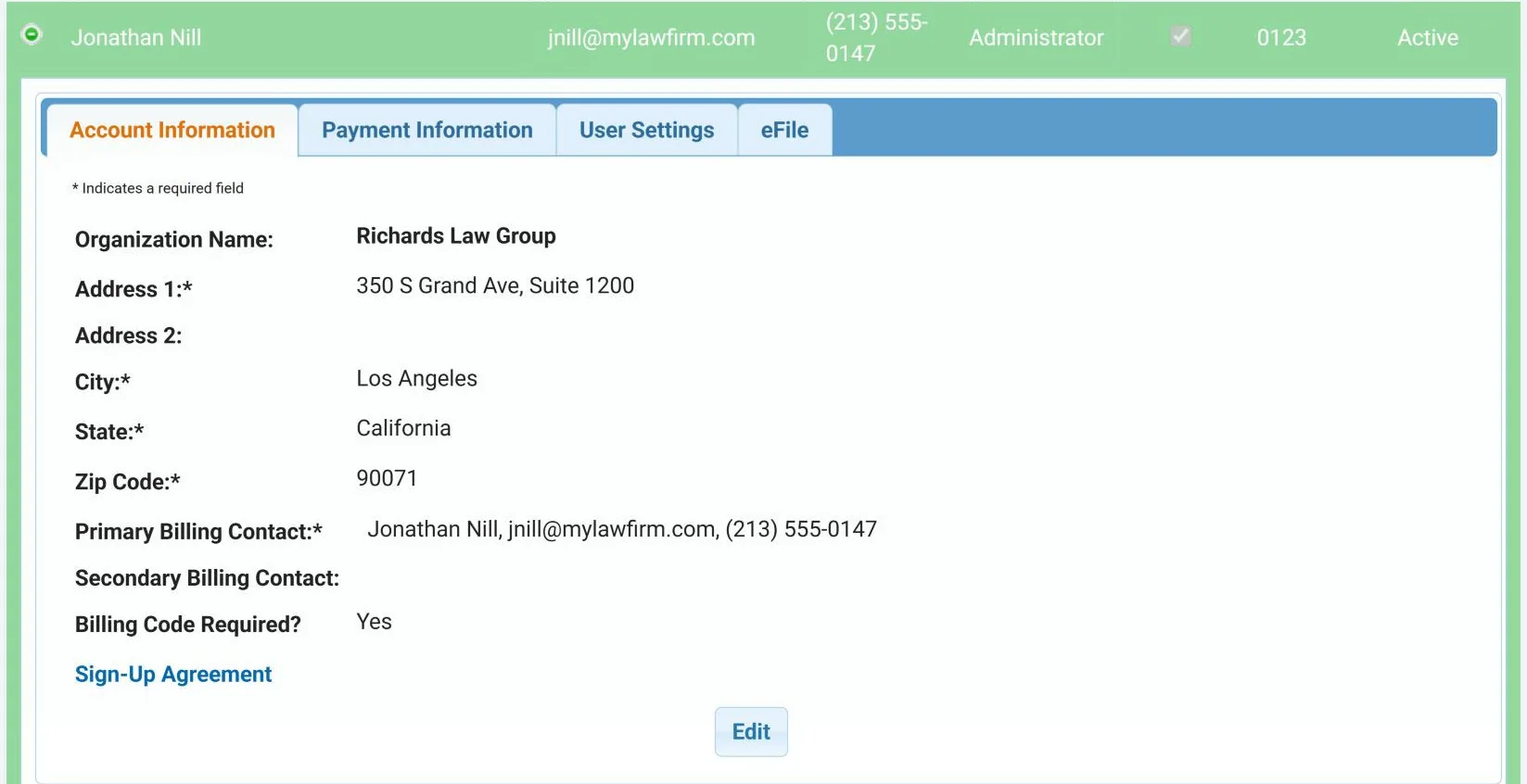
The Account Information tab shows your firm’s address, billing contacts and billing code setting. Click Edit to change them.
5 Update the details and save
Change your firm’s address and the primary and secondary billing contacts as needed.
Under Billing Code Required?, choose Yes to make every user on your account enter a billing code each time they place an order. The billing code is your internal billing reference, file or client matter number. Click Save.
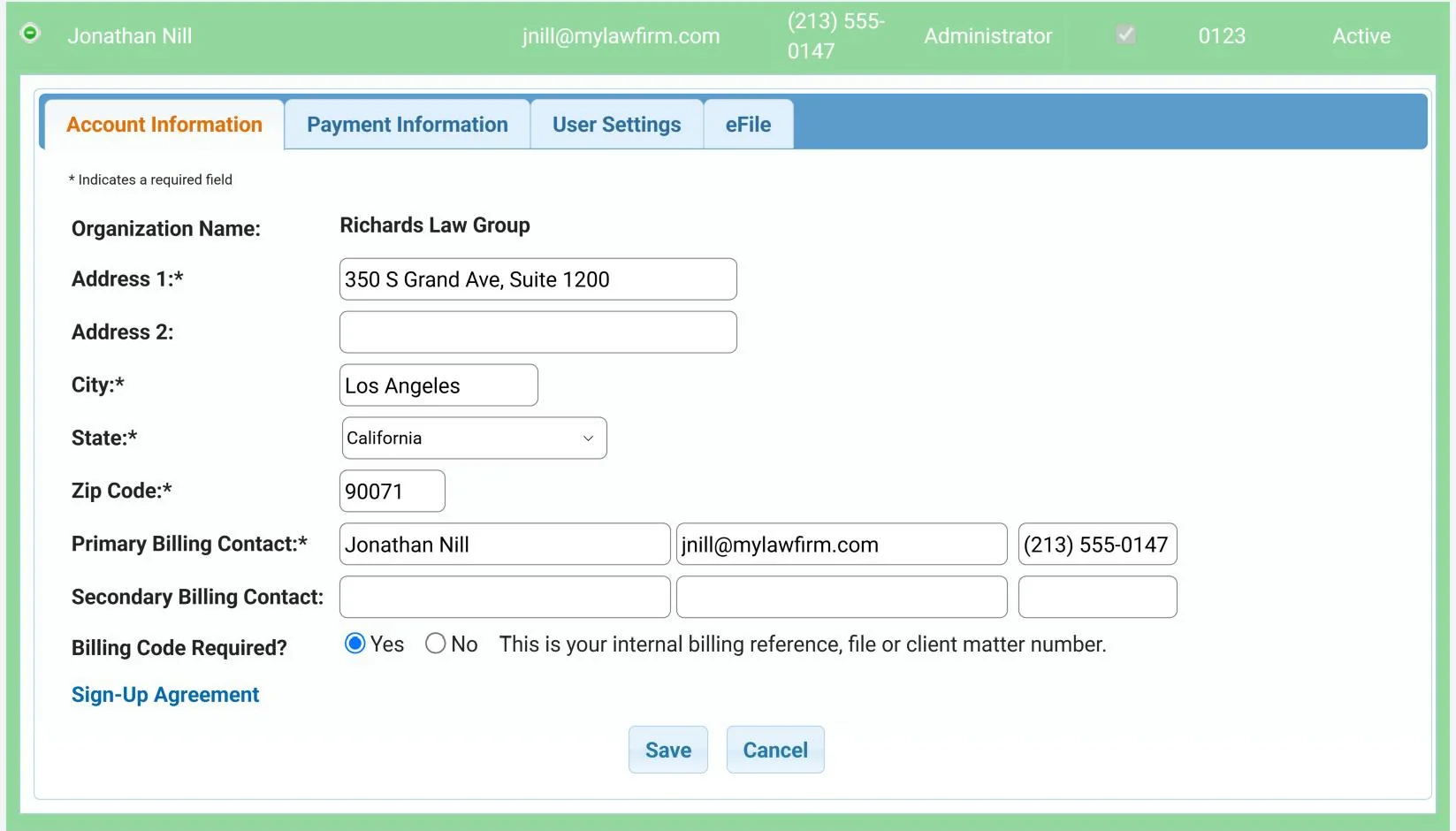
To read the agreement your firm accepted when it opened its account, click Sign-Up Agreement (2), below the billing code setting.
For administrators: payment methods
6 Click Add Payment Method
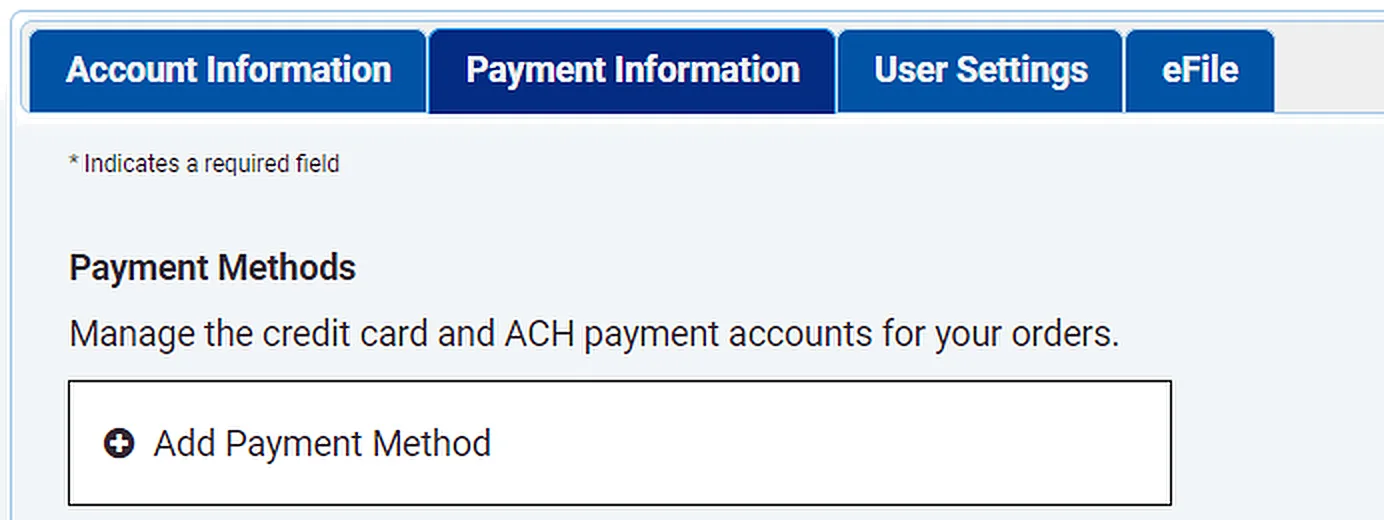
Open the Payment Information tab. Under Payment Methods, click Add Payment Method. If your account has no saved payment methods yet, the form opens on its own.
7 Enter the card details and save
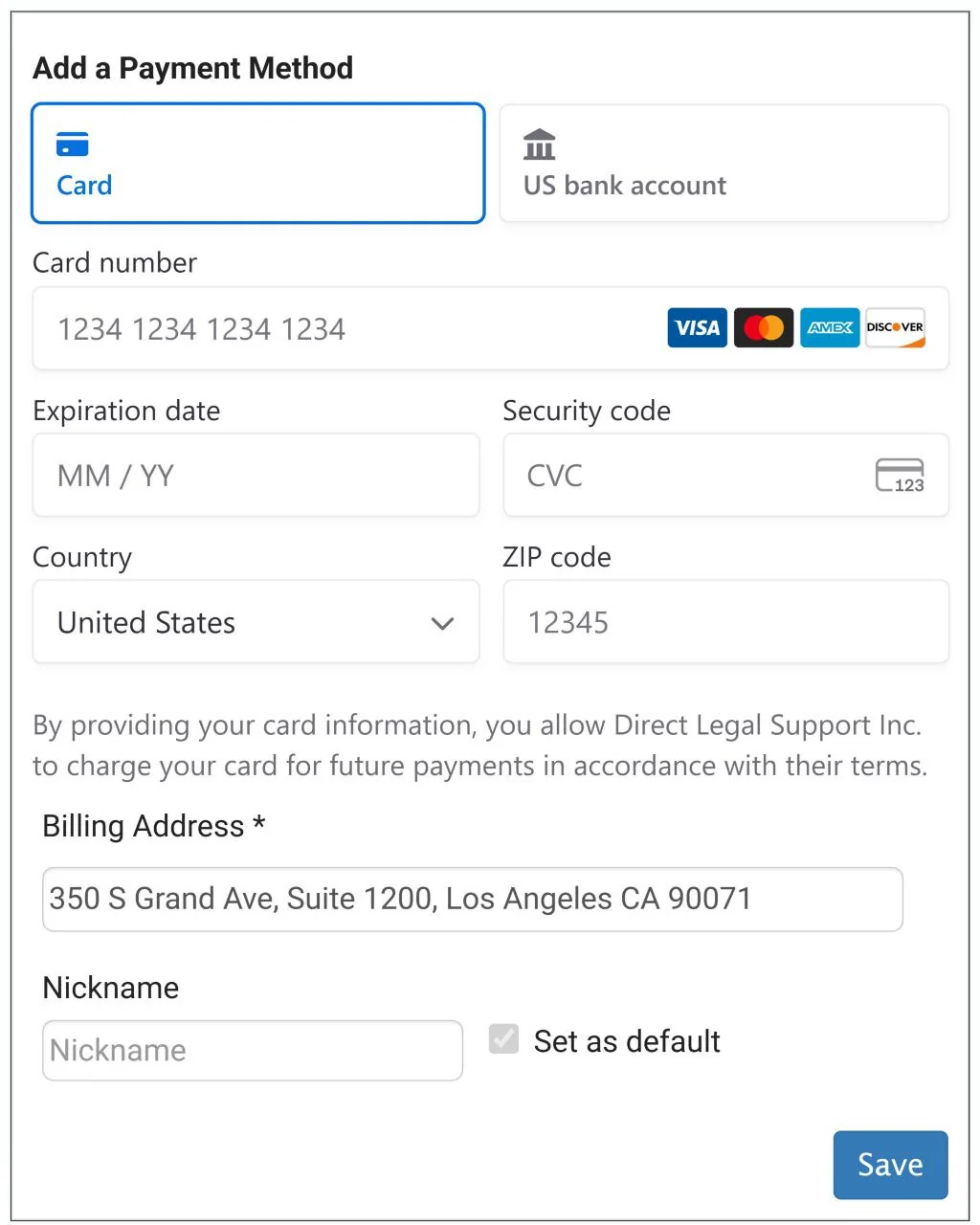
Click Card. Enter the Card number, Expiration date and Security code, then the Country, ZIP code and Billing Address. You can add a Nickname to tell your cards apart. Check Set as default to make it your default payment method, then click Save.
For administrators: the users on your account
8 See all of your firm’s users
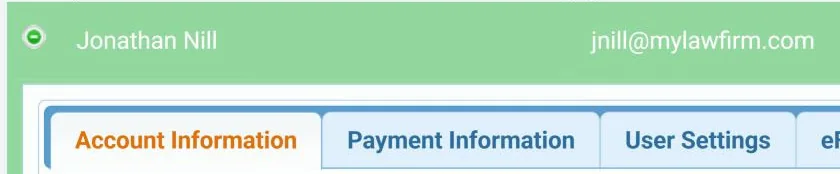
Click the symbol next to your name to close your user window. The list of every user on your firm’s account appears.
9 Change a user’s default view
Click the symbol next to a user’s name to open their profile (1). Then change their Default View the same way you change your own in step 3.
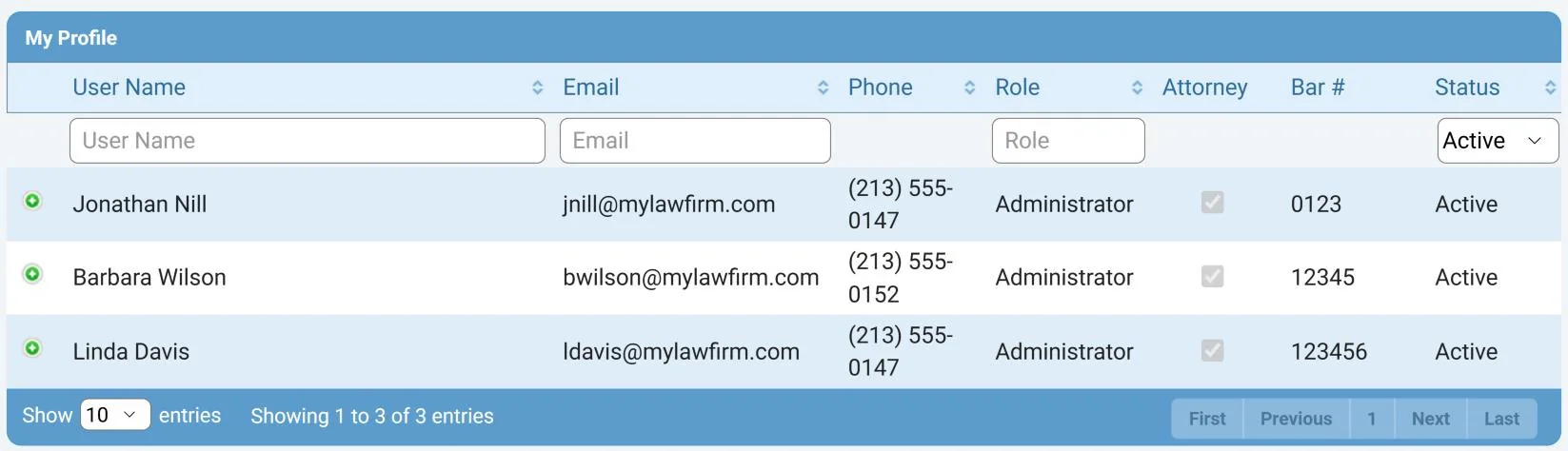
The Status column (2) shows whether each user is Active or Inactive. The list shows active users; to see the others, choose Inactive or All in the box under Status.
Adding a coworker?
New users sign up with your firm’s Customer Account number and ZIP code. See our Adding a User to an Existing Account guide.
More than one card?
You can save several payment methods and choose one for each order. See our Payment Profiles guide.
Questions? We’re here to help.
Call our Litigation Division Monday to Friday, 8:30 a.m. to 5:00 p.m. Pacific, or email info@directlegal.com. Ready to order? Log in to the portal.
Prefer paper? Download this guide as a PDF to print or save. More guides: Client Portal Guides.