
Start here
Log in to the portal →Or go to directlegal.legalconnect.com and log in with your email address and password. Use a current version of Chrome, Edge, Firefox or Safari. New to the portal? See our Creating a New Account guide.
What you will need
- The case number, if there is one
- The state, county and court of the case
- The names of the parties
- The document names, if you don’t need the entire file
- Your billing code or client matter number, if your firm uses one
1 Click Place an Order
Log in to your account. On your dashboard, click Place an Order.

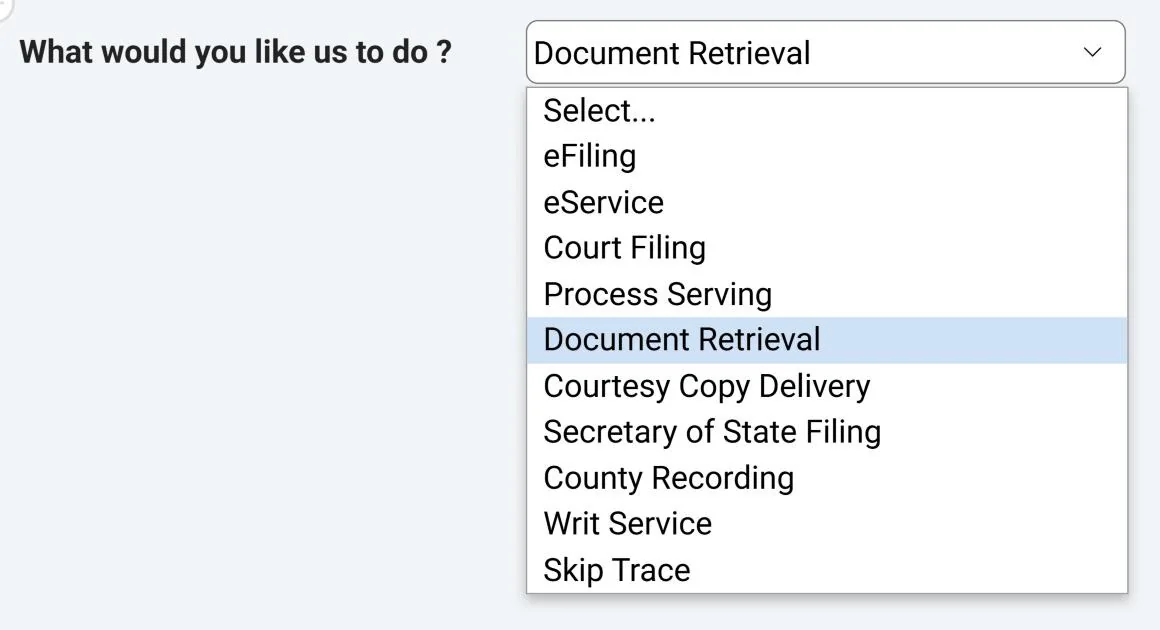
2 Choose Document Retrieval
In What would you like us to do?, select Document Retrieval.
3 Choose what to retrieve
On the Order Info tab, fill in these choices:
- Select Retrieval Type. Choose Retrieve Document(s) on your case for a case you are working on, for example to get conformed copies or minutes of a hearing. Choose Retrieve Document(s) on different case for a case that isn’t yours, for example one you need for reference or case review.
- Items To Obtain. Check Entire File, Certain Documents or Register of Action. If you check Certain Documents, a text box appears where you can list the documents you need.
- Copies. Choose Certify for certified copies or Plain for plain copies. If you want to limit the number of pages, enter it in Page limit per copy.
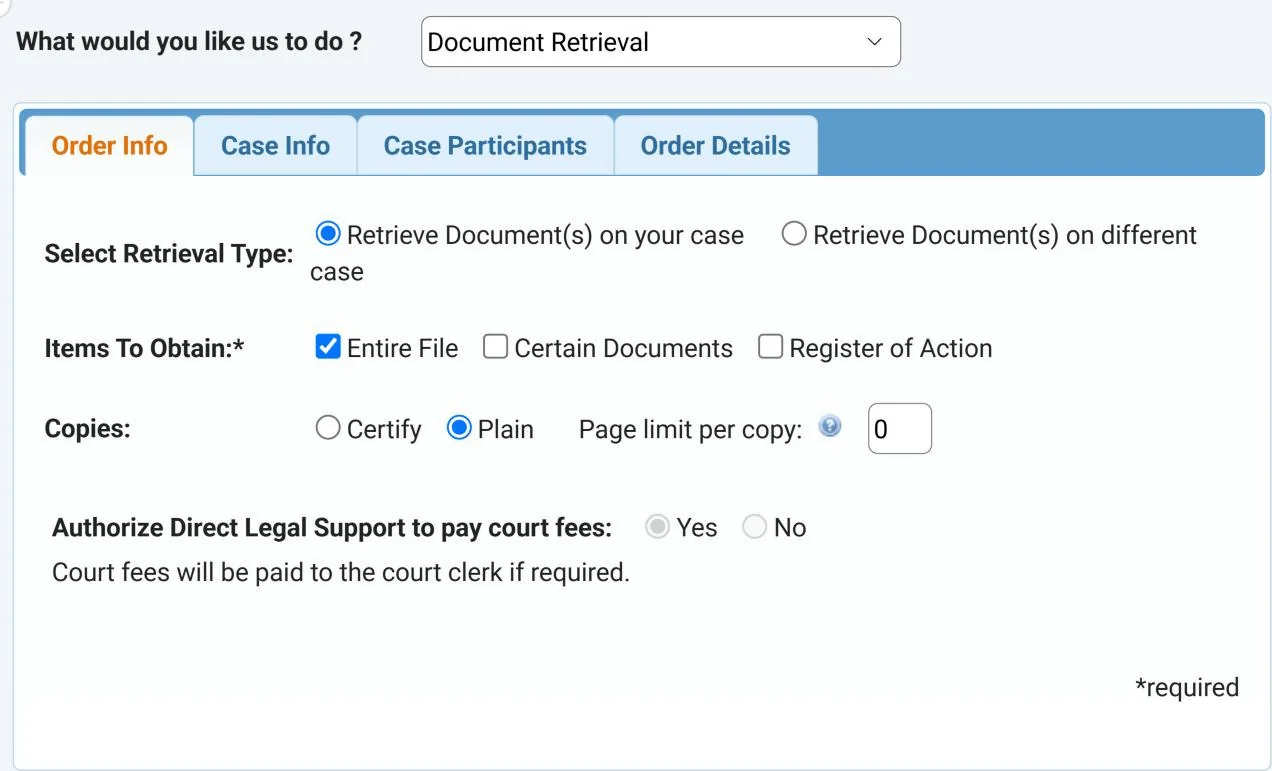
If the court charges fees, they are paid to the court clerk. Click Next.
4 Enter the case information
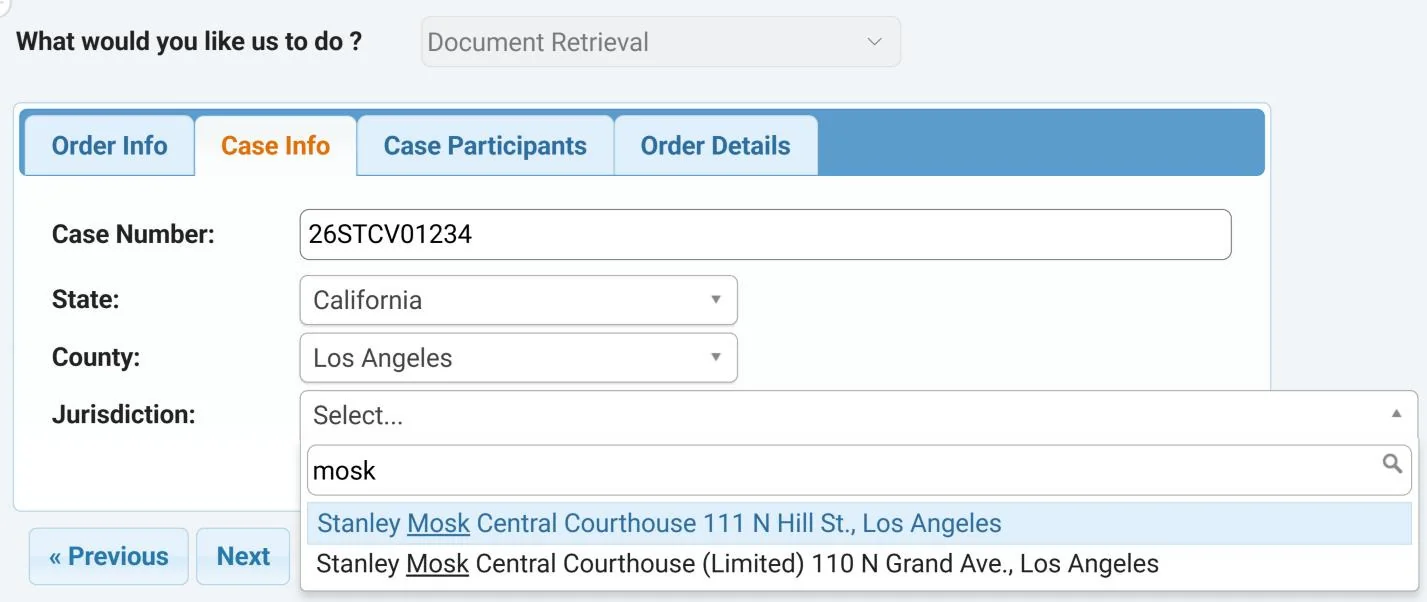
On the Case Info tab, type the Case Number and press Enter (1). If there is no case number, check Check here if you do not have a Case Number. Then choose the State and County of the case (2) and the Jurisdiction (3). Type part of the courthouse name in the box at the top of the Jurisdiction list to find it. Click Next.
5 Add the case participants
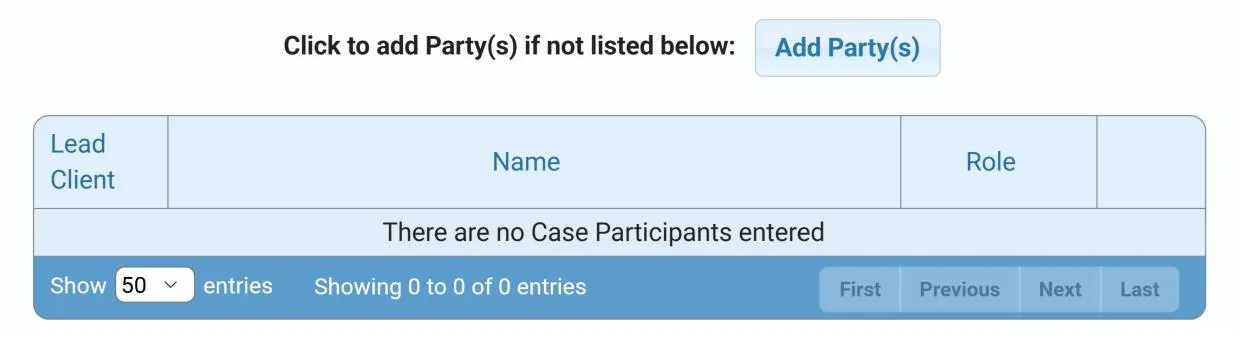
Click Add Party(s). In the Add Party box, enter the name of each party involved, their role, and whether they are your lead client. When you are done, click Next.
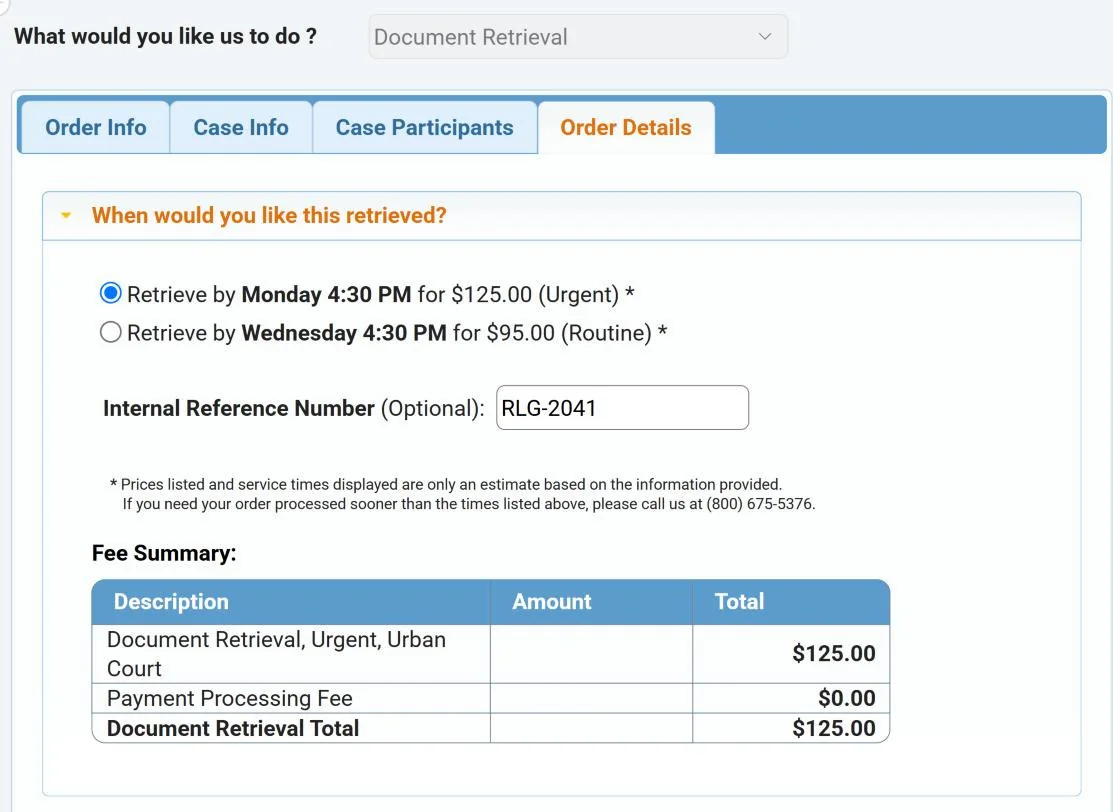
6 Choose when it is retrieved
On the Order Details tab, choose a service level under When would you like this retrieved? (1). If your firm tracks orders with its own number, enter it in Internal Reference Number (2).
The Fee Summary shows our retrieval fee and your order total (3).
7 Add instructions and submit
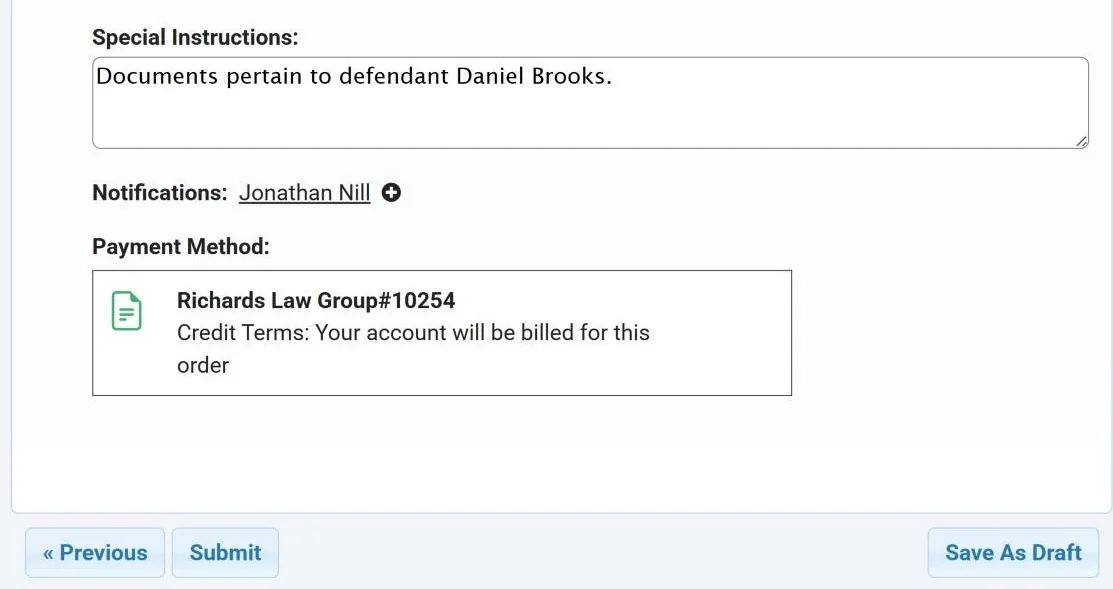
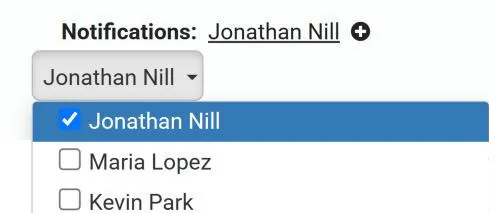
Type any Special Instructions, such as the name of the party the documents pertain to (1). Notifications shows who gets status updates on this order (2), and Payment Method shows how the order will be paid (3). When you are ready, click Submit (4).
8 Get your confirmation
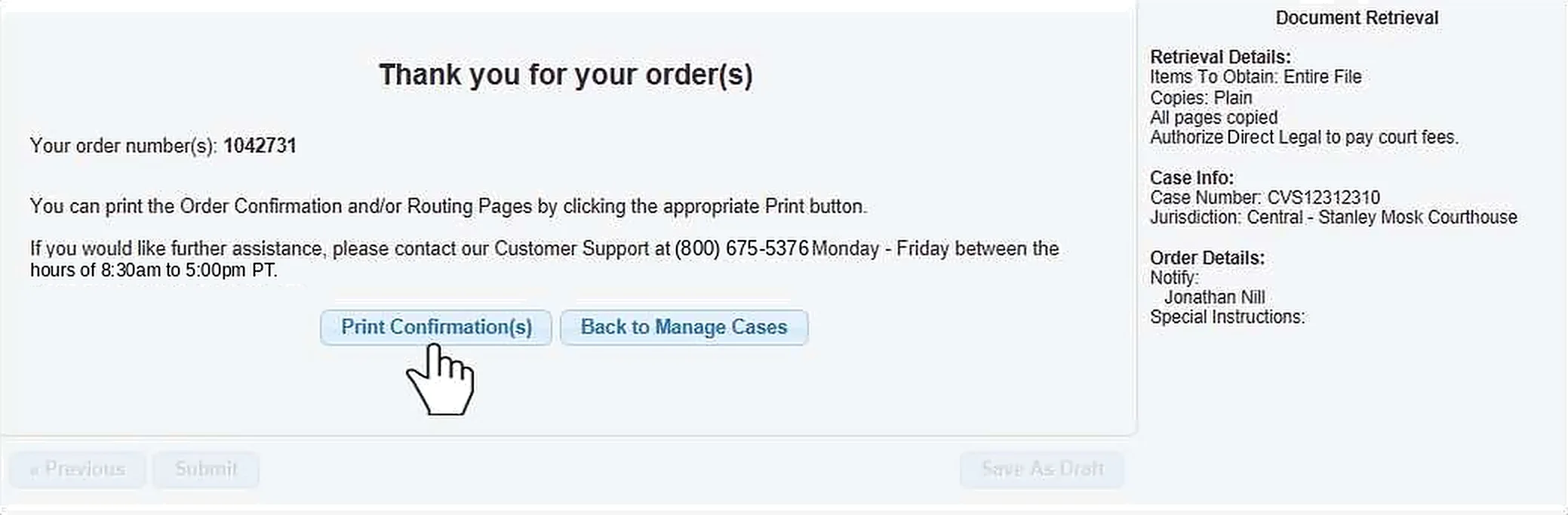
A confirmation appears with your order number and a summary of the order. Click Print Confirmation(s) to print the order confirmation or routing pages.
After you order
- Follow your order under Pending Orders on your dashboard
- Find completed orders and their documents under Closed Orders
Good to know
Need it sooner than the times shown? Call us at (800) 675-5376 before you place the order.
Questions? We’re here to help.
Call our Litigation Division Monday to Friday, 8:30 a.m. to 5:00 p.m. Pacific, or email info@directlegal.com. Ready to order? Log in to the portal.
Prefer paper? Download this guide as a PDF to print or save. More guides: Client Portal Guides.