
Start here
Open the mobile site →On your phone, go to directlegal.legalconnect.com/mobile and log in with the email address and password you already use for the Direct Legal Support portal.
What you will need
- A smartphone with a web browser
- Your portal email address and password
- Location turned on for your phone’s browser, so your GPS location can be recorded
- Your phone’s camera, if you are adding photos
1 Log in on your phone
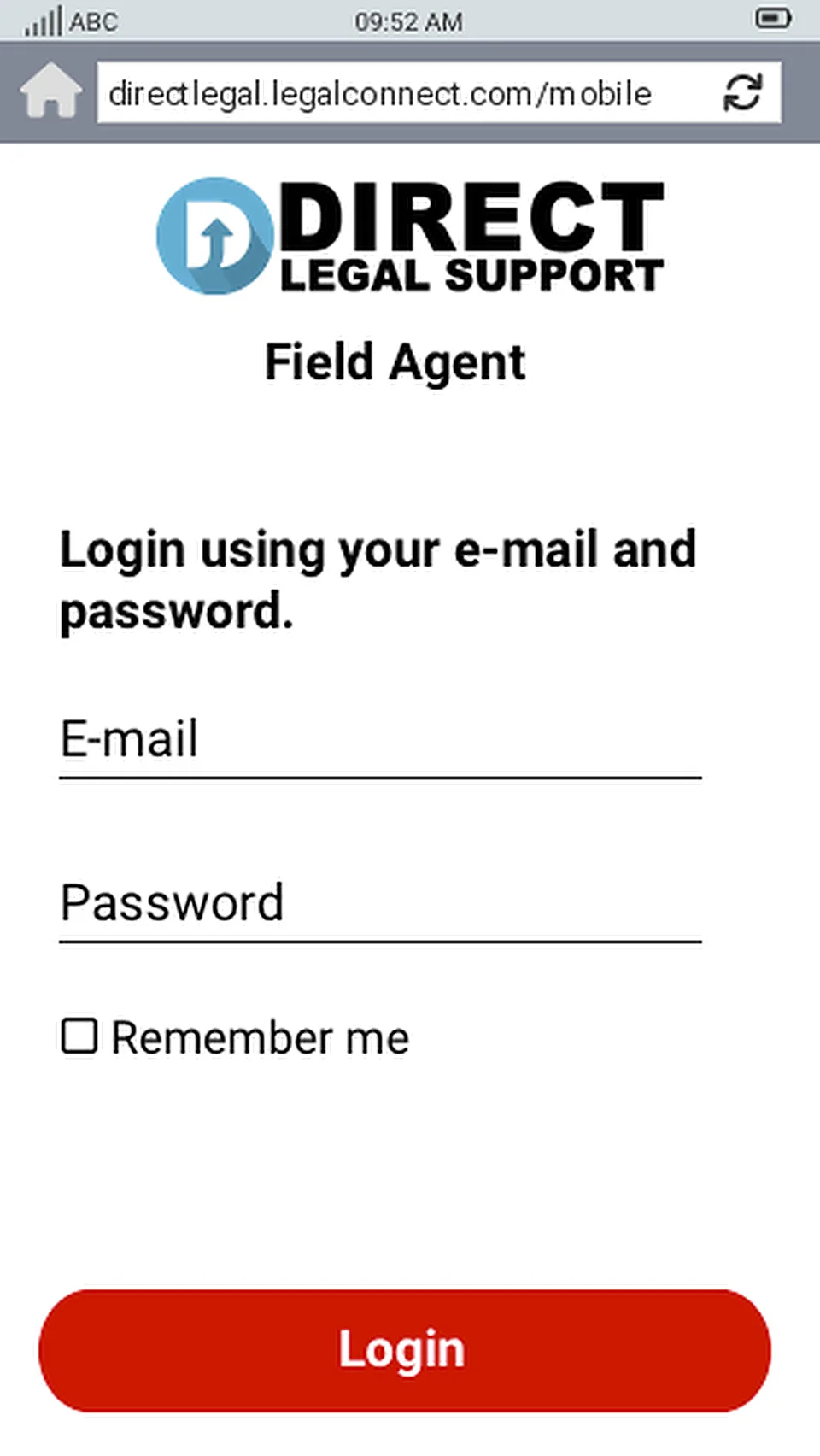
Open your phone’s web browser and go to directlegal.legalconnect.com/mobile.
Enter the E-mail address and Password you already use for the Direct Legal Support portal, then tap Login.
2 Open an order from your list
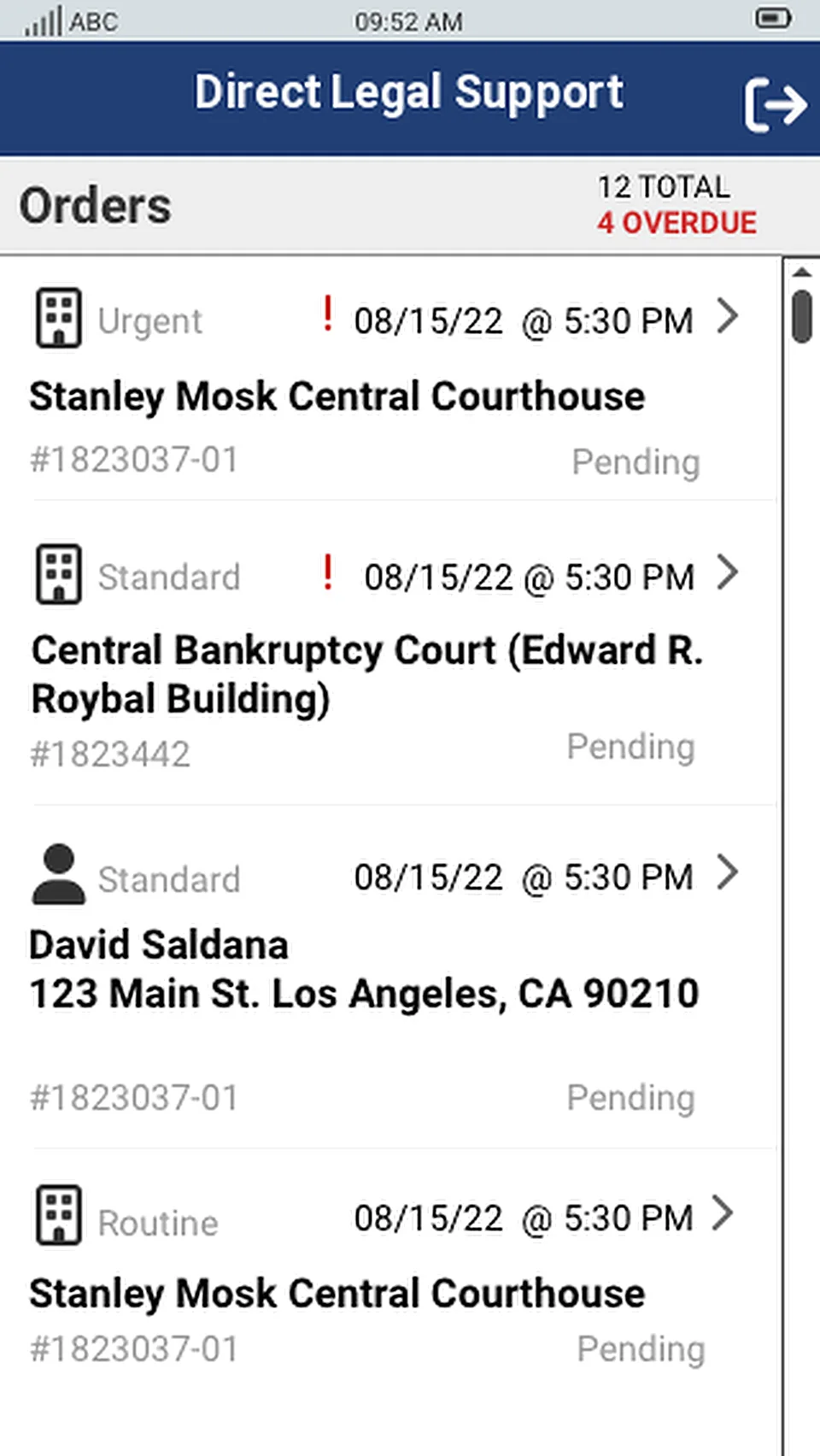
After you log in, you see a list of all your Received, Pending and Executed orders, for every type of order. Each order shows:
- The order number
- The status
- The order type, as an icon
- The service level
- The date and time the next update is due
- The primary location
Tap an order to open its status update page.
3 Record the status update
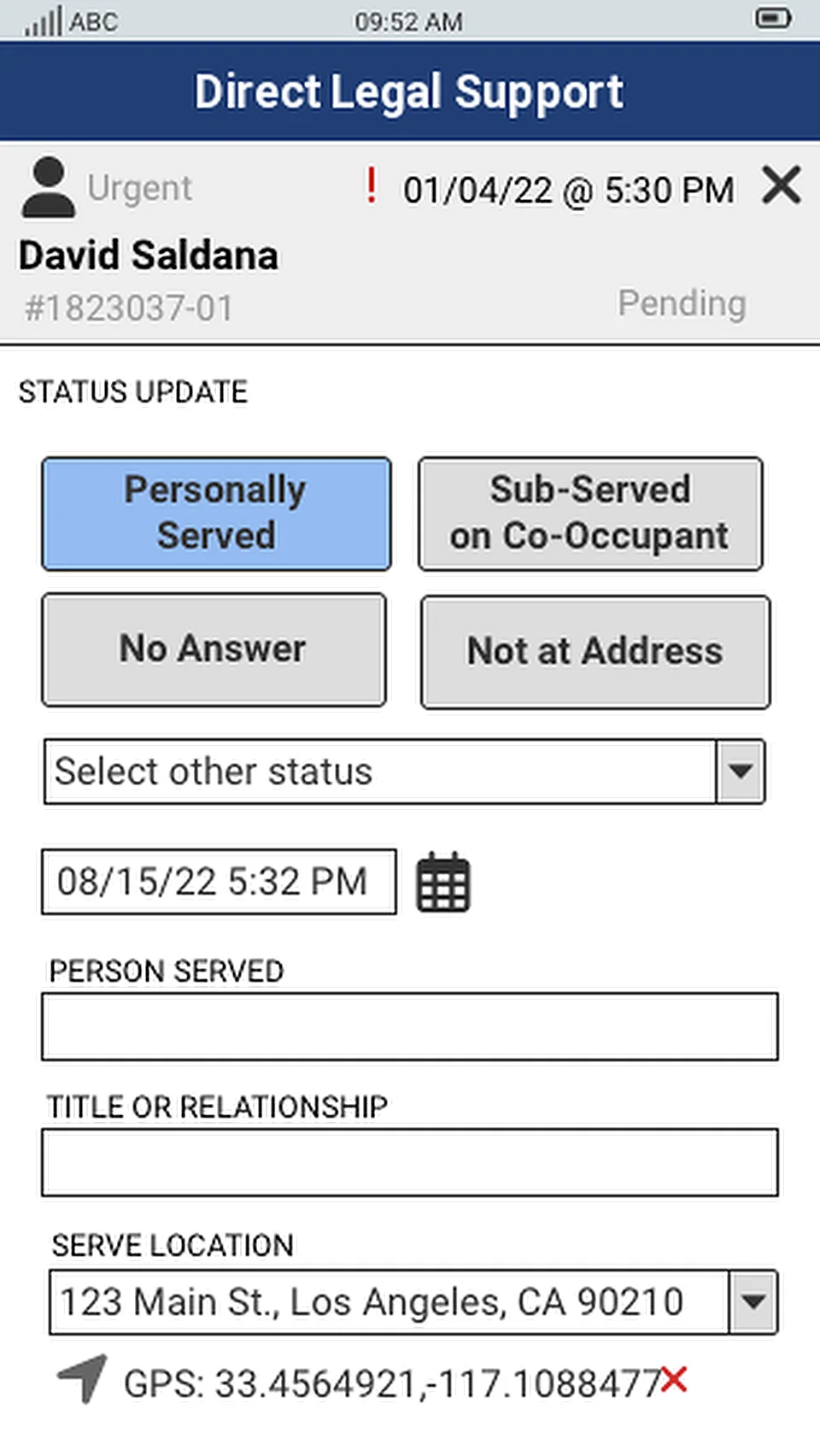
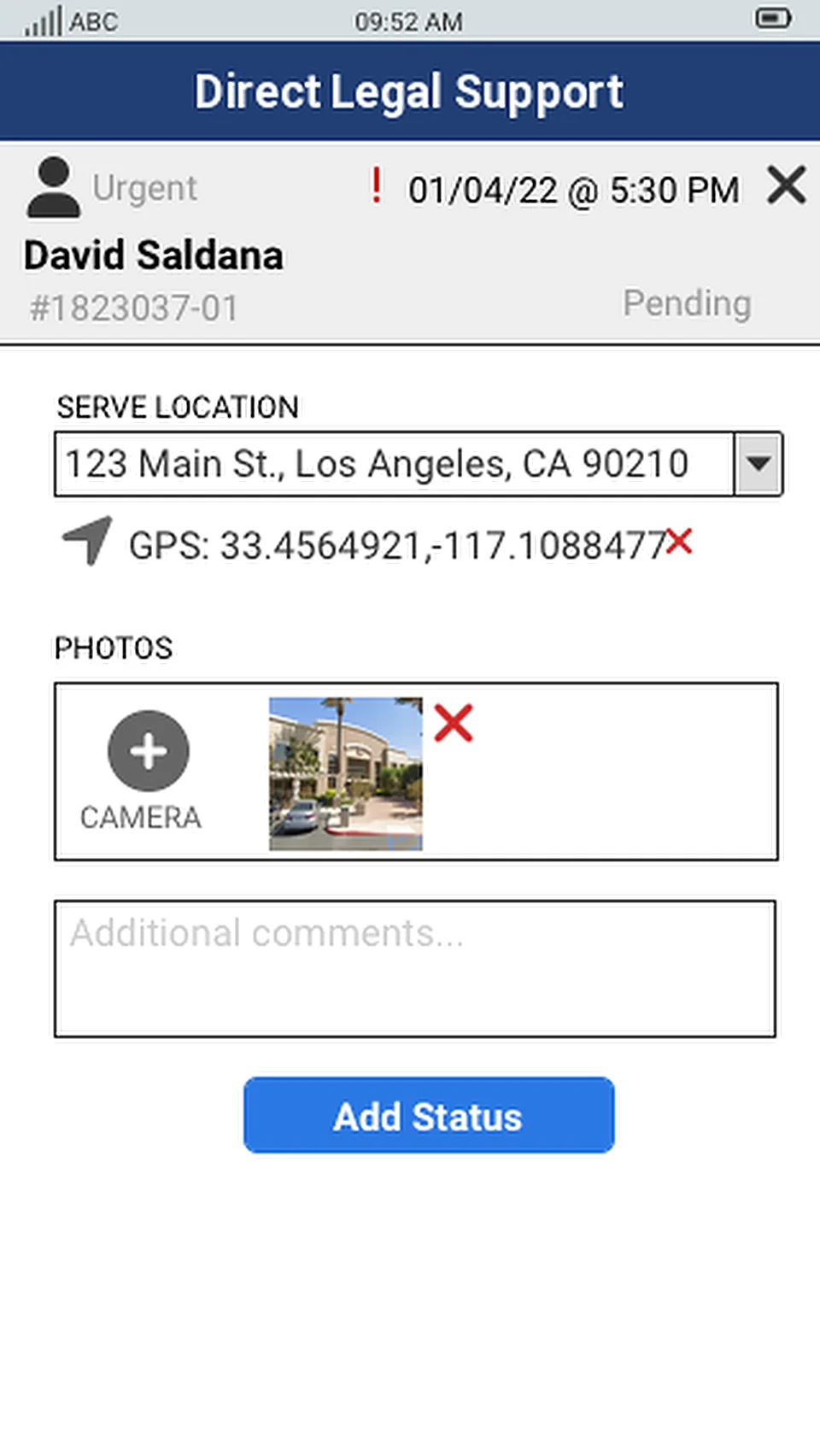
- Choose the status. Tap a quick status at the top, such as Personally Served or No Answer, or tap Select other status for the full list.
- Check the date and time. The serve date and time are filled in for you. Change them if you need to.
- Enter the details that apply: Person Served, Title or Relationship and Serve Location.
- Add photos if you have them. Tap Camera to add up to 5 photos, and add any comments.
- Tap Add Status.
4 Check the confirmation
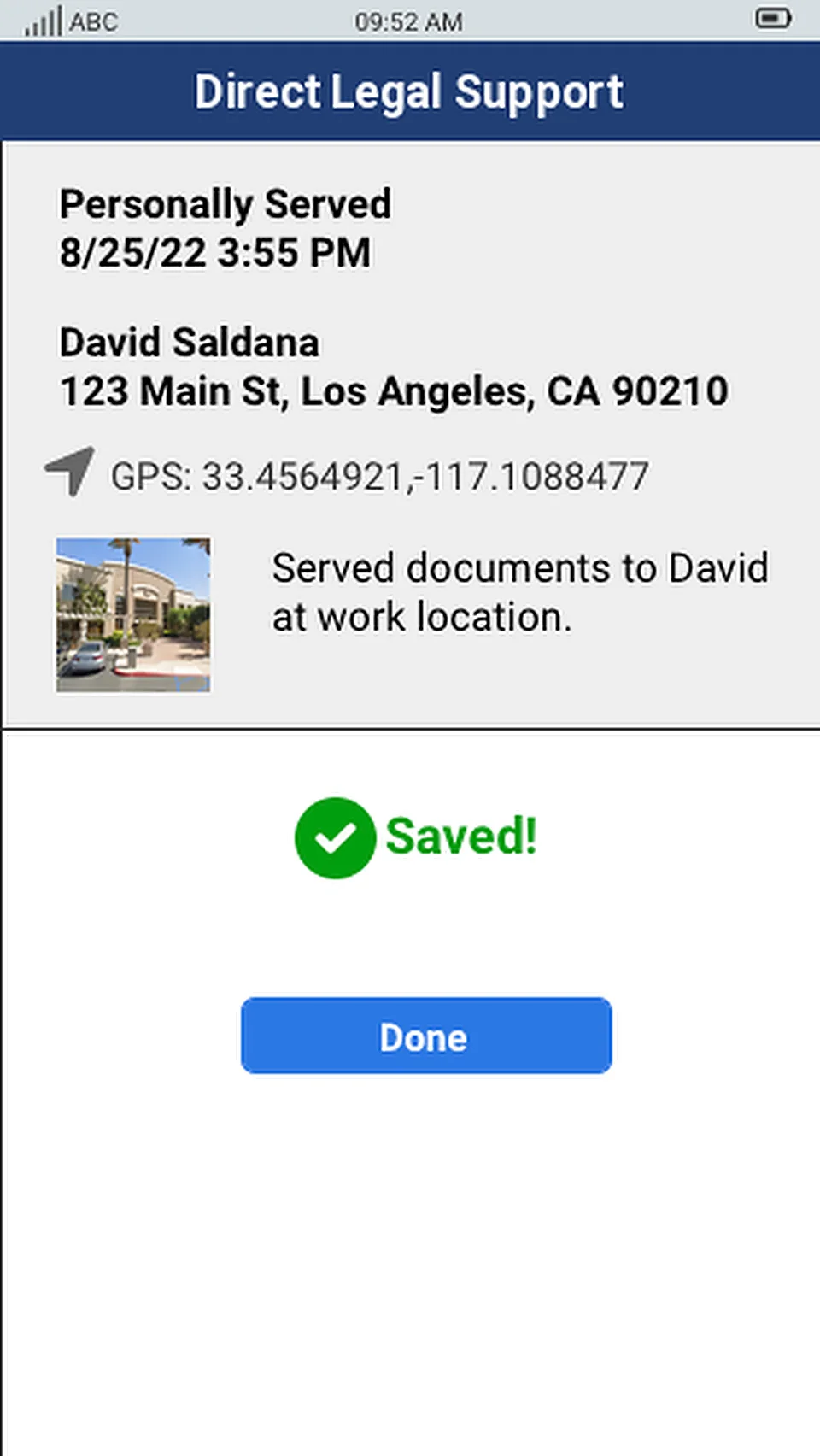
A summary of your update appears with Saved! Tap Done.
Your update goes into the Direct Legal Support portal right away. The client sees it under Pending Orders and Closed Orders, and we see it in the status updates in our operations portal.
A copy of the status update, including your GPS location and photos, is also emailed to the client.
5 Update other orders at the same address
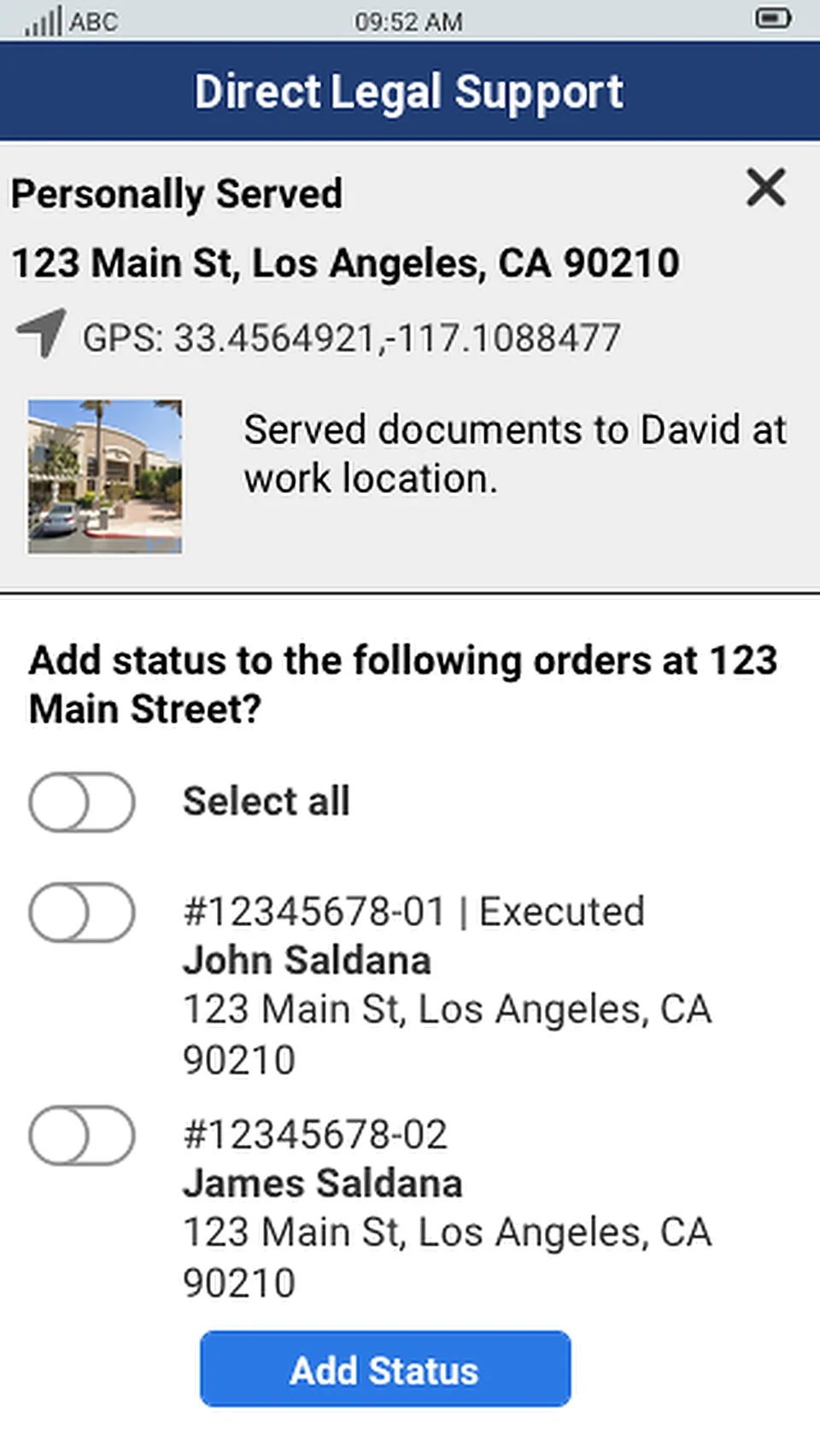
To save time, you can apply the same status update, including the GPS location and photos, to other orders at the same address.
After you submit an update, any other orders at that address are listed. Turn on Select all, or turn on only the orders you want, then tap Add Status.
What happens to your update
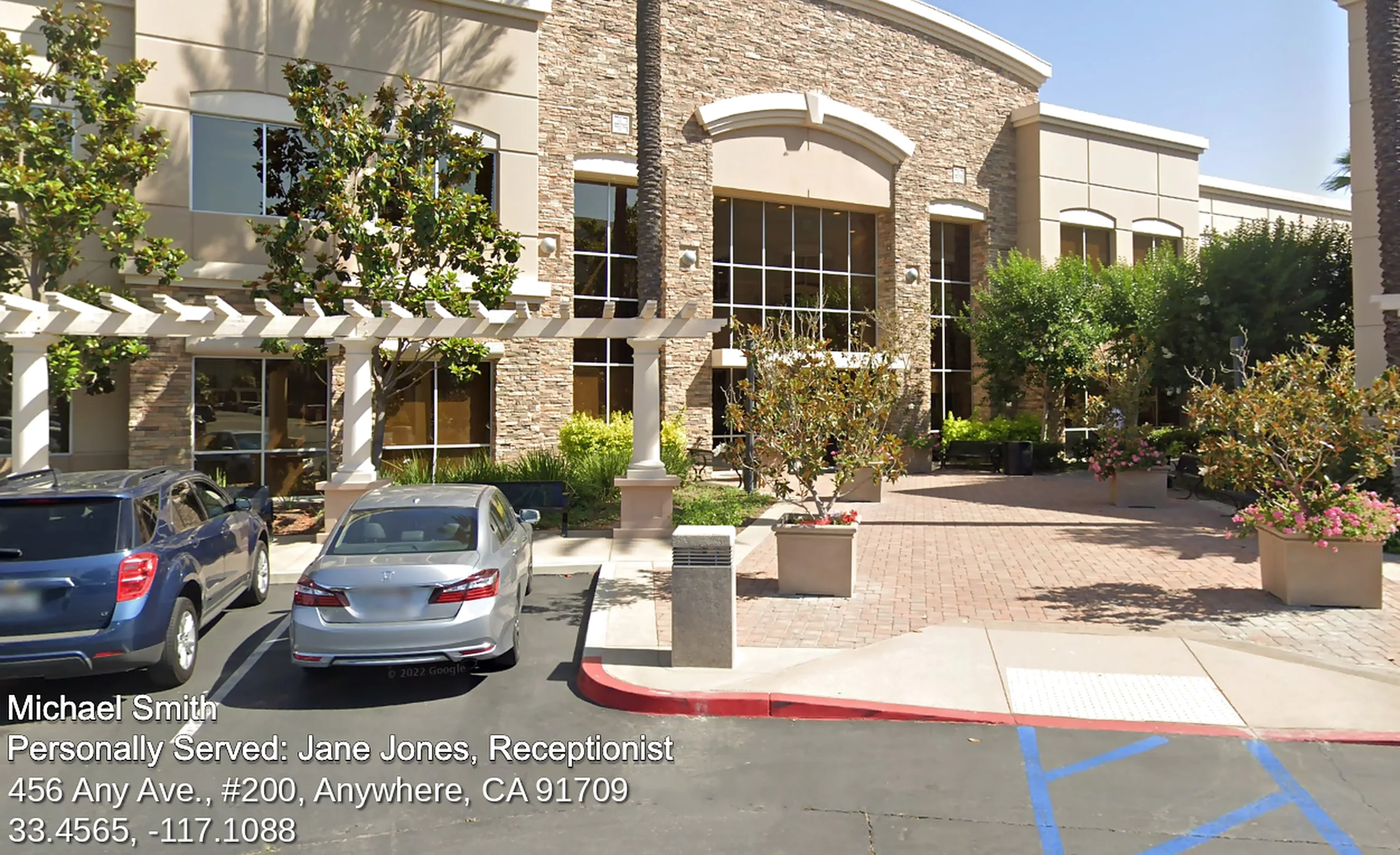
Serve and GPS details are added to your photos
- The serve and GPS information is added to each photo automatically.
- Your photos can be viewed in the client’s portal and in Direct Legal’s operations portal.
- The photos are also emailed to the client.
The client sees it in the portal
Your status update, GPS location and photos appear on the order detail page in the client’s portal. The client can open it from search, Pending Orders or Closed Orders.
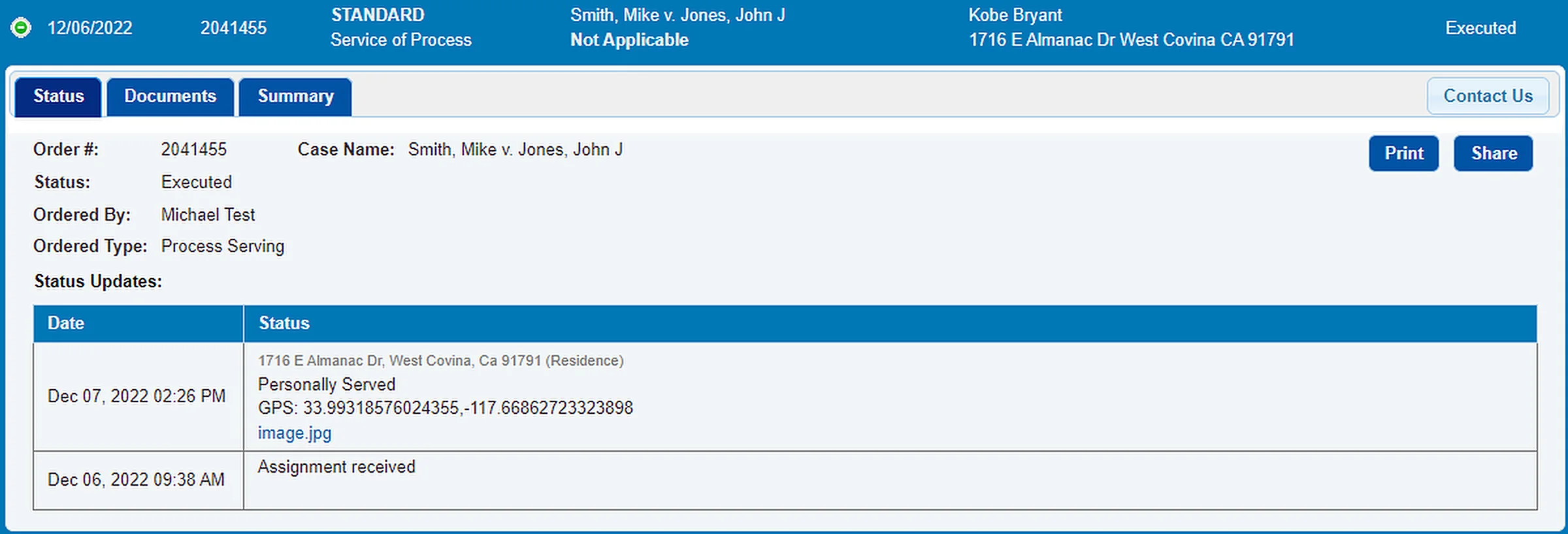
Direct Legal sees it in the operations portal
The same status update, GPS location and photos also appear on the order detail page in Direct Legal’s operations portal.

Questions? We’re here to help.
Call Direct Legal Support Monday to Friday, 8:30 a.m. to 5:00 p.m. Pacific, or email info@directlegal.com. Ready to update an order? Open the mobile site.
Prefer paper? Download this guide as a PDF to print or save. More guides: Client Portal Guides.