
Start here
Log in to the portal →Or go to directlegal.legalconnect.com and log in with your email address and password. Use a current version of Chrome, Edge, Firefox or Safari.
What you will need
- Your email address and password
- The case name or case number you are looking for
1 Click Manage Cases
Log in to your account. On your dashboard, click Manage Cases.

2 Find your case
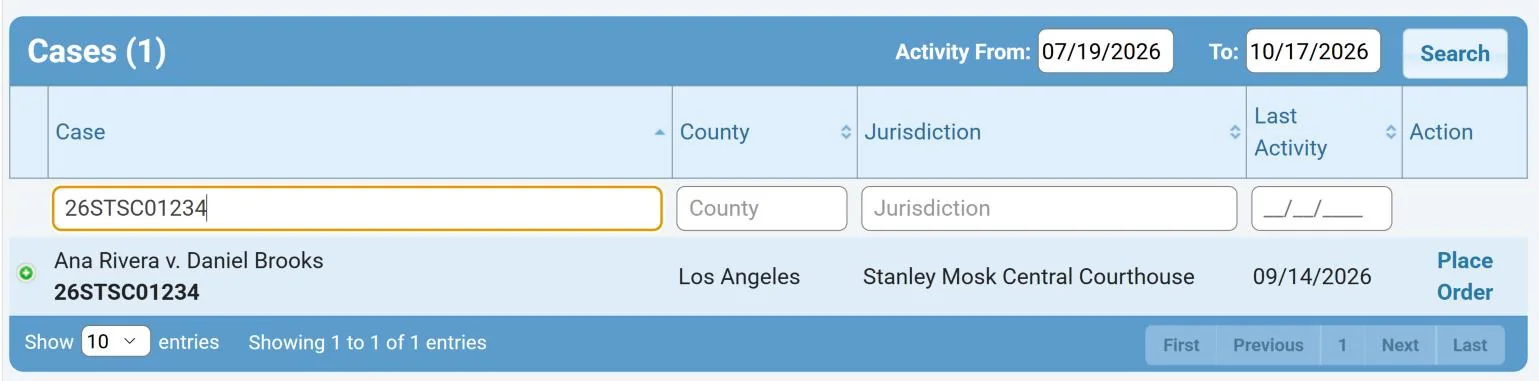
The list shows the cases with activity between the Activity From and To dates, the last 90 days unless you change them (1). To find a case, type the case name or case number in the Case Name or Case Number box under Case and press Enter (2). You can also narrow the list by County, Jurisdiction or Last Activity.

3 Place an order or open the case
When your case appears, click Place Order to start a new order on this case without entering the case information again. To see the case’s orders and documents, click the icon next to the case name.
Inside a case
4 See the orders in the case
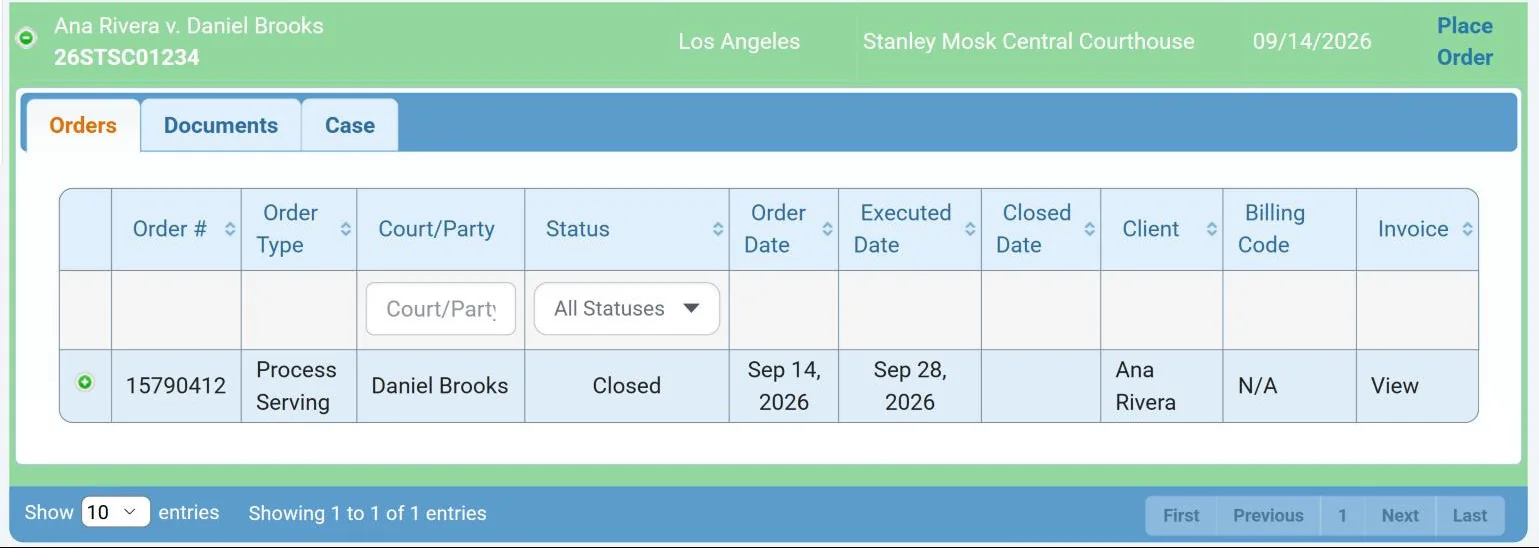
The Orders tab lists every pending and closed order in the case, with the order type, the court or party, the status, the order, executed and closed dates, the client and billing code, and a link to the invoice. Filter the list by Court/Party or Status, or click View under Invoice to see the invoice. Click the icon next to an order to see its details.
5 Check an order’s status
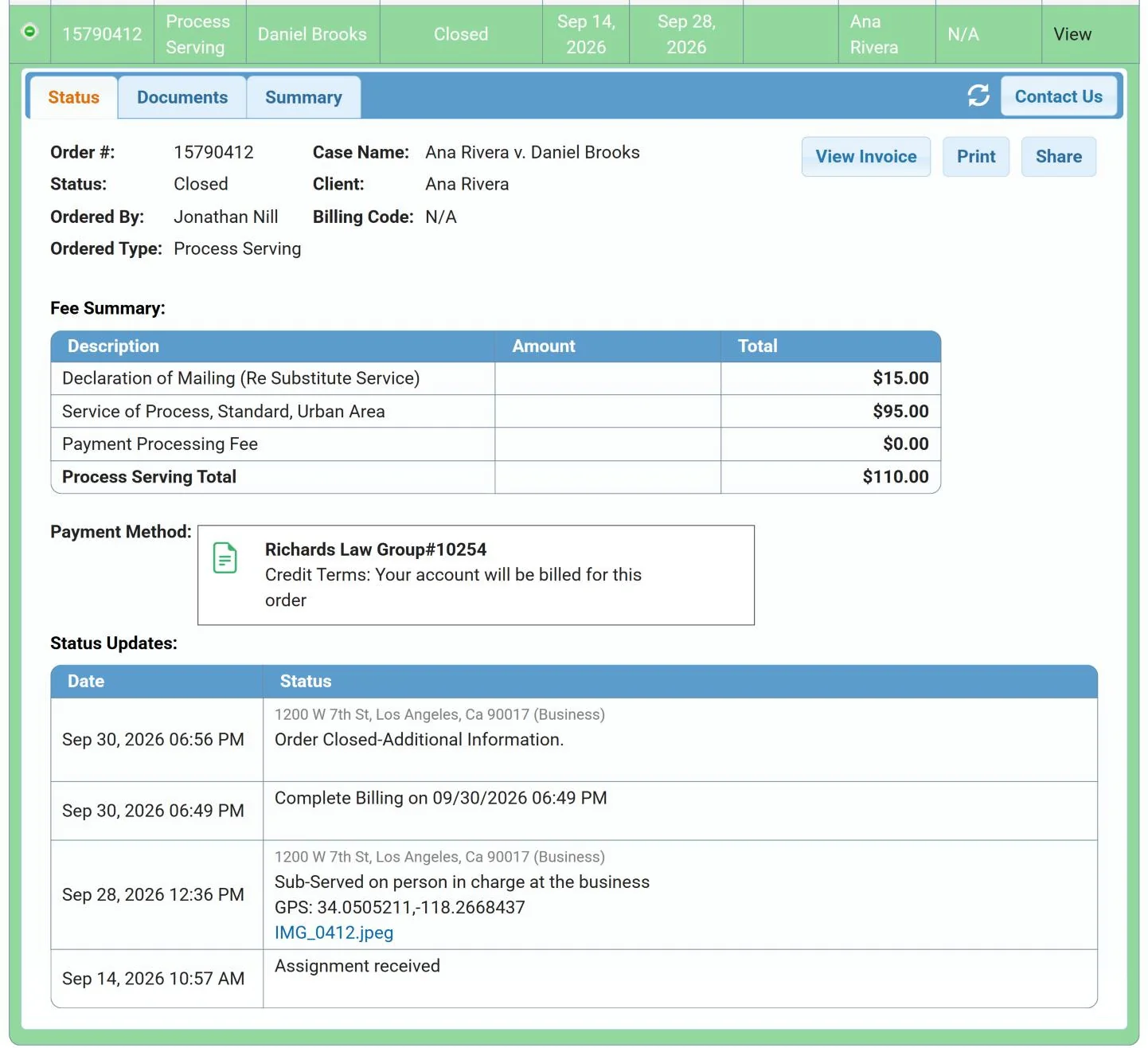
The order opens with Status, Documents and Summary tabs (1). The Status tab shows the order details, the fee summary and each status update with its date and time. Click View Invoice, Print or Share to see, print or send the order (2).
6 View and download documents
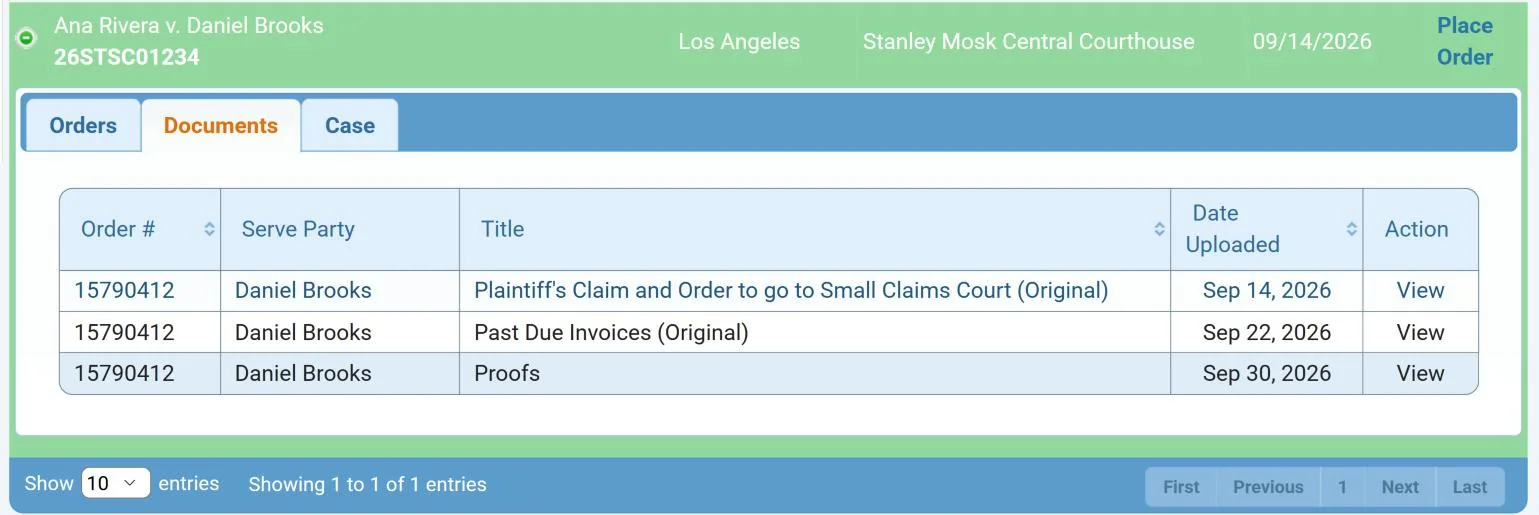
The Documents tab lists every document uploaded for the case, with the order number, the party served and the date it was uploaded. Click View to view, download or print a document, such as a conformed copy or proof of service.
7 Check or edit the case information
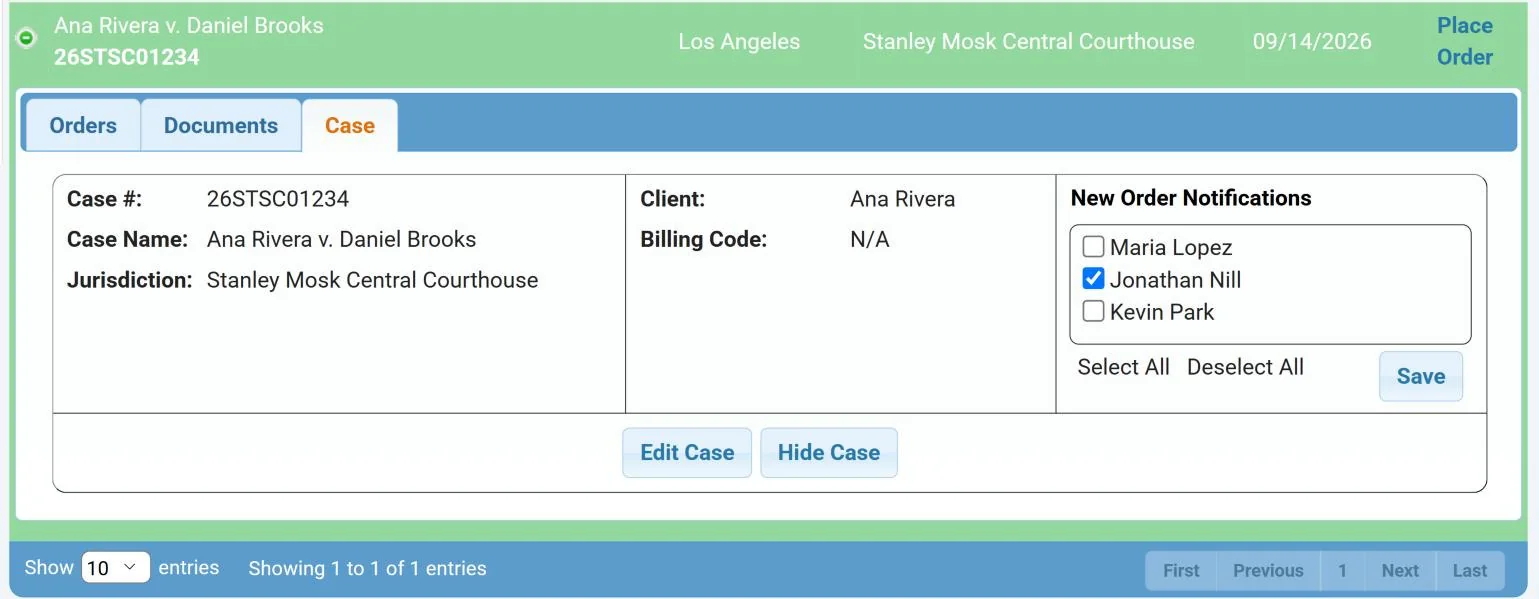
The Case tab shows the case number, case name, jurisdiction, client and billing code (1). Click Edit Case to change them (2). Under New Order Notifications, check the users who should be notified about new orders on this case, then click Save (3).
To remove a case from your list, click Hide Case. You can still find it with the search in step 8.
Find older or hidden cases
8 Search all of your firm’s cases
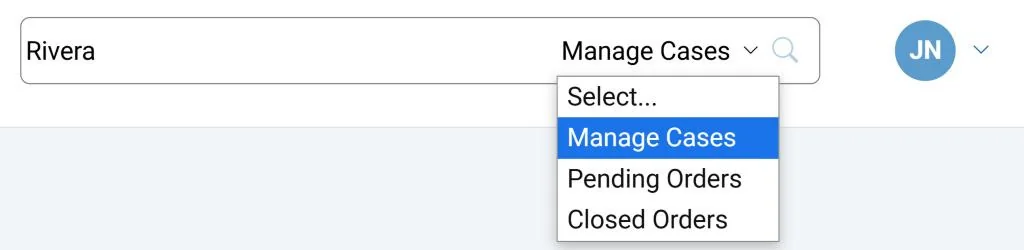
The Manage Cases list shows cases with recent activity. To find a case with no recent activity, or one you hid, use the search bar at the top of every page. It searches your firm’s entire database. Type the case name or number (1), choose Manage Cases in the list at the right of the box (2), and click the search icon (3). You can search Pending Orders and Closed Orders the same way.
Questions? We’re here to help.
Call our Litigation Division Monday to Friday, 8:30 a.m. to 5:00 p.m. Pacific, or email info@directlegal.com. Ready to order? Log in to the portal.
Prefer paper? Download this guide as a PDF to print or save. More guides: Client Portal Guides.