
Start here
Log in to the portal →Or go to directlegal.legalconnect.com and log in. The Clio option is on the Documents tab of an eFiling order. New to eFiling? See our eFiling guides for new and existing cases.
What you will need
- A Clio Manage account, and its email address and password
- Your documents saved in Clio under the right client and matter
- An eFiling order started in the portal
Connect Clio to your eFiling order
1 Choose Clio on the Documents tab
Start an eFiling order and go to the Documents tab. Choose the document type under Select Document Type, then click Browse and choose Clio Manage.
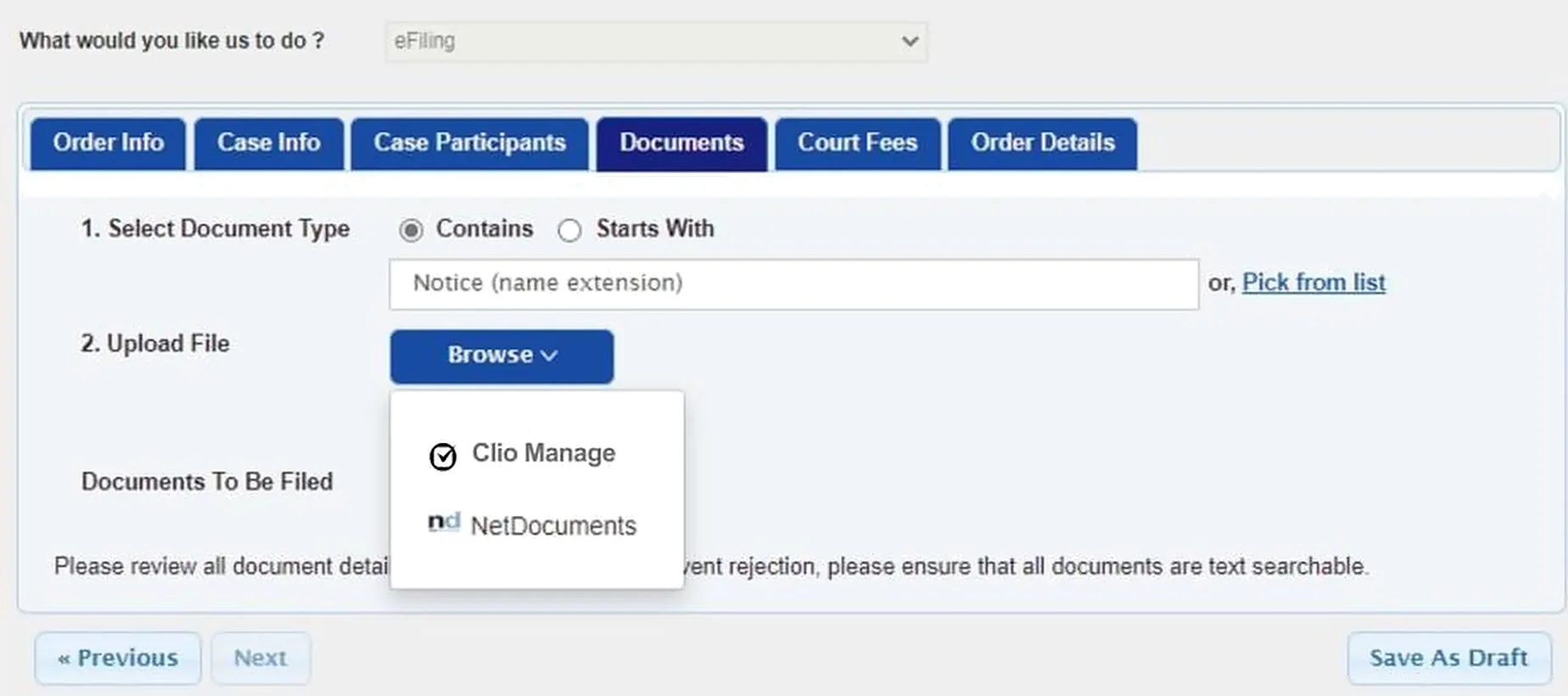
2 Sign in to Clio
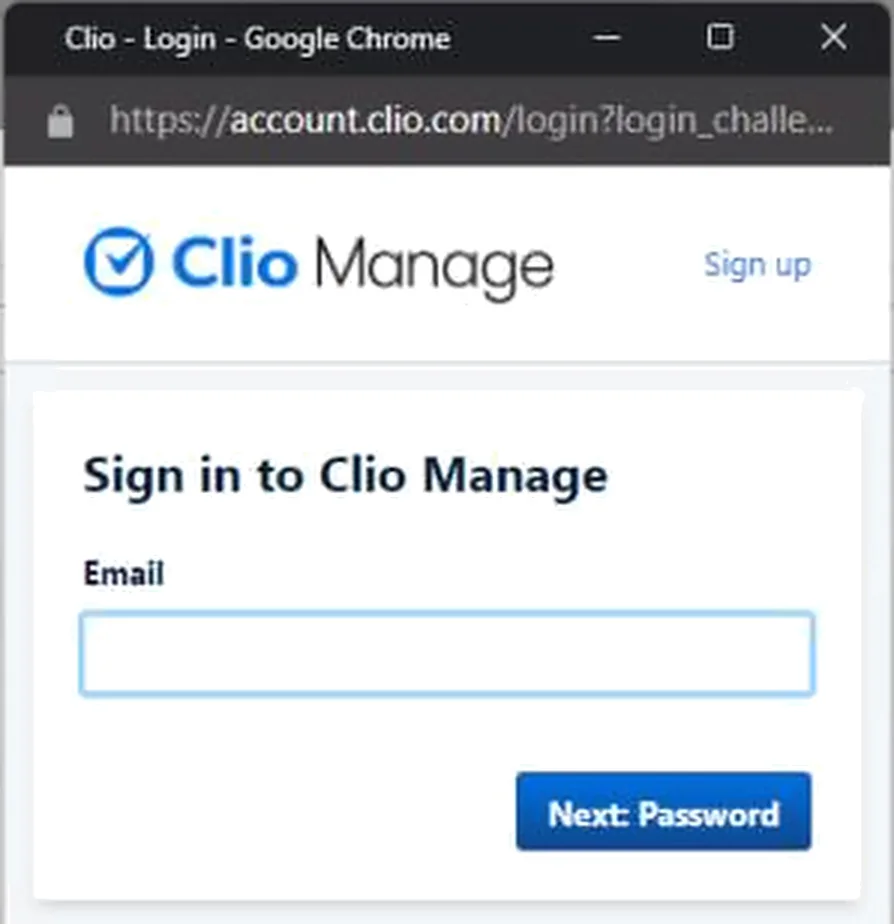
A Clio window opens. Enter the email address for your Clio account, click Next: Password, then enter your password.
3 Allow the connection
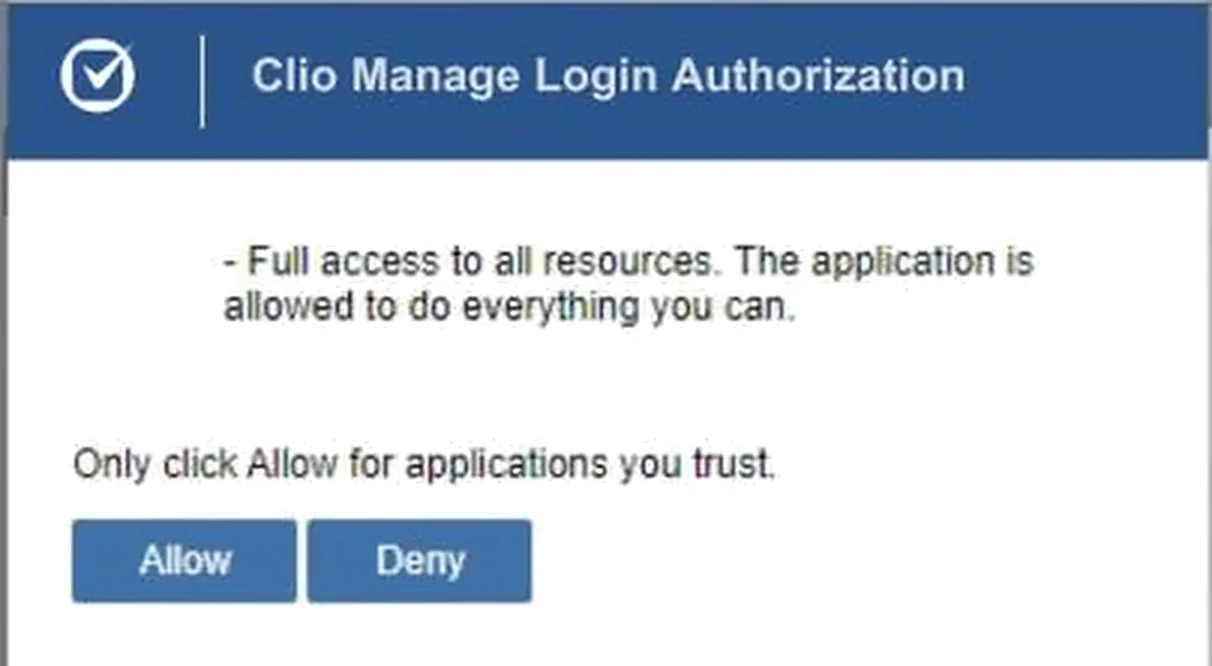
Clio asks you to allow the connection to your Clio account. Click Allow.
The window closes and you return to your order, where the Clio file window opens.
Add documents from Clio
4 Choose your document
Use the lists at the top of the Clio window to choose where the document is saved in Clio, such as the Client and Matter. The matter’s folders and files appear below, and you can search for files within the matter. Open the folders, select your file and click Upload File.
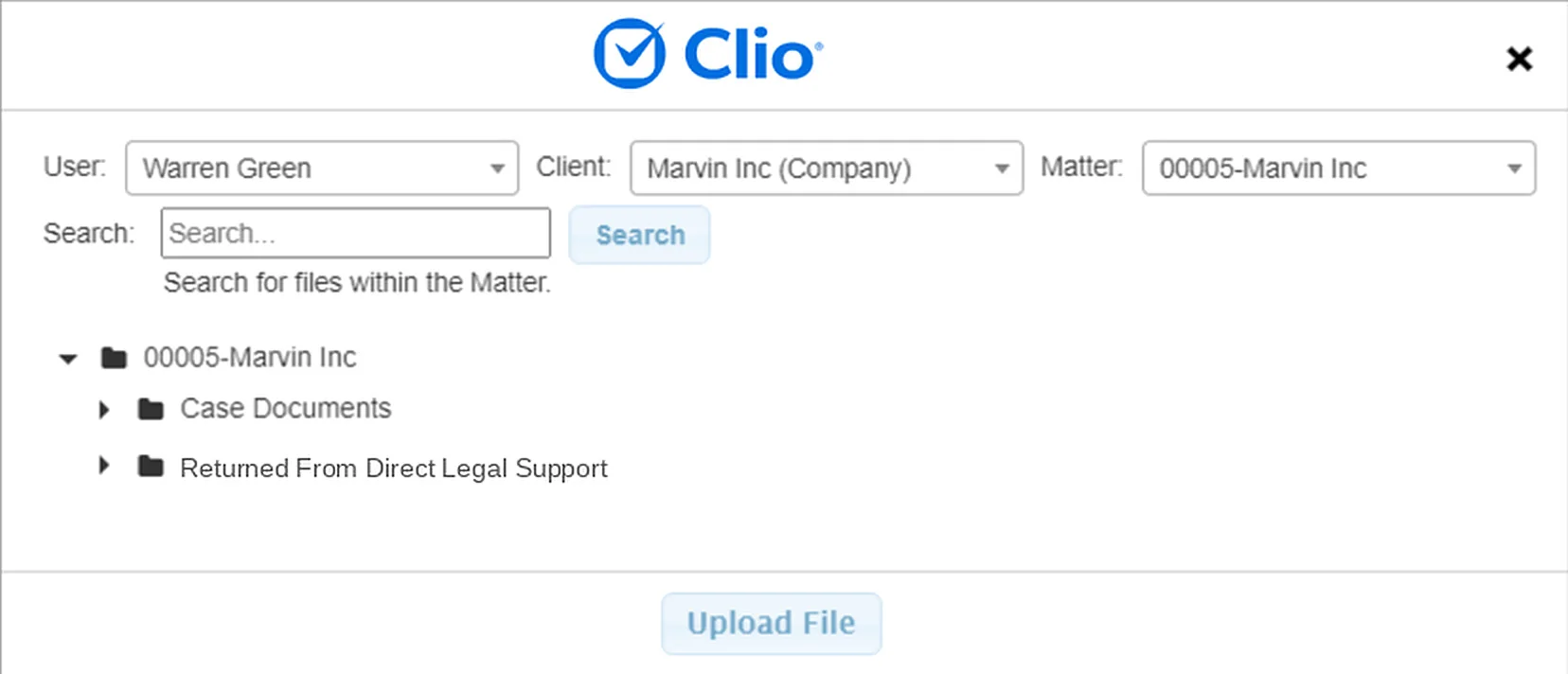
5 Check the document in your order
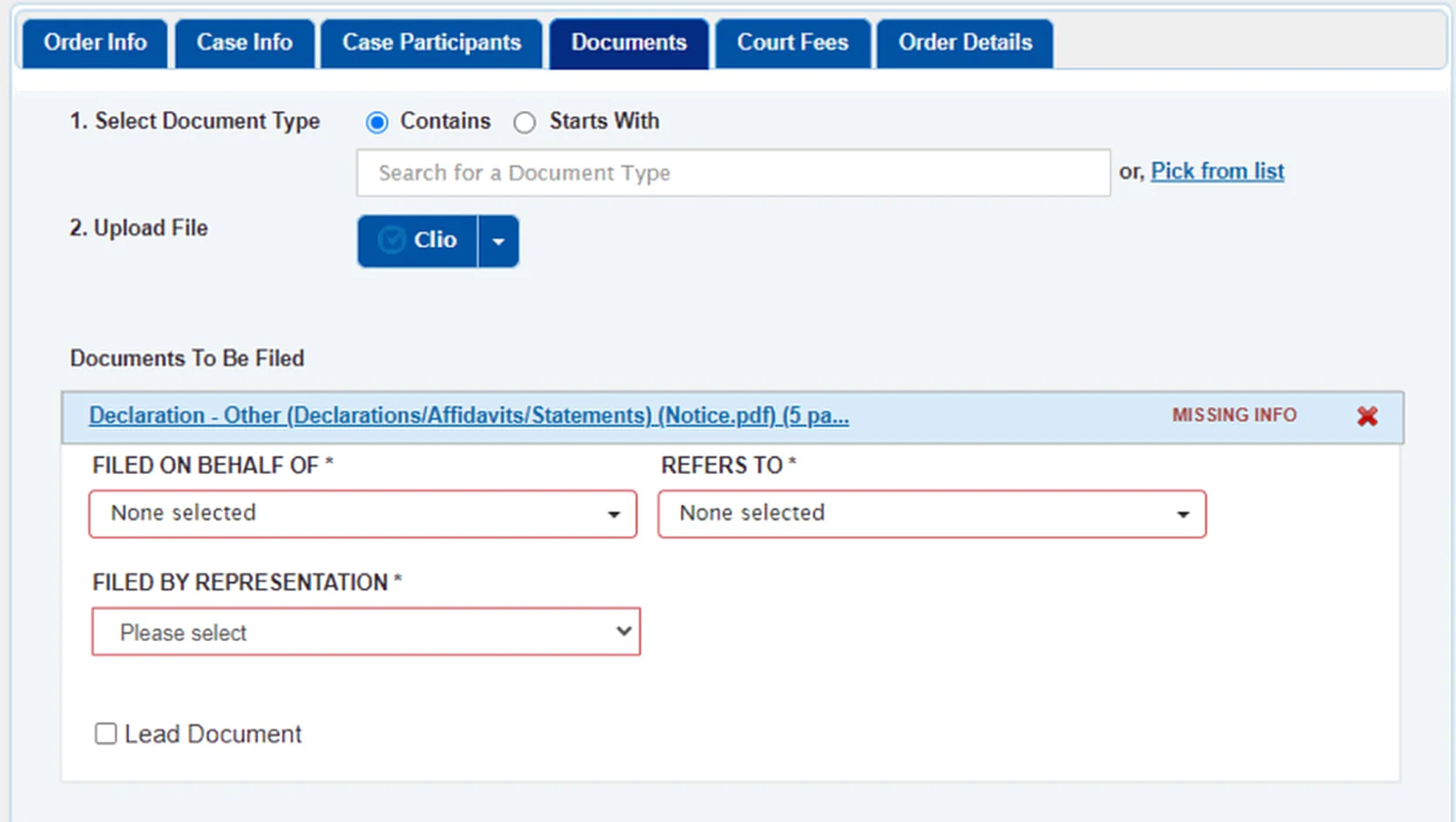
The document is pulled from Clio into your order and appears under Documents To Be Filed. Complete the fields marked with an asterisk (*).
To add another document, choose its document type and pick the file the same way. You can add as many as you need. Then finish your eFiling order as usual.
Find the court’s returned documents in Clio
When the court clerk processes your eFiling, you get an email telling you whether it was Accepted, Rejected or Partially Accepted, with links to download the documents. The documents are also on the order’s Deliverables tab in the portal, and they are saved in Clio automatically, under the client and matter you chose for the order.
6 Open the matter in Clio
In Clio, open the client and matter you chose for the order. On the Documents tab, open the folder named Returned From followed by our company name, Direct Legal Support.
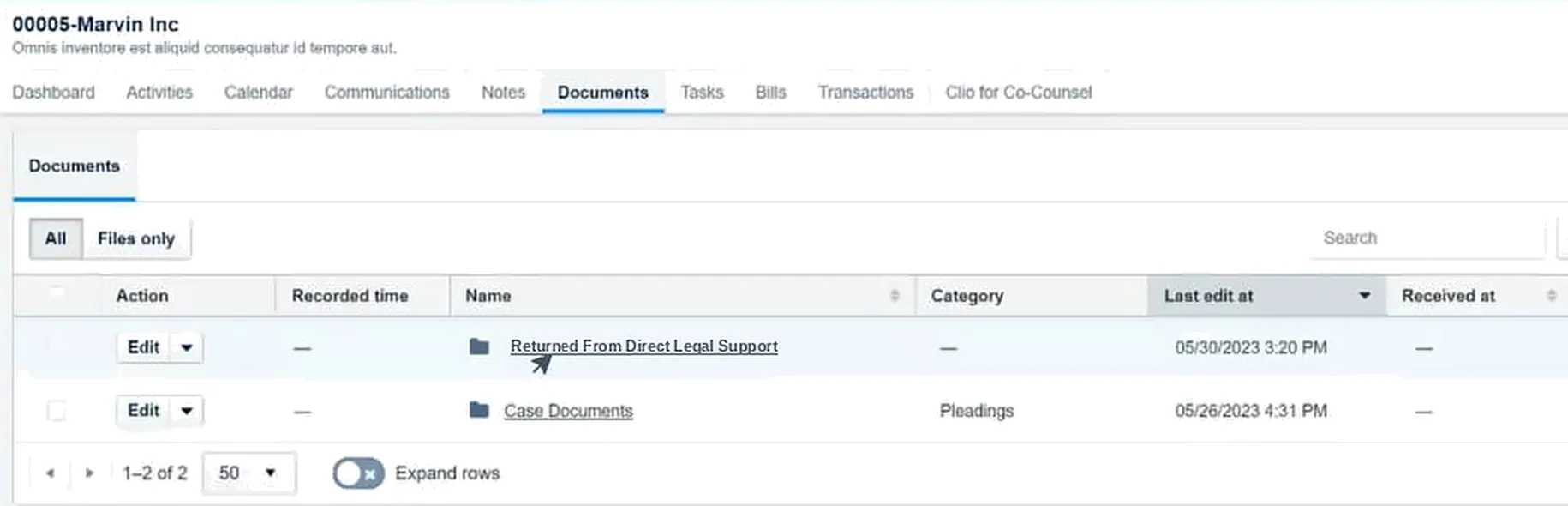
7 Open the folder for your order
The Returned From folder holds one folder for each eFiling order sent under this client and matter. Each one is named Order- followed by the order number. Open the one that matches the order number you got when you placed the order. Inside are the documents returned from the court, such as conformed copies, receipts and notices.

View eFiling expenses in Clio
Charges for your submitted eFiling orders are saved in Clio as well as in your Direct Legal account. This makes it easier to reconcile expenses and invoice your clients.
8 Open Activities
In Clio, click Activities on the left. Your eFiling charges are listed as expenses. You can look through them by matter, date or type, and check the status of each expense’s invoice. To change an expense, click Edit in its row.
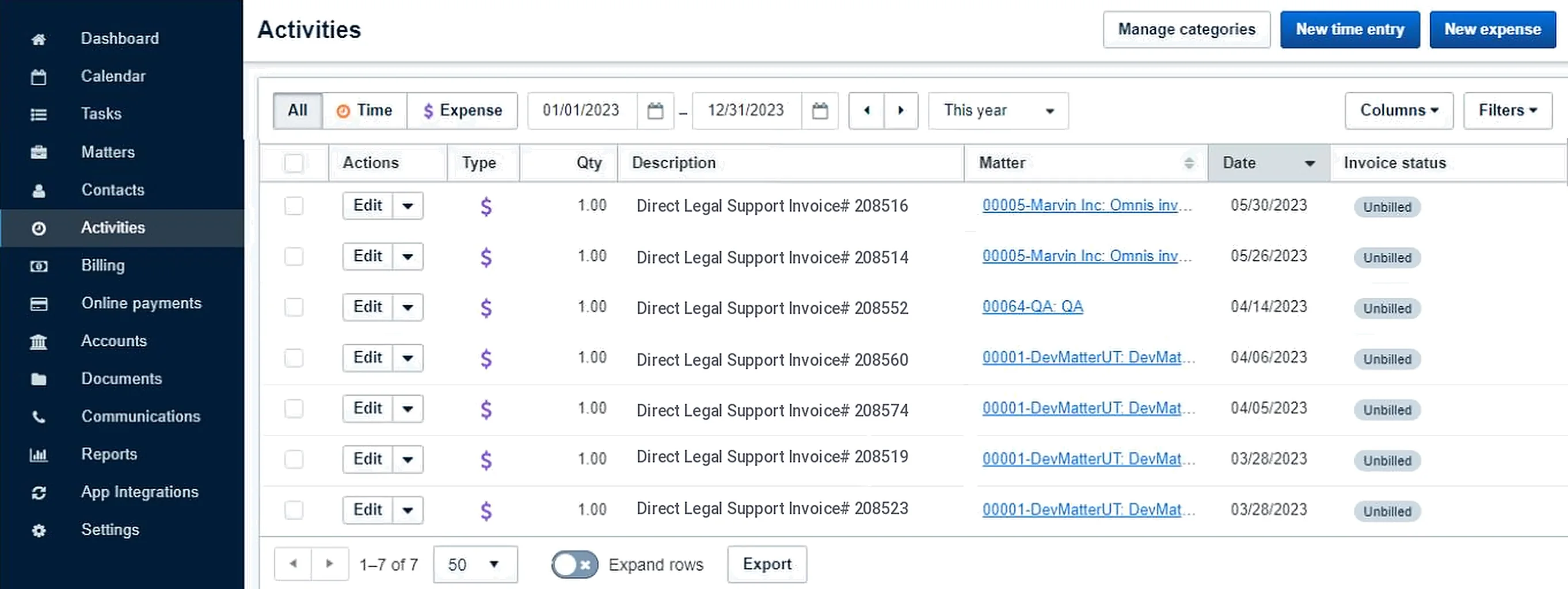
9 Choose an expense category
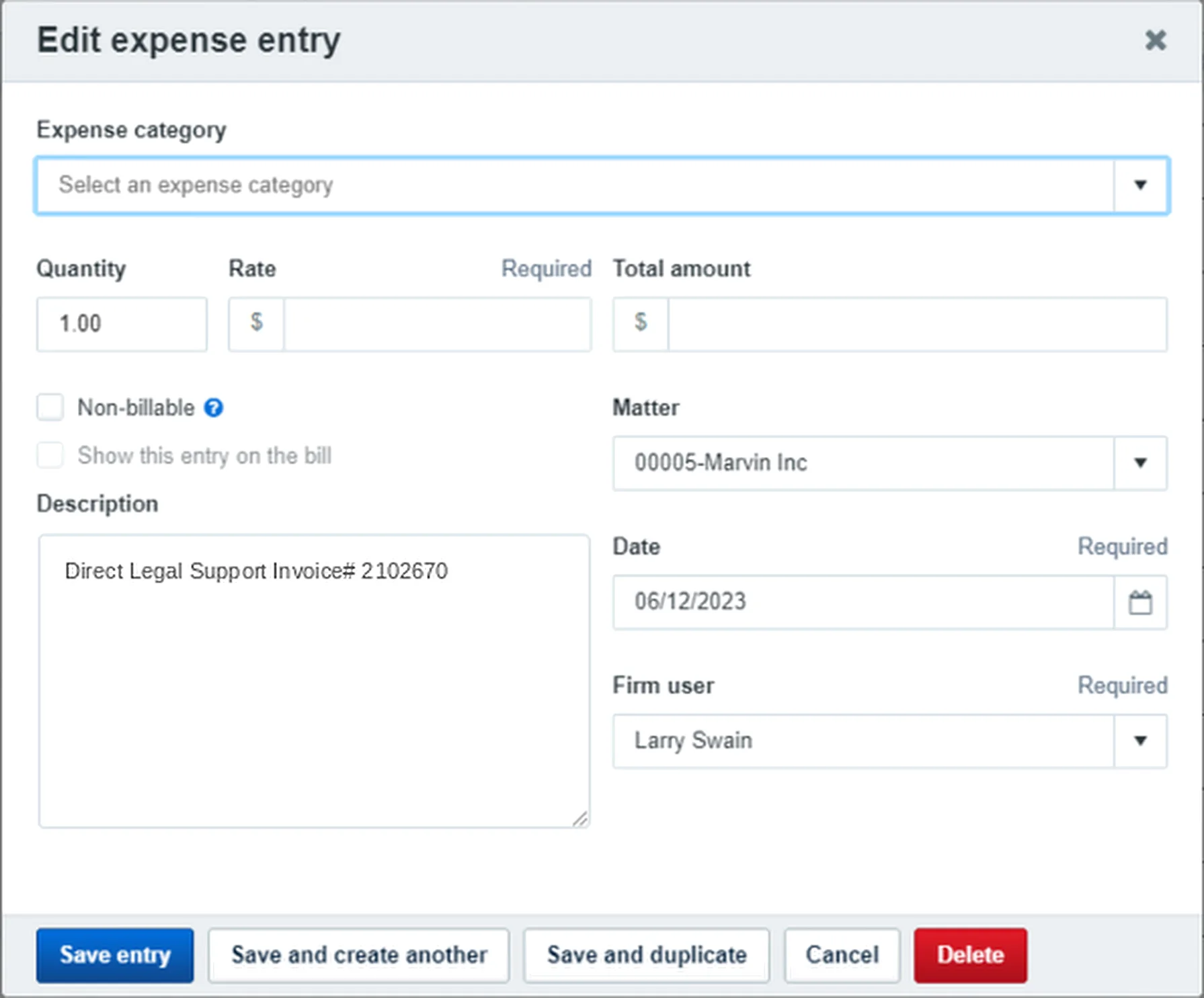
The Edit expense entry window opens. Choose an Expense category and click Save entry.
Staying connected
How long Clio stays connected to the portal depends mostly on Clio. If you place another eFiling order soon after the first, you probably won’t need to sign in again. After a longer break, Clio may ask you to sign in and allow the connection again. If your browser saves your Clio login, it fills in for you.
Good to know
Clio works with eFiling orders. The Clio option appears when you upload documents to an eFiling order, and only customers with a Clio account can connect.
Use NetDocuments? See our guide, Using NetDocuments with Direct Legal Support.
Questions? We’re here to help.
Call our Litigation Division Monday to Friday, 8:30 a.m. to 5:00 p.m. Pacific, or email info@directlegal.com. Ready to order? Log in to the portal.
Prefer paper? Download this guide as a PDF to print or save. More guides: Client Portal Guides.