
Start here
Log in to the portal →Or go to directlegal.legalconnect.com and log in with your email address and password. Use a current version of Chrome, Edge, Firefox or Safari.
What you will need
- Administrator access on your Direct Legal account. Only administrators can see Reports.
- The case number exactly as the court shows it, for the Case Fee Report
1 Open Reports
Click Reports in the left menu (1). The Reports page shows a button for each report you can run (2). Click a button to open the report.
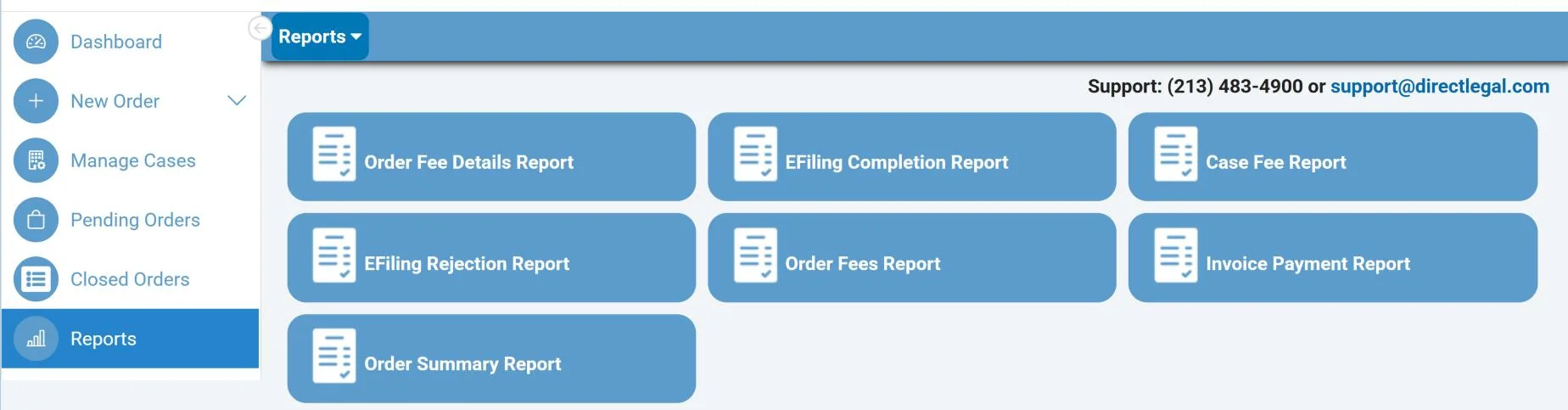
You can also point to Reports in the blue bar to see the list of reports across the page, and click one.

Run a report for a date range
2 Enter the dates
This example uses the Order Fees Report, which shows the orders and fees on your account for orders closed during a date range. The fields you fill in depend on the report.
Enter the Start Date (1) and End Date (2) of the period you want. Your account number is filled in for you. Then click View Report at the right end of the bar. The report opens on the same page.
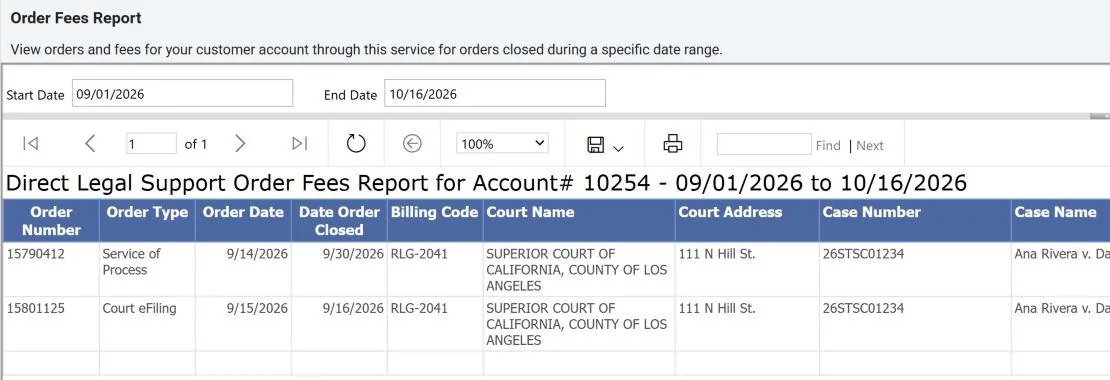
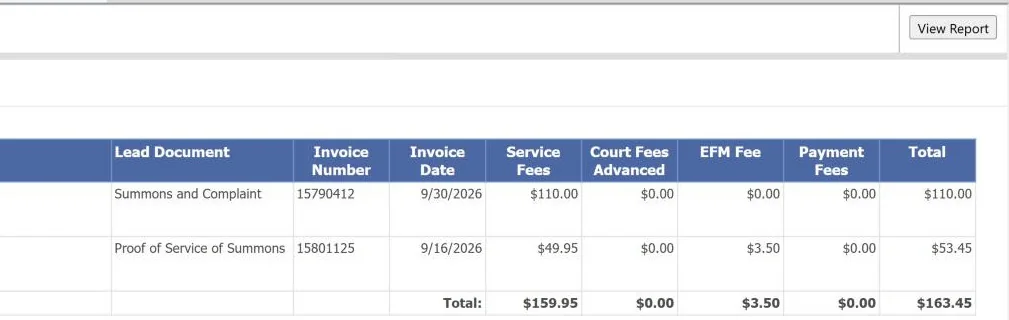
The report lists each order with its order type, dates, billing code, court, case, lead document and invoice, then the service fees, court fees advanced, EFM fee, payment fees and total for each order, with totals at the bottom.
Run a report for a case
3 Enter the case number
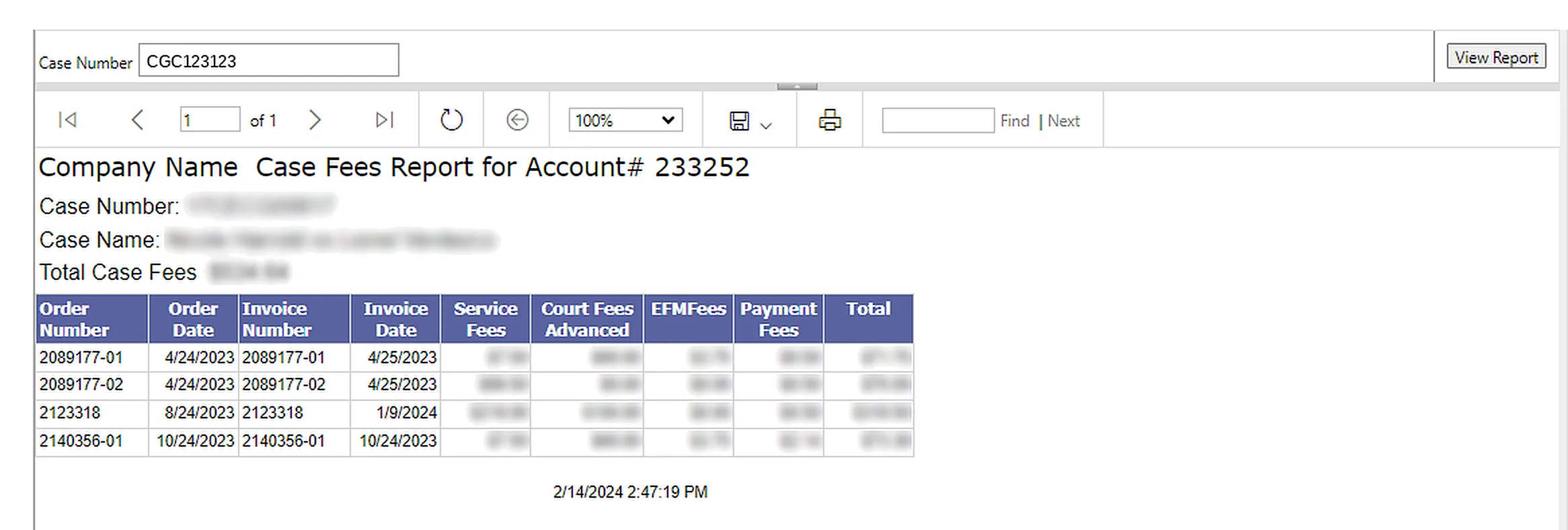
The Case Fee Report shows the service fees, court fees and EFM fees charged to your account for the orders in one case. Enter the Case Number (1) and click View Report (2). The report shows the total case fees, then the fees for each order.
Work with your report
4 Use the toolbar above your report

| Button | What it does | |
|---|---|---|
| 1 | Pages | Move between pages. The next arrow is active when there are 50 or more records. |
| 2 | Refresh | Reload the report with the latest data. |
| 3 | Zoom | View the report larger or smaller. |
| 4 | Save | Download it in Word, Excel, PowerPoint, PDF, CSV, XML or Data Feed format. |
| 5 | Print the report. | |
| 6 | Find | Search the report. Click Next to go to the next match. |
Questions and answers
Which reports can I run?
The Order Fee Details Report, eFiling Completion Report, Case Fee Report, eFiling Rejection Report, Order Fees Report, Invoice Payment Report and Order Summary Report.
Can every user on our account see reports?
No. Only administrators can view reports.
How current is the data?
Report data is updated in real time.
Can reports be customized?
No. The reports can’t be customized at this time.
Can a report be scheduled or emailed to me?
Not at this time. Run the report when you need it, then save it and attach the file to an email.
Can I use report data in other software?
Yes. Save the report in the format your software reads, such as Excel, CSV or XML, and import it there.
Questions? We’re here to help.
Call our Litigation Division Monday to Friday, 8:30 a.m. to 5:00 p.m. Pacific, or email info@directlegal.com. Ready to order? Log in to the portal.
Prefer paper? Download this guide as a PDF to print or save. More guides: Client Portal Guides.