
Start here
Open the sign-up form →Or go to directlegal.legalconnect.com/Login and click New user? under the login box. Use a current version of Chrome, Edge, Firefox or Safari.
What you will need
- Your name, email address and phone number
- Your firm’s Customer Account number, from your account administrator
- The ZIP code on your firm’s account
- Your State Bar number, if you are an attorney
1 Choose Add a User to an Existing Account
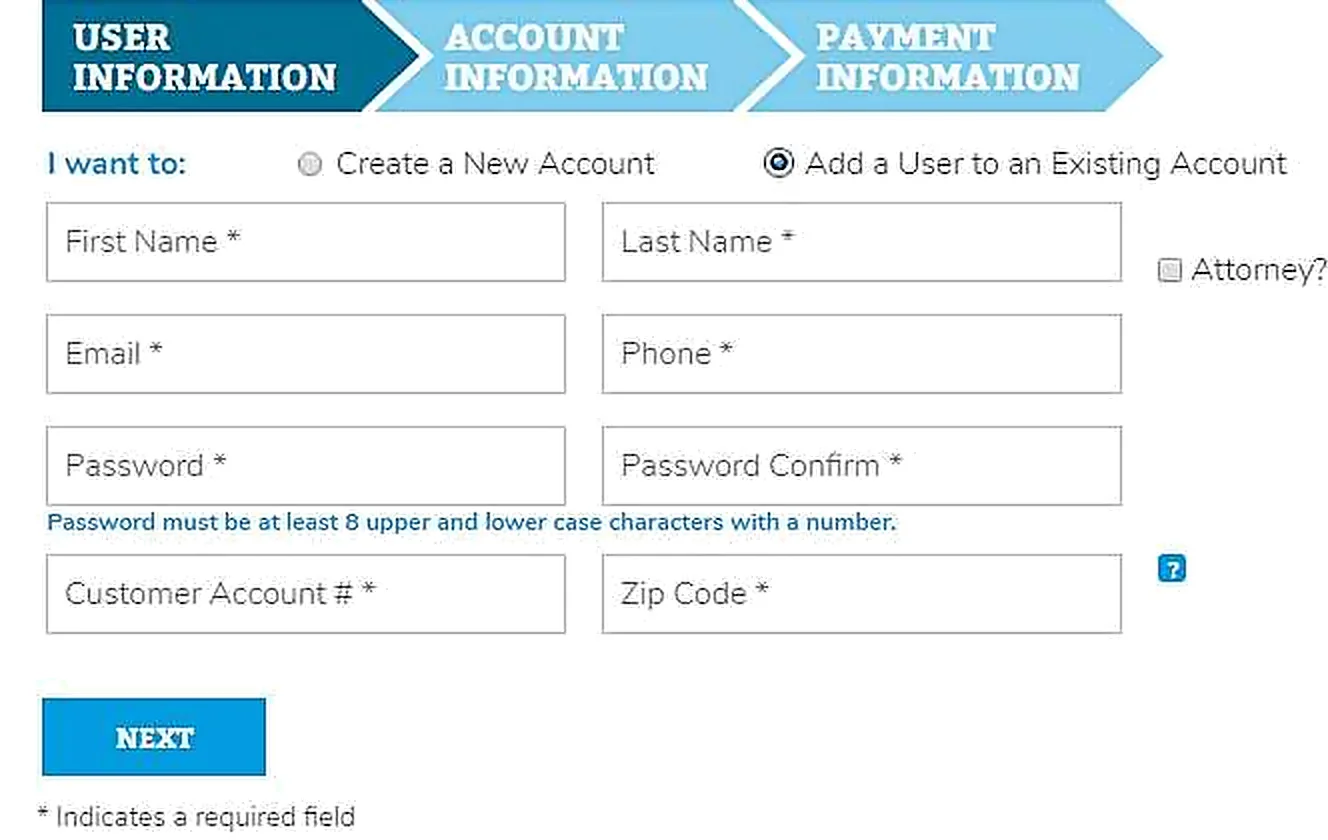
On the portal login page, click New user? under the login box. Next to I want to, select Add a User to an Existing Account (1).
Enter your First Name, Last Name, Email and Phone. Create a Password of at least 8 characters, with upper and lower case letters and a number, and type it again in Password Confirm. Then enter your firm’s Customer Account # and Zip Code (2). Your account administrator can give you the account number. Click Next (3).
2 Confirm your firm’s account
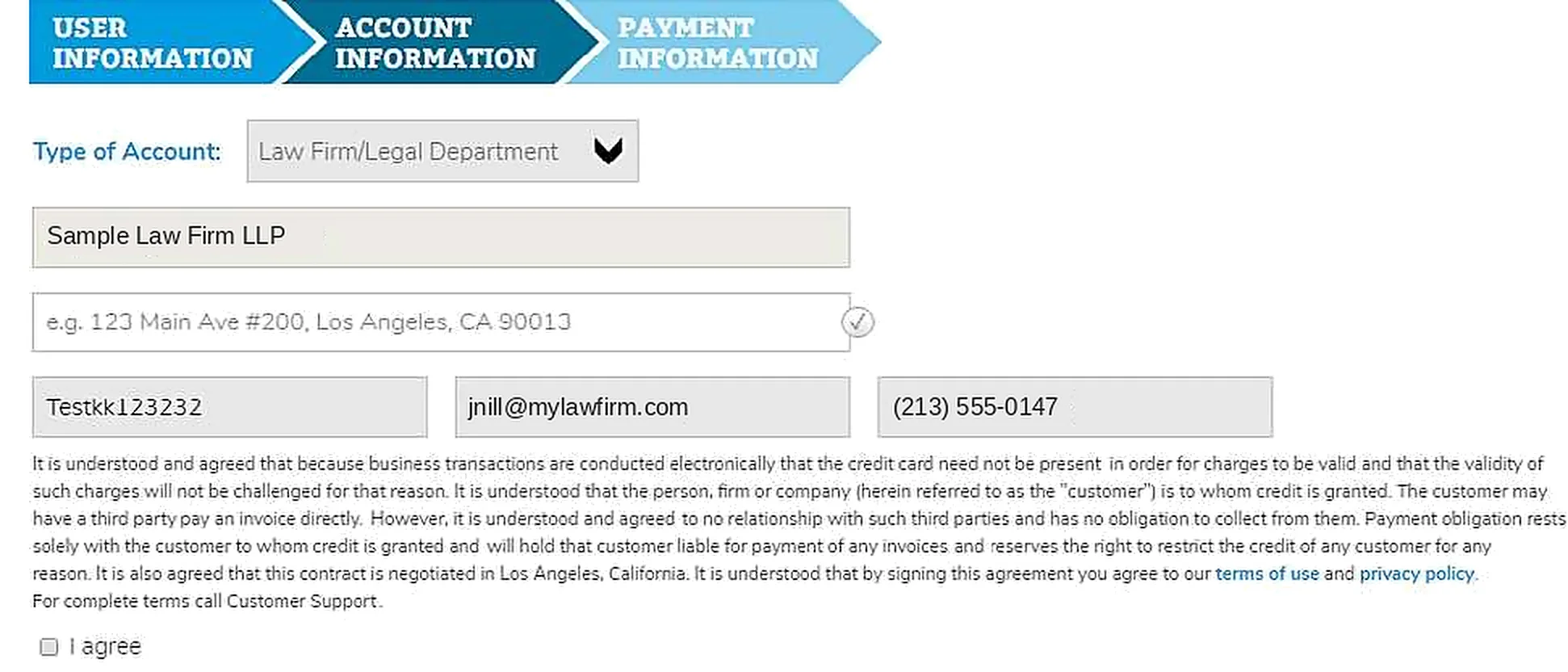
The Account Information screen shows the account that matches the number and ZIP code you entered. Check that it is the correct account.
Read the terms, check I agree, then click Finish.
3 Verify your email address
We send a verification email to the address you entered. Click the link in that email to verify it. If it hasn’t arrived within a few minutes, check your junk mail folder.
4 Log in and start ordering
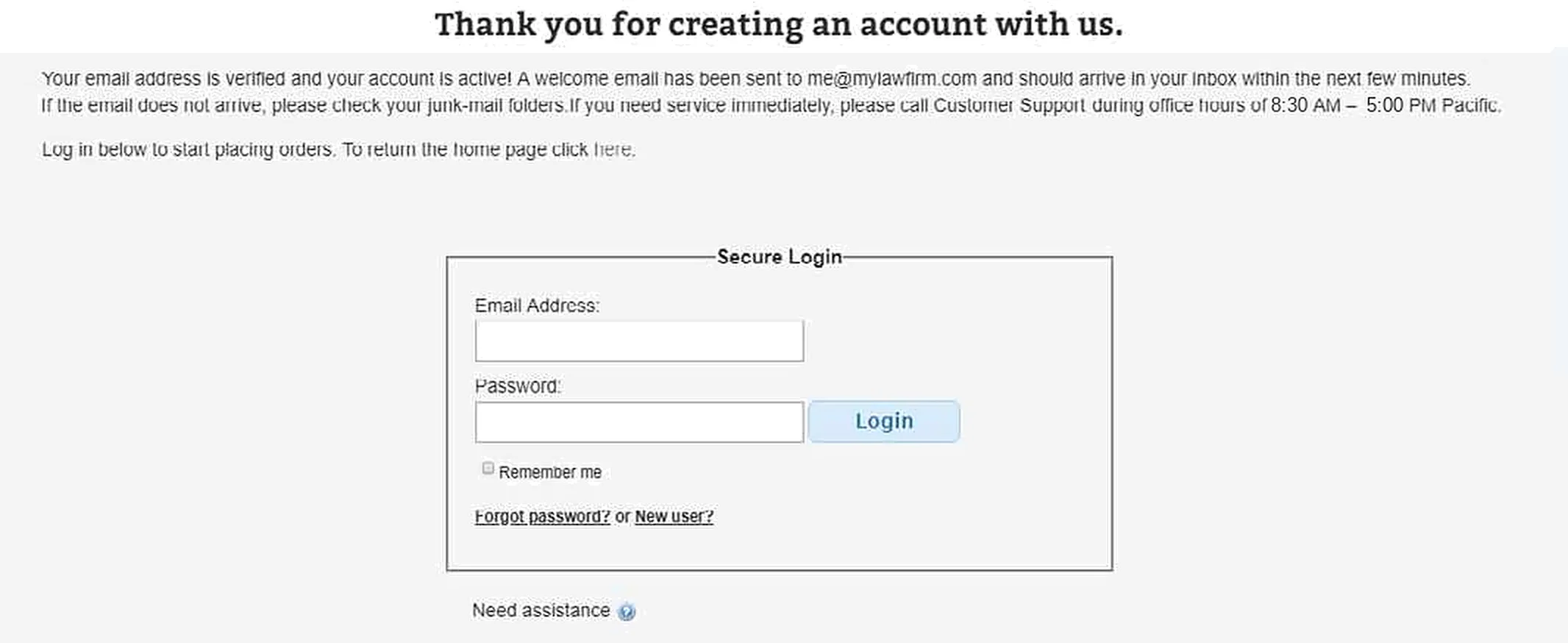
Once your email is verified, a new tab opens to confirm that your account was created, and we send you a confirmation email. To start placing orders right away, log in on that page with your email address and password.
Setting up a new firm?
If your firm doesn’t have a Direct Legal account yet, choose Create a New Account on the sign-up form instead. See our Creating a New Account guide.
Forgot your password?
Click Forgot password? under the login box to reset it.
Questions? We’re here to help.
Call our Litigation Division Monday to Friday, 8:30 a.m. to 5:00 p.m. Pacific, or email info@directlegal.com. Ready to order? Log in to the portal.
Prefer paper? Download this guide as a PDF to print or save. More guides: Client Portal Guides.