
Start here
Log in to the portal →Or go to directlegal.legalconnect.com and log in with your email address and password. New to the portal? See our Creating a New Account guide.
What you will need
- Your portal email address and password
- A case name, case number or billing code, if you are looking for a particular case or order
1 Get to know your dashboard
Your dashboard opens when you log in. It has three main areas:
- Left navigation: links to the main parts of the portal. It stays on the left side of every page.
- Search bar: find a case or order by name, number or billing code.
- Order and case buttons: Place an Order, Manage Cases, Pending Orders, Closed Orders and Reports.
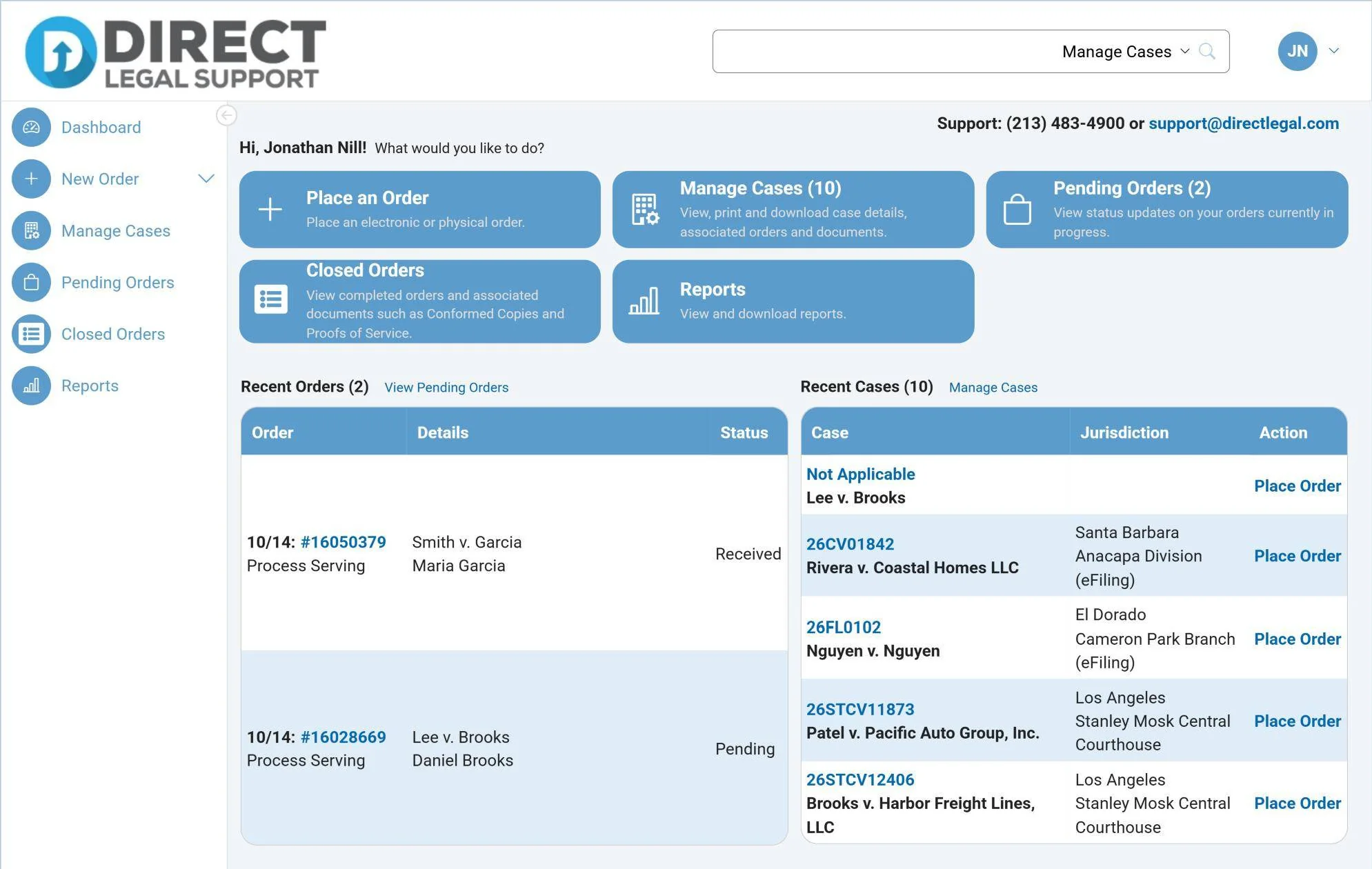
Below the buttons, Recent Orders and Recent Cases list your latest activity. Click your initials at the top right to see your account number, open My Profile or log out.
2 Move around with the left navigation
Click a link in the left navigation to open that part of the portal. The links match the buttons on your dashboard.
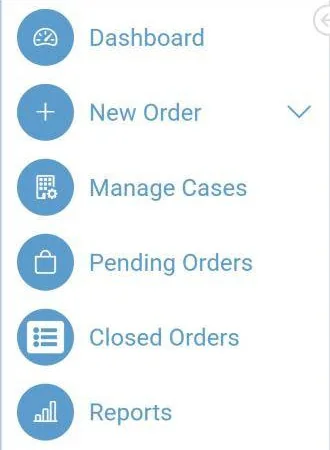
From top to bottom, the links are:
- Dashboard: go back to your dashboard.
- New Order: start an electronic or physical order.
- Manage Cases: view, print and download case details, with the orders and documents for each case.
- Pending Orders: see status updates on your orders in progress.
- Closed Orders: find completed orders and their documents, such as conformed copies and proofs of service.
- Reports: view and download reports.
3 Search for a case or order
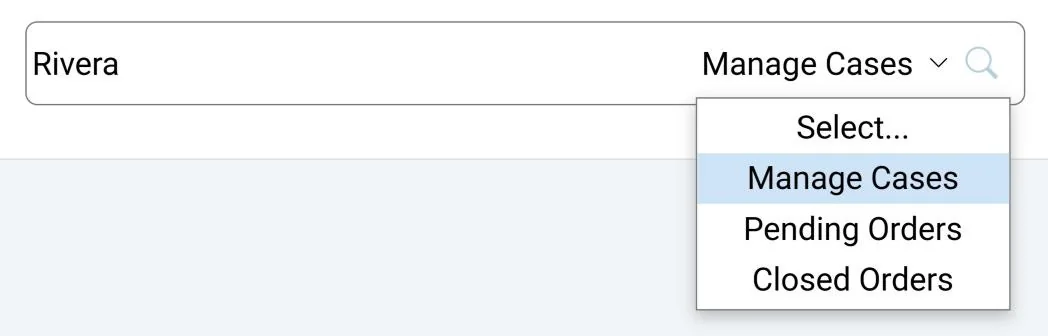
The search bar is at the top of every page.
- Choose where to search from the drop-down list: Manage Cases, Pending Orders or Closed Orders.
- Click in the search box and type a case name, case number or billing code.
- Click the magnifying glass.
4 Manage your cases and documents
Click Manage Cases (1) to see your cases. To narrow the list, type in the box under any column: Case Name or Case Number, County, Jurisdiction or Last Activity (2). To see cases with activity in another period, change the Activity From and To dates and click Search (3).
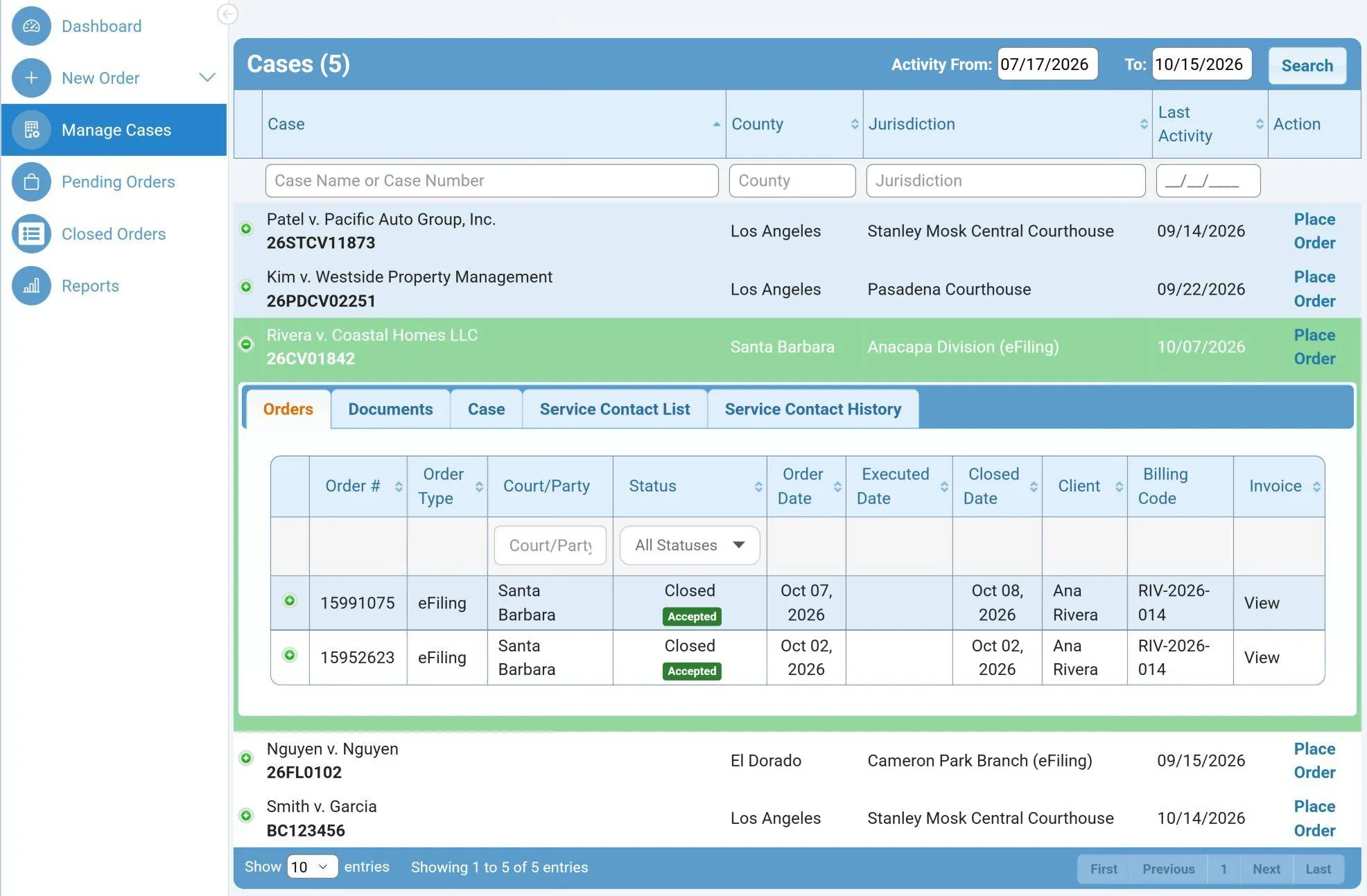
Click the green + next to a case to open its Orders, Documents and Case tabs. E-filed cases also have Service Contact List and Service Contact History tabs (4). Click Place Order to start a new order for that case.
5 Find a pending order
Click Pending Orders (1). To find an order, type a keyword or number in the box under any column: Order Date, Order #, Order Type, Case, Name & Location or Status (2).
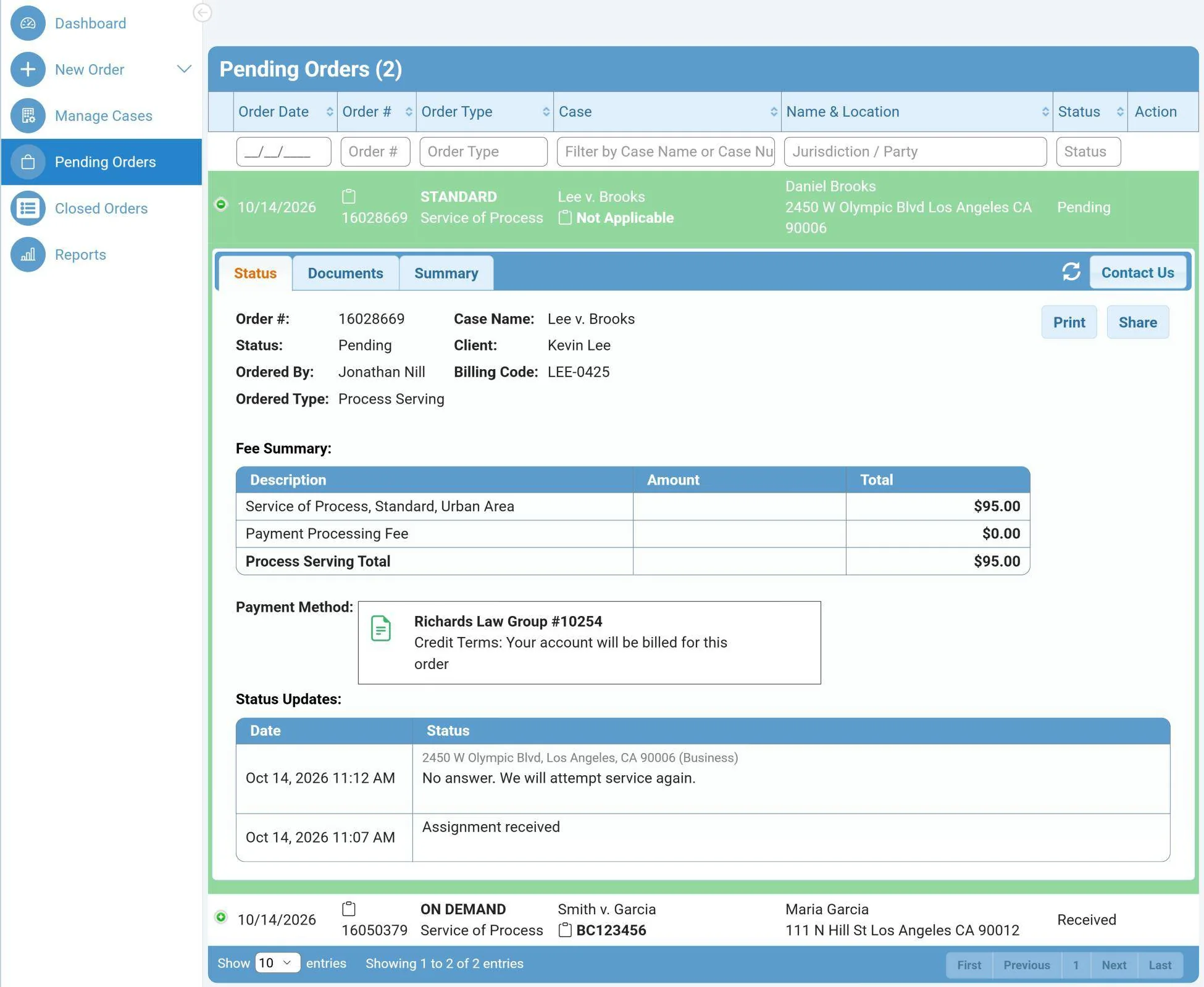
Click the green + next to an order to open its Status, Documents and Summary tabs (3). The Status tab shows who placed the order, your client and billing code, the Fee Summary and the Payment Method (4), and lists every status update with its date and time.
6 Find a closed order
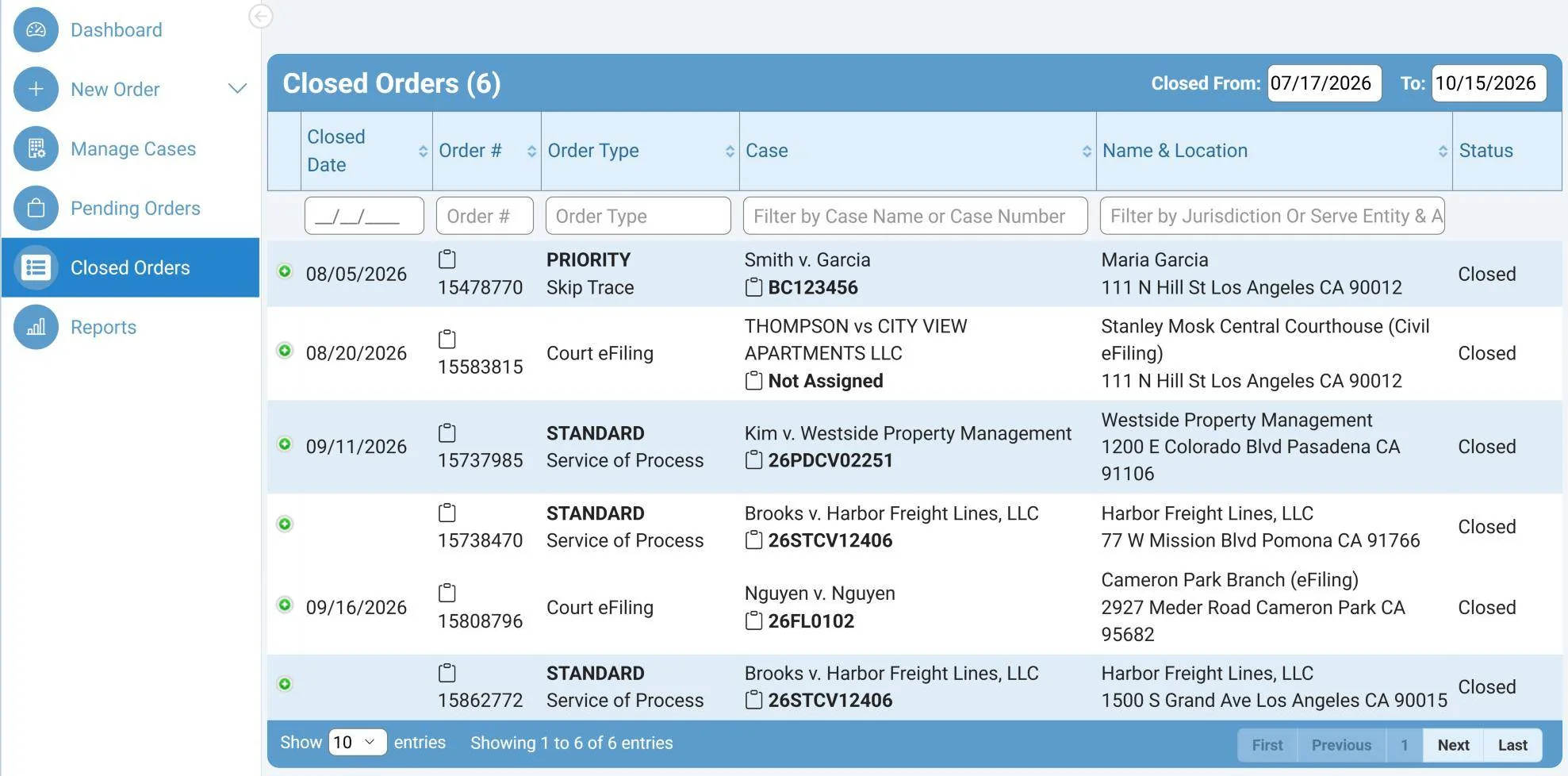
Click Closed Orders (1). Type a keyword or number in the box under any column: Closed Date, Order #, Order Type, Case or Name & Location (2). To see orders closed in another period, change the Closed From and To dates (3).
Questions? We’re here to help.
Call our Litigation Division Monday to Friday, 8:30 a.m. to 5:00 p.m. Pacific, or email info@directlegal.com. Ready to order? Log in to the portal.
Prefer paper? Download this guide as a PDF to print or save. More guides: Client Portal Guides.