
Start here
Log in to the portal →Or go to directlegal.legalconnect.com and log in with your email address and password. Use a current version of Chrome, Edge, Firefox or Safari. New to the portal? See our Creating a New Account guide.
What you will need
- Your documents as text searchable PDF files, one file per document
- The county and court where you are filing
- The case category and case type
- The names of the parties and attorneys
1 Click Place an Order
Log in to your account. On your dashboard, click Place an Order.

2 Choose eFiling and Texas
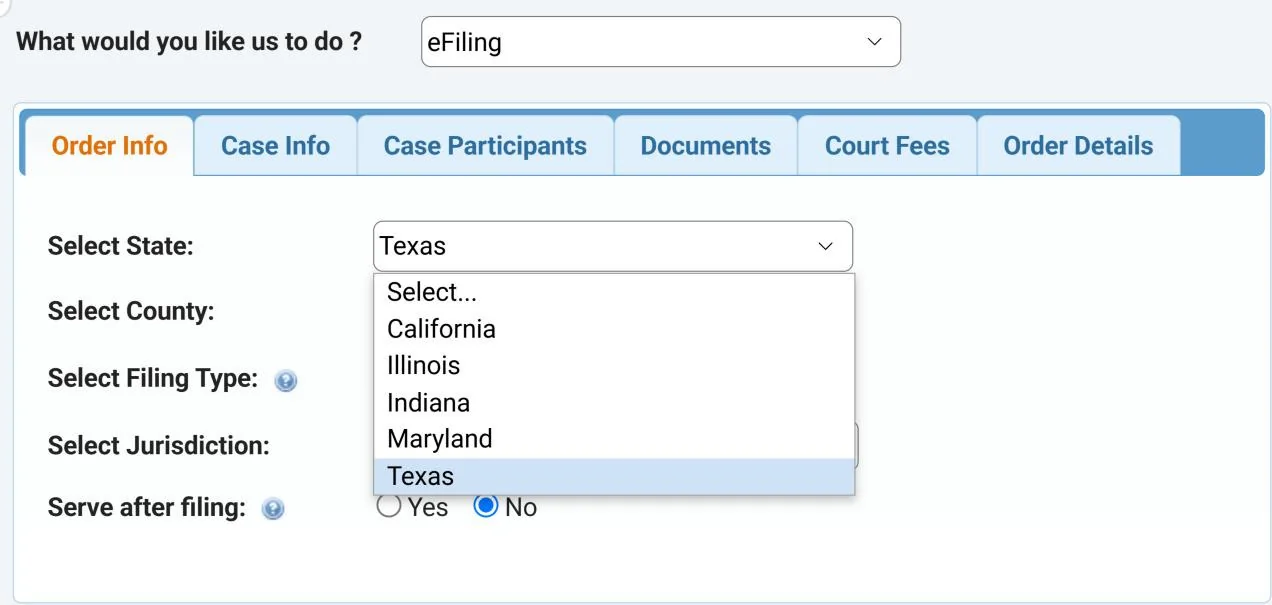
In What would you like us to do?, select eFiling. Then, under Select State, choose Texas.
3 Select the county, filing type and court
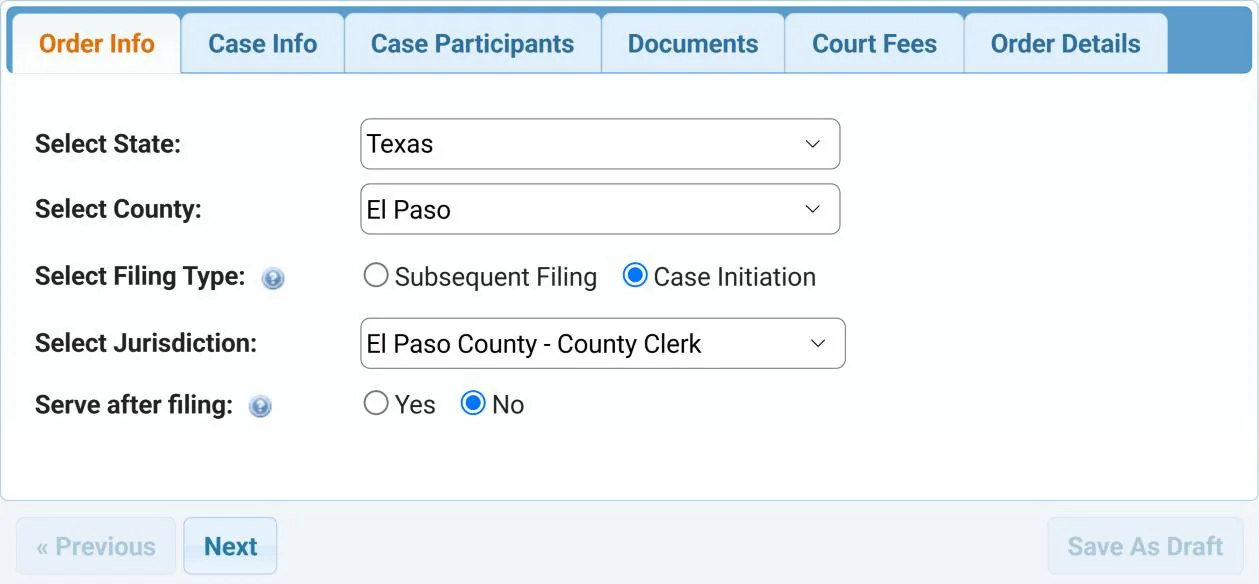
In Select County, choose the county where you are filing (1). Under Select Filing Type, choose Subsequent Filing for a case that is already open, or Case Initiation to open a new case (2).
Under Select Jurisdiction, choose the court, such as the county clerk (3). Under Serve after filing, choose Yes if you want us to serve the documents once they are filed (4). Click Next.
4 Enter the case information
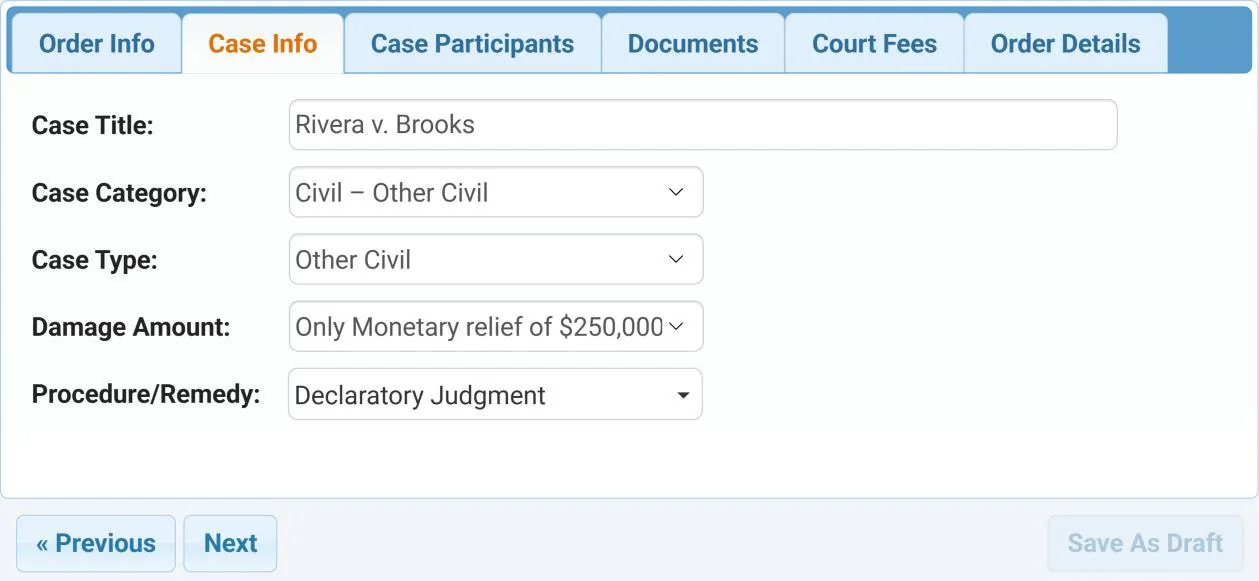
On the Case Info tab, enter the Case Title (1). Choose the Case Category and Case Type (2), then the Damage Amount and the Procedure/Remedy (3). Click Next.
5 Add the case participants
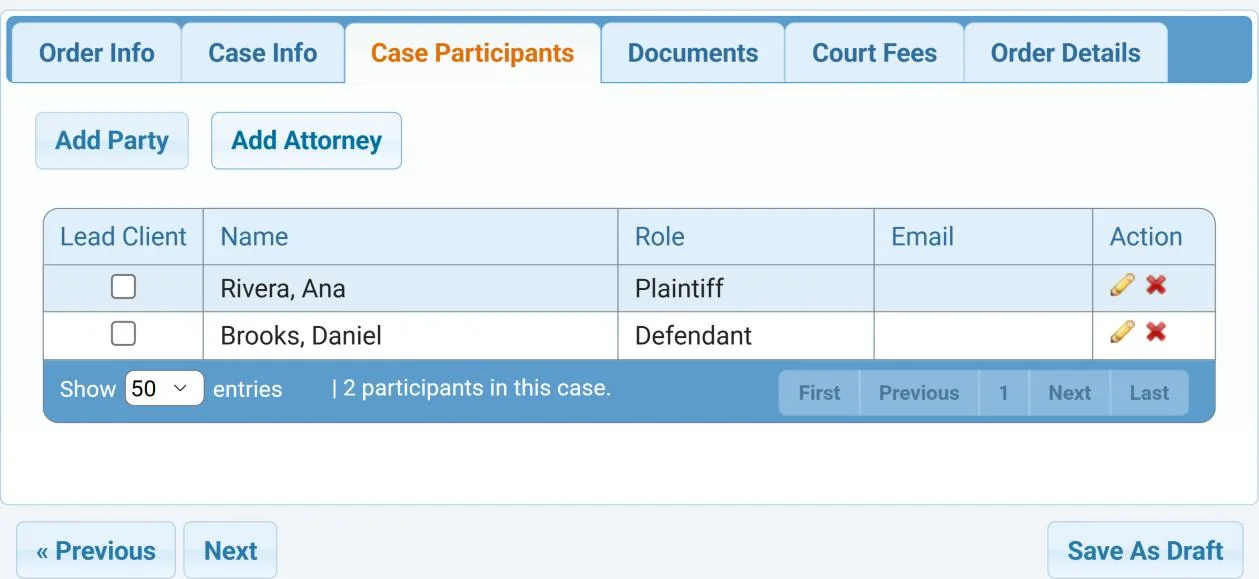
On the Case Participants tab, click Add Party or Add Attorney to add each party and attorney. The portal checks that your filing includes all the parties the court requires.
5A Enter each party
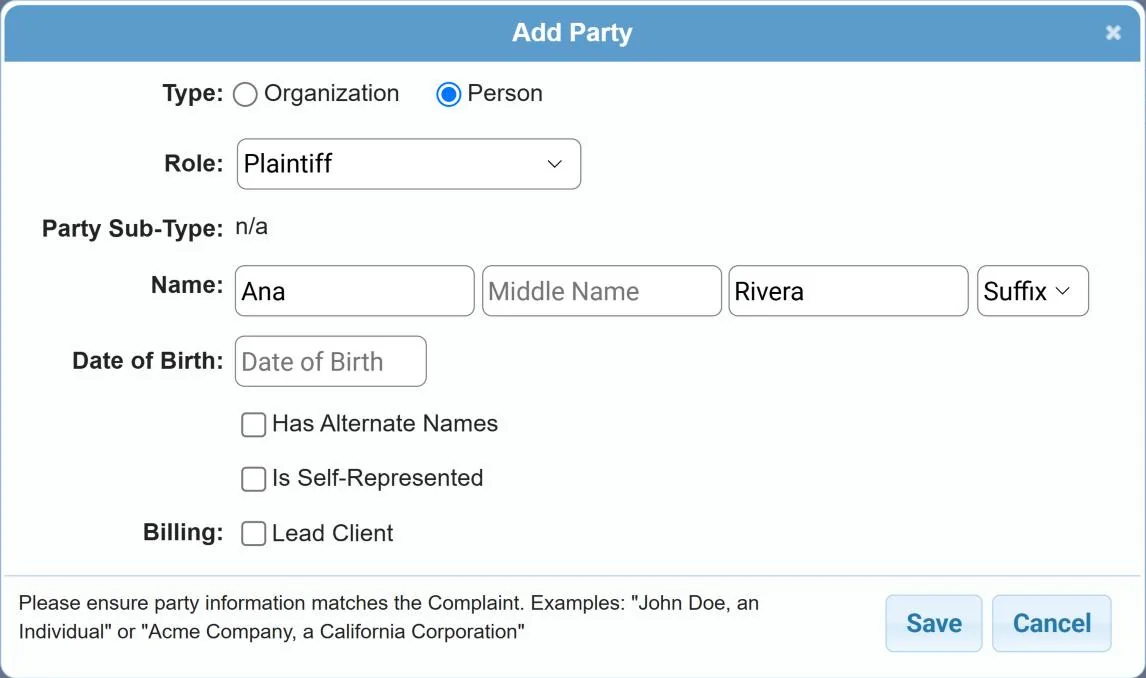
In the Add Party window, choose Organization or Person (1) and the Role (2), and enter the Name (3). Make sure the party information matches the petition or complaint. If the party has no attorney, check Is Self-Represented (4) and enter their address, phone number and email address. Click Save (5).
6 Attach your documents
On the Documents tab, search for the document type, or click Pick from list to see the available documents (1). Check the Title (2) and choose a Security Level, such as Does not contain sensitive data (3). Then click Upload from Computer and choose the file (4). Repeat for each document.
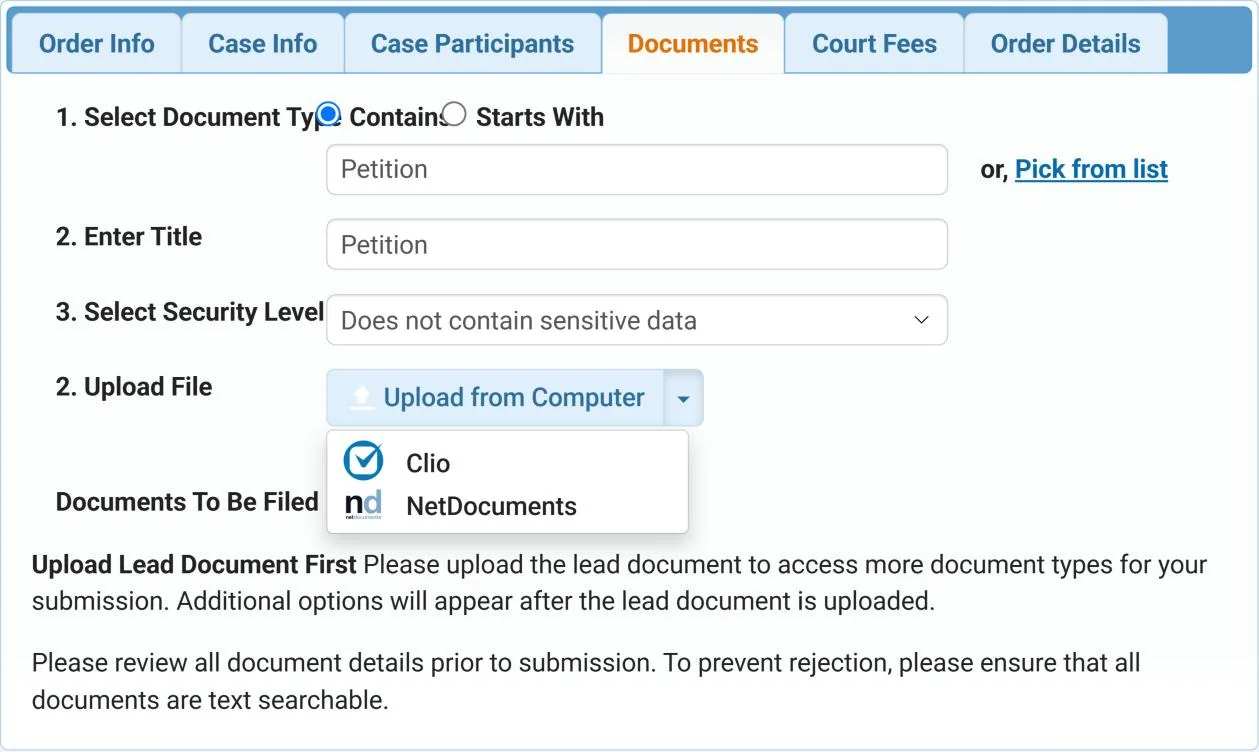
6A Or upload from Clio or NetDocuments
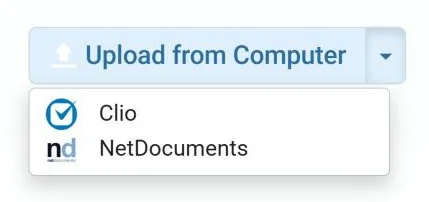
If your firm keeps its files in Clio or NetDocuments, you can attach the document from there instead of from your computer. Click the arrow next to Upload from Computer and choose Clio or NetDocuments. Sign in if asked, then pick the file.
For the full steps, see Using Clio with Direct Legal Support or Using NetDocuments with Direct Legal Support.
7 Fill in the document details
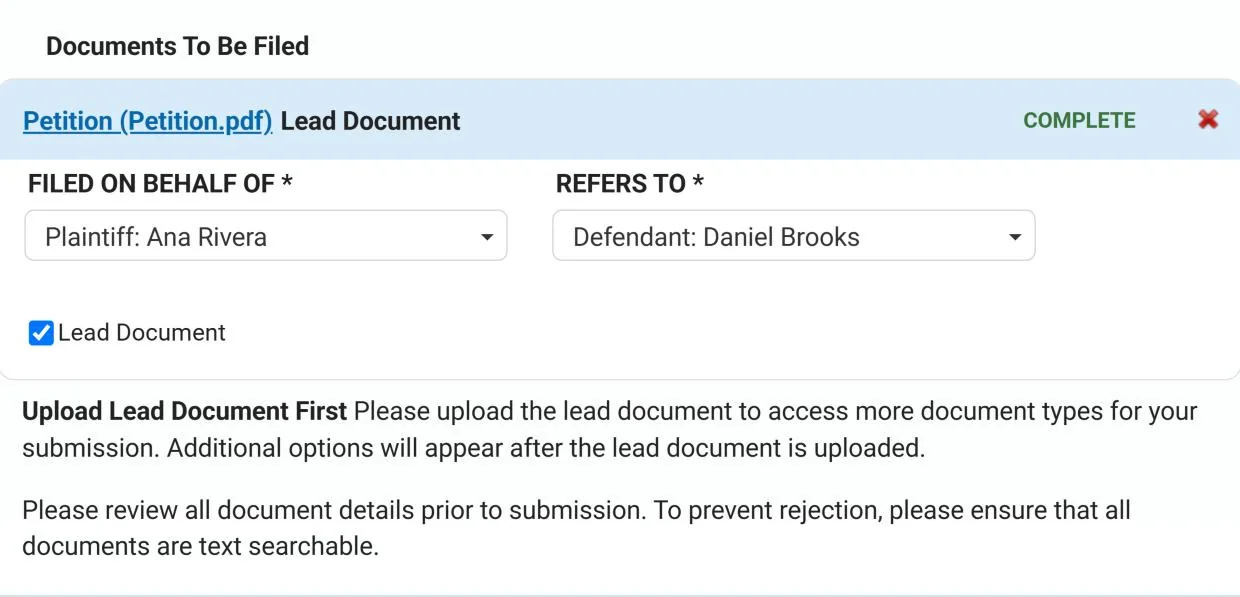
Your files are listed under Documents To Be Filed. For each document, fill in the fields marked with an asterisk, such as FILED ON BEHALF OF and REFERS TO. If the court needs more information about a document, you are asked for it here.
Check Lead Document on the main document in the filing. Click Next.
8 Review the court fees
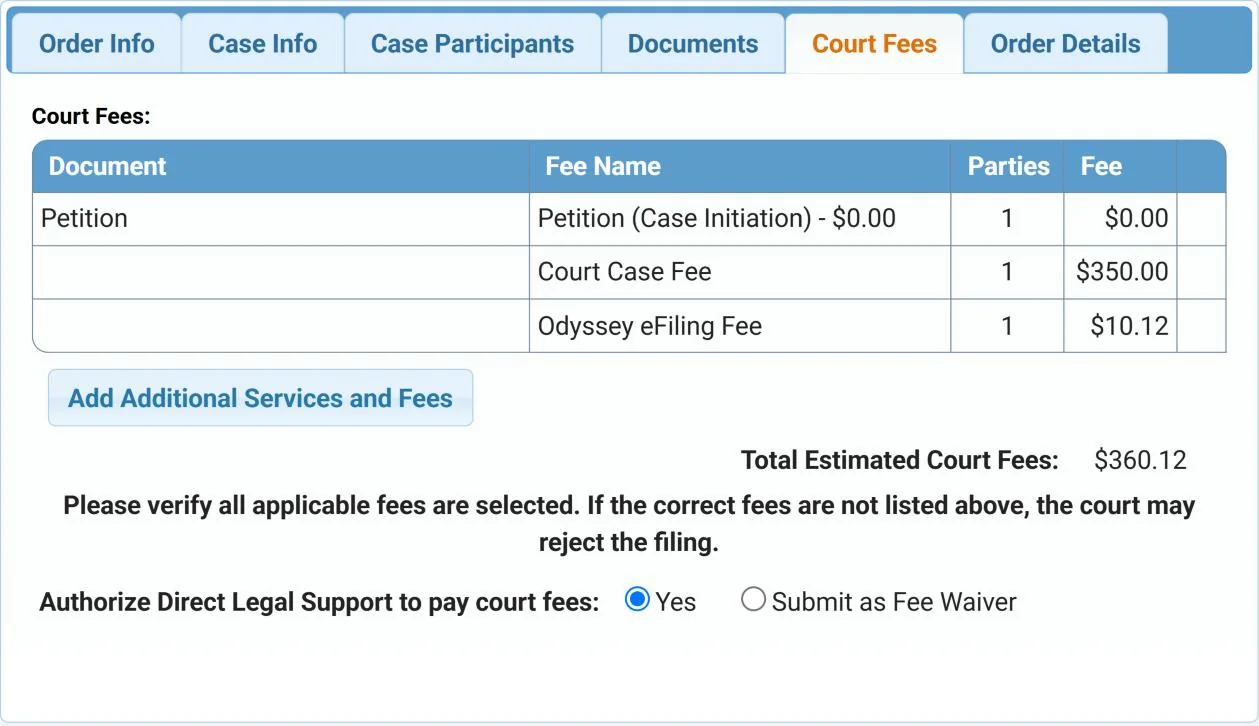
The Court Fees tab lists the fees for the documents you selected, including the Odyssey eFiling Fee charged by the Texas eFiling system, and the Total Estimated Court Fees (1). Make sure every fee that applies is selected, because the court may reject the filing if the correct fees are not listed. Click Add Additional Services and Fees to add one (2).
Under Authorize Direct Legal Support to pay court fees, choose Yes, or choose Submit as Fee Waiver (3). Click Next.
9 Review your order and submit
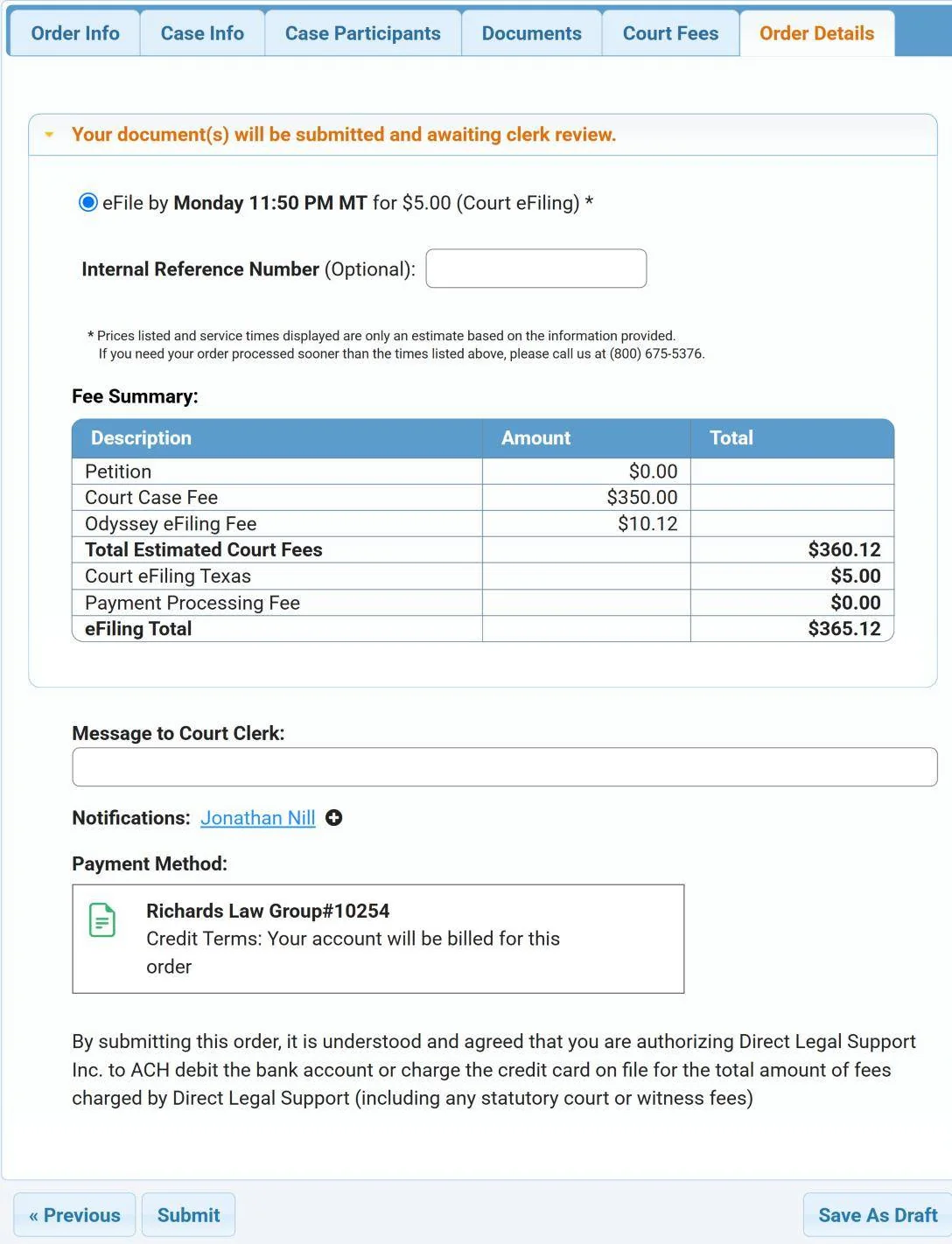
On the Order Details tab, a notice says your documents will be submitted and awaiting clerk review. Choose the service level (1) and, if your firm tracks orders with its own number, enter it in Internal Reference Number (2). The Fee Summary lists the court fees, the Odyssey fee, our eFiling fee and the total (3).
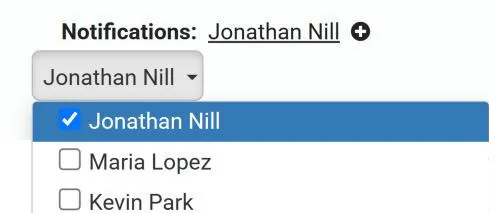
Type any Message to Court Clerk (4). Notifications shows who gets status updates about this order (5), and Payment Method shows how the order will be paid (6). By submitting, you authorize Direct Legal Support to charge the fees for the order to your account’s payment method on file (7). Click Submit to place your order (8).
10 Get your confirmation
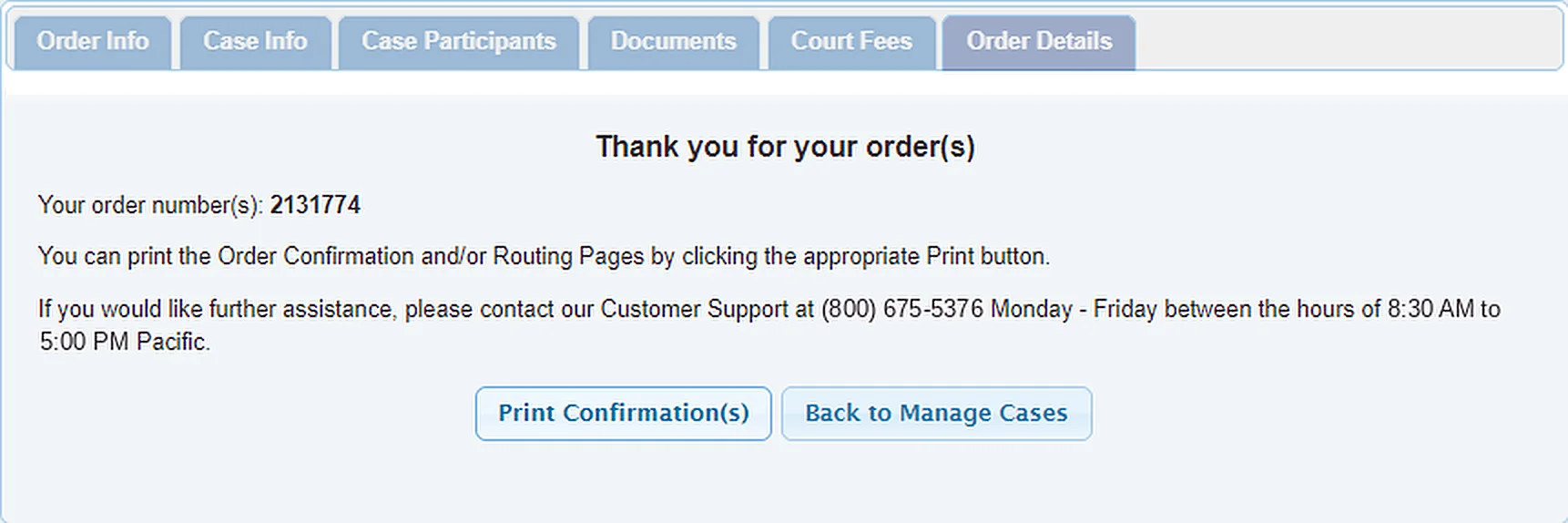
Your order number appears to confirm that the order was placed. Click Print Confirmation(s) to keep a record of your order.
Texas eFiling questions
Can I file in new and existing cases?
Yes. Both case initiation and subsequent filings are available.
Which courts can I file with?
eFiling is available in all Texas counties.
Is Expert Review available?
No. Expert Review is only available for California courts.
Which case categories can I choose?
These categories are available. The list varies by county.
| Group | Case categories |
|---|---|
| Civil | All Other Civil Cases, Contract, Employment, Injury or Damage, Other Civil, Real Property, Related to Criminal Matters, Tax |
| Criminal | Felony, Juvenile, Misdemeanor |
| Family | Family - Child Relationship, Family - Judgment Actions, Family - Marriage Relationship, Family - Other Family Law, Family - Parent Child Relationship, Family - Post Judgment Actions, Family - Title IV-D (OAG Use Only) |
| Probate | Guardianship, Other, Title IV-D (OAG Use Only) |
| Also available | Appellate, Felony Bond Forfeiture, Misdemeanor Bond Forfeiture, Multi-District Litigation (MDL) |
After you order
- Follow your eFiling under Pending Orders on your dashboard
- Find completed orders and their documents under Closed Orders
Good to know
Filing in California? See our eFiling guides for initiating cases and for subsequent cases.
Need it sooner than the times shown? Call us at (800) 675-5376 before you place the order.
Questions? We’re here to help.
Call our Litigation Division Monday to Friday, 8:30 a.m. to 5:00 p.m. Pacific, or email info@directlegal.com. Ready to order? Log in to the portal.
Prefer paper? Download this guide as a PDF to print or save. More guides: Client Portal Guides.