
Start here
Log in to the portal →Or go to directlegal.legalconnect.com and log in with your email address and password. Use a current version of Chrome, Edge, Firefox or Safari. New to the portal? See our Creating a New Account guide.
What you will need
- The writ and your levy documents as PDF files, one file per document
- The county and sheriff’s office that will open the writ
- The type of writ and levy
- The names and addresses of the parties to serve
- The case number
1 Click Place an Order
Log in to your account. On your dashboard, click Place an Order.

2 Choose Writ Service
In What would you like us to do?, select Writ Service.
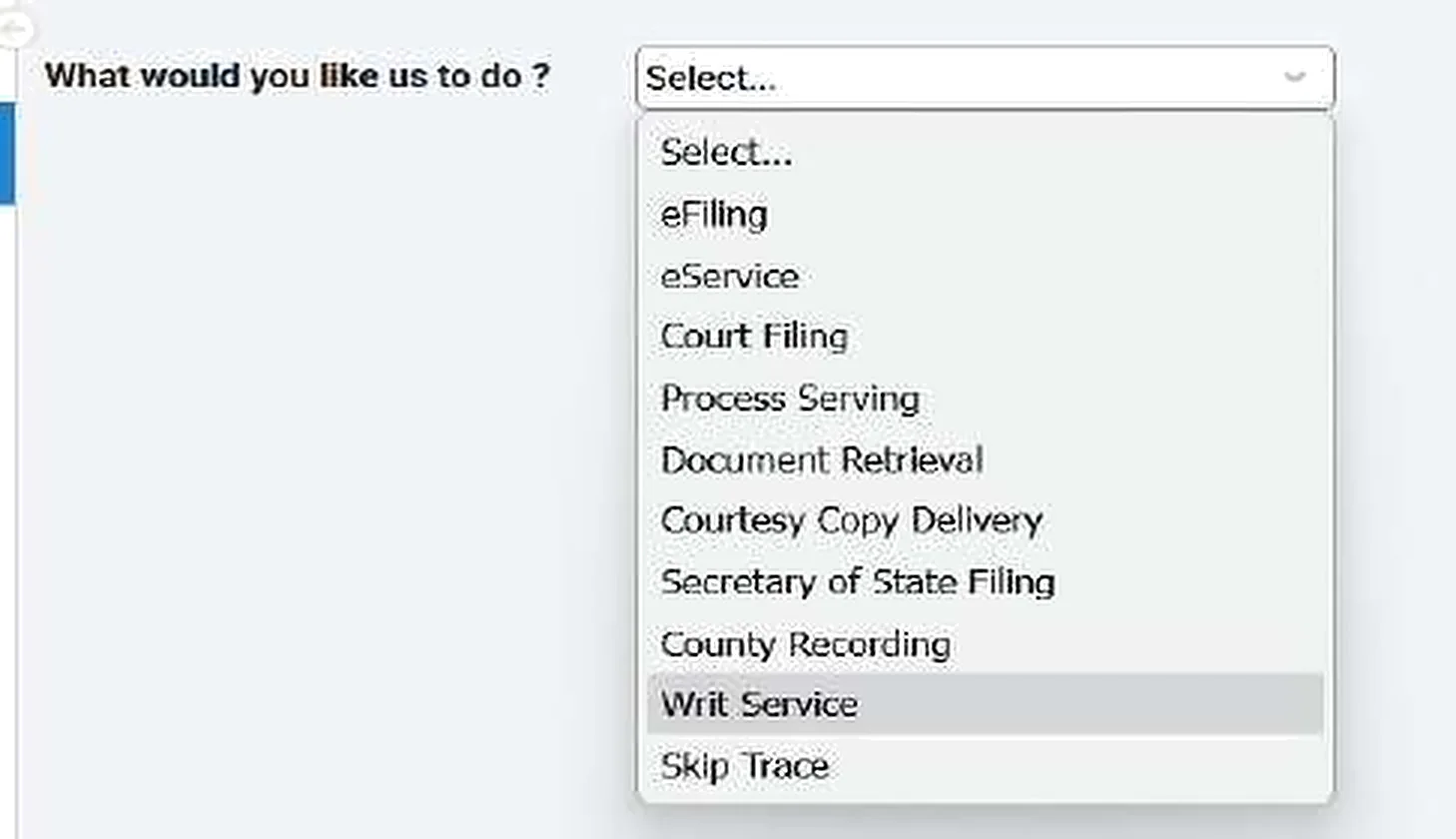
3 Choose the service and the sheriff’s office
Under Service, select Open Writ with Sheriff and Serve (1). Then choose the County (2) and the sheriff’s office in Location (3), and enter the Dept/Div if one applies (4).
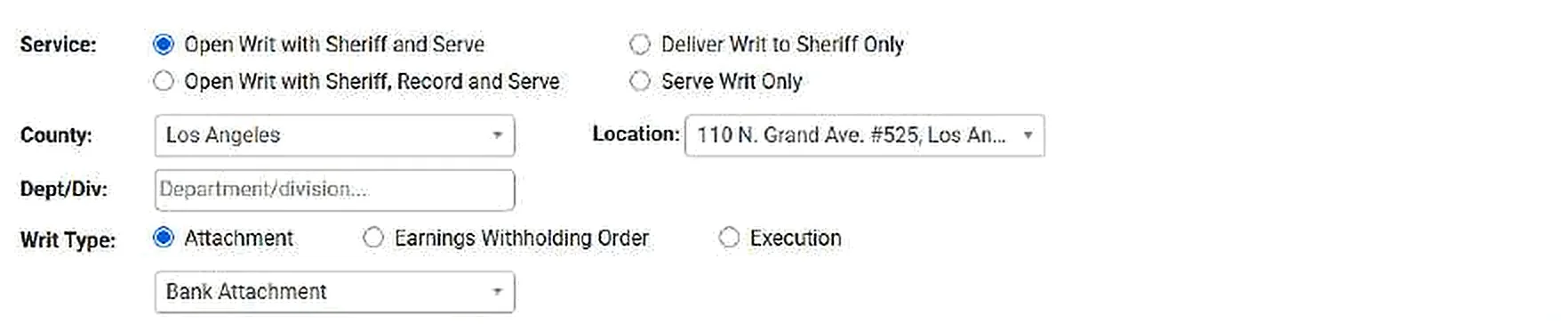
4 Choose the writ type
Under Writ Type, choose Attachment, Earnings Withholding Order or Execution. For an attachment or an execution, also choose the type from the list below it.
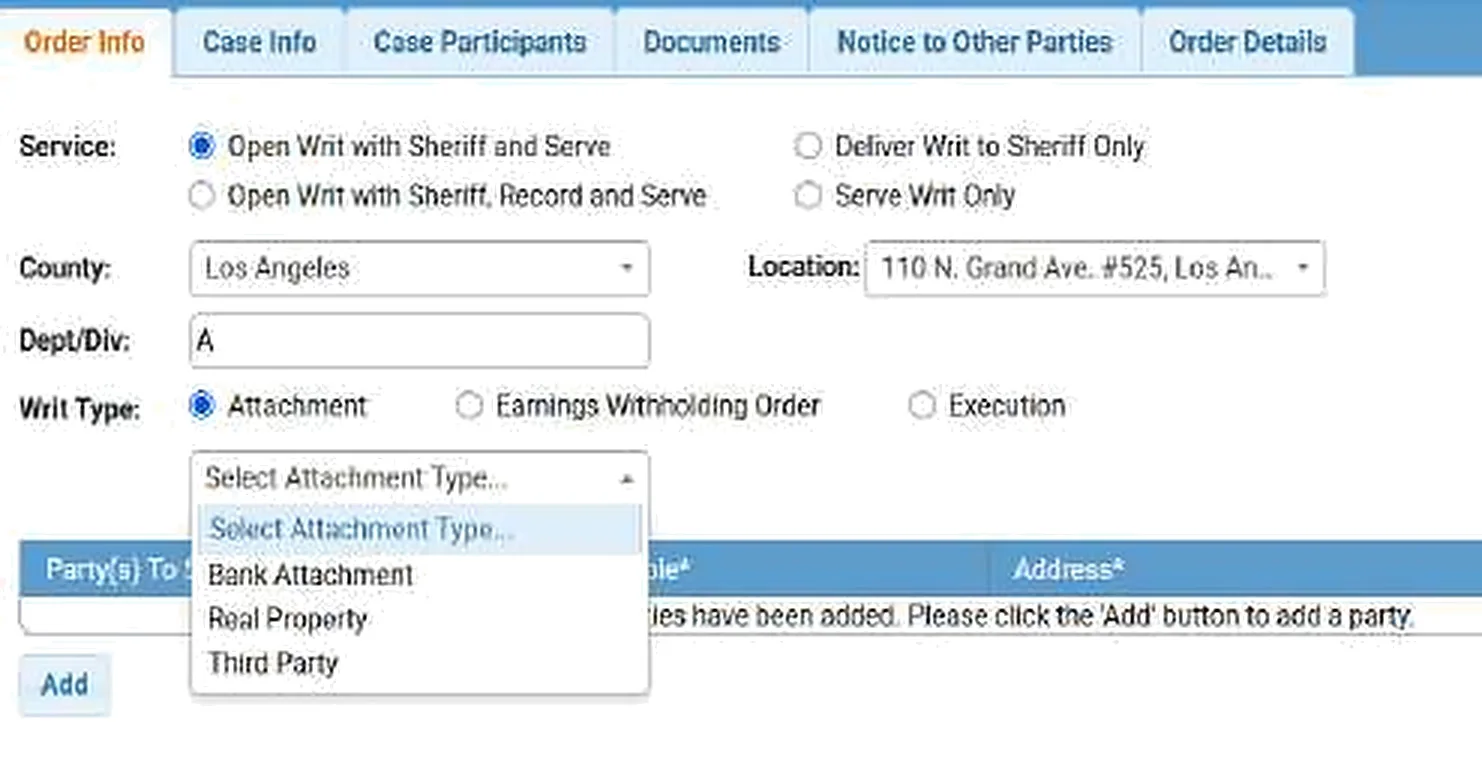
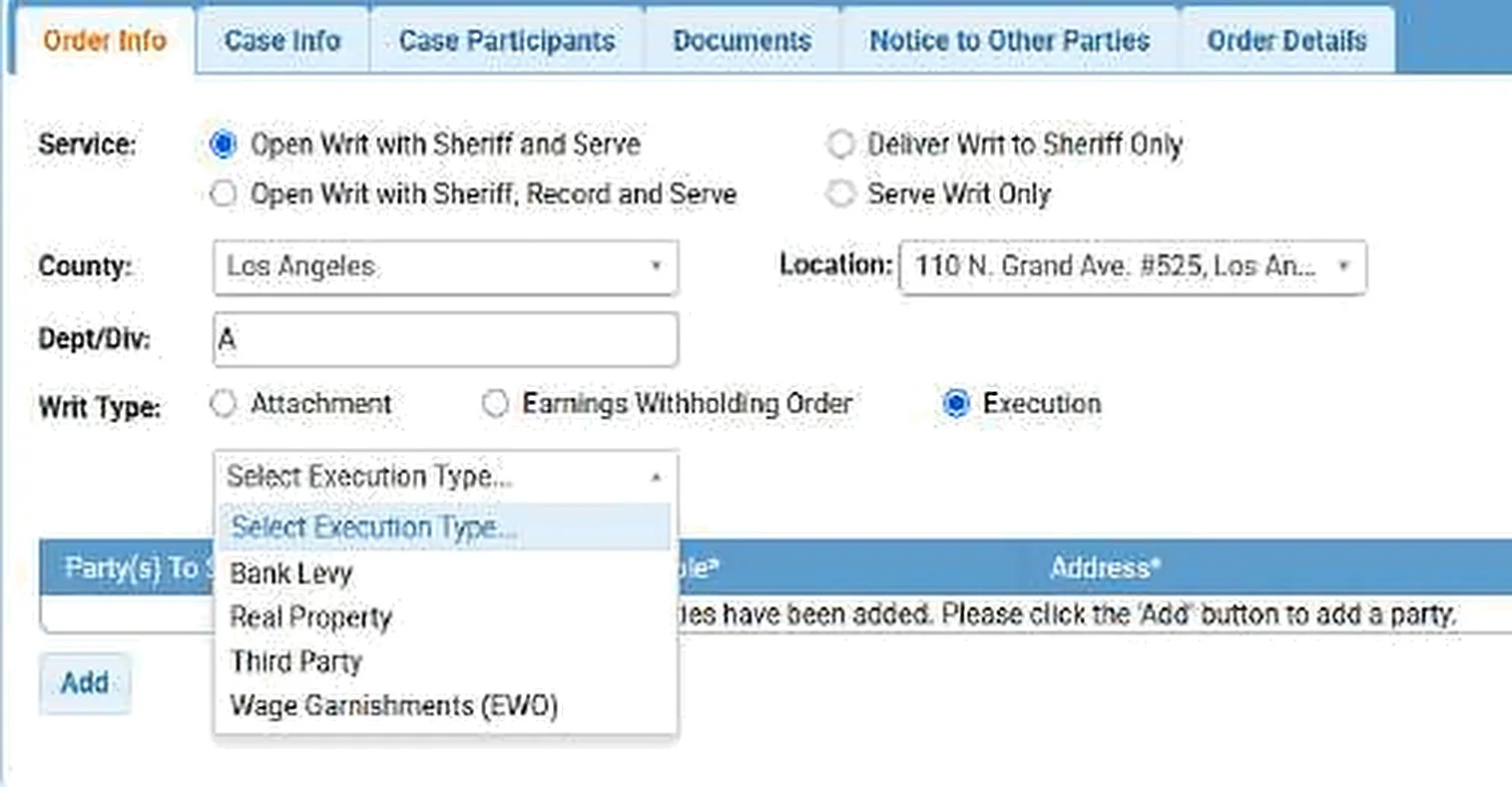
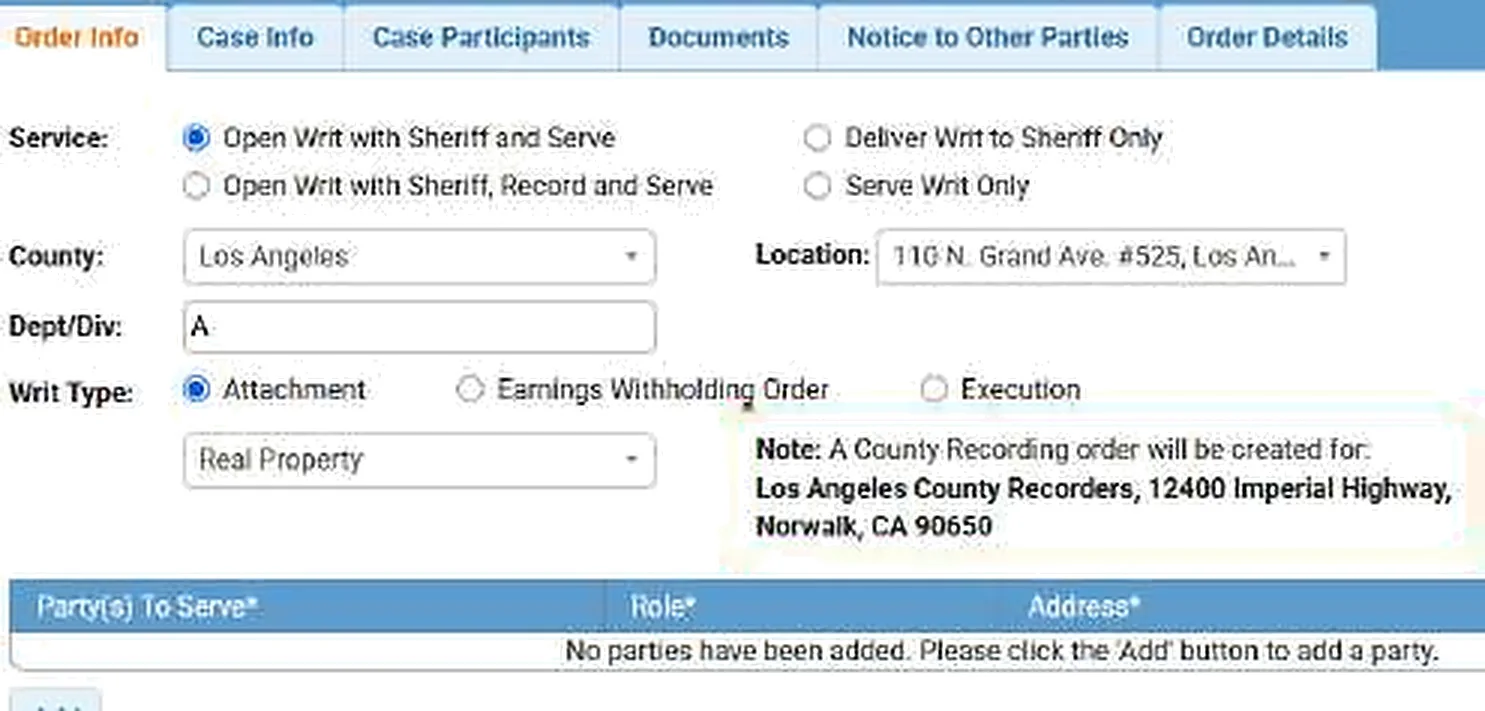
Attaching real property? A note shows that a County Recording order will also be created, with the county recorder’s address.
The note only appears for an attachment of real property.
5 Add the parties to serve
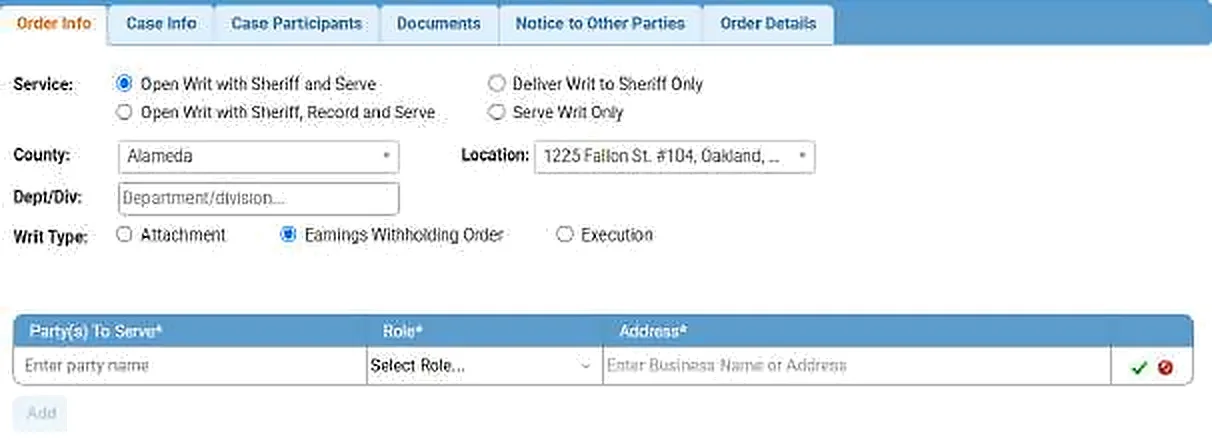
Under Party(s) To Serve, click Add. Enter the party’s name, choose the Role, enter the Address and save. Repeat for each party, then click Next.

6 Enter the case number
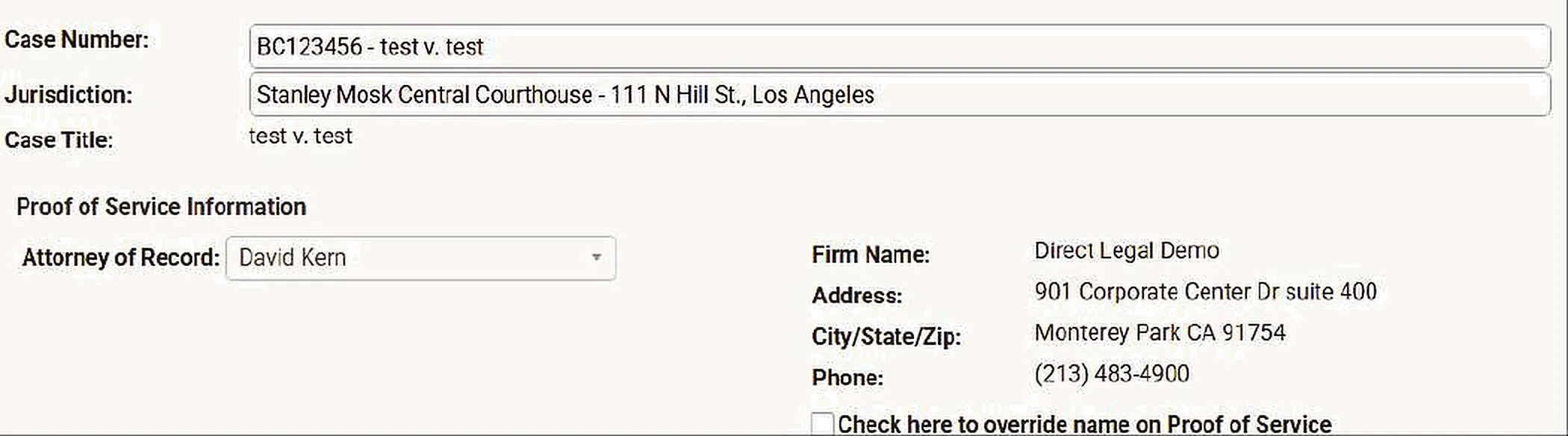
On the Case Info tab, enter the Case Number. If the case is already in the portal, the court and case title fill in. If it isn’t, the portal asks you for the case information.
Check the Proof of Service Information, including the Attorney of Record. Click Next.
7 Add the case participants
If the case isn’t in the portal yet, click Add Party(s) and add the plaintiff and the defendant. Click Next.

8 Attach your documents and choose the sheriff fees
On the Documents tab, choose how to send your documents (1):
- Upload them from your computer. Upload each document on its own, for example the writ, a declaration and an ex parte order.
- Mail them separately. Enter each document’s title and an estimate of the total pages.
- Existing Documents lets you pick documents already uploaded to the case.
To upload, type the Document Title (2). Matching titles appear as you type; pick one or keep your own. Then click Upload from Computer and attach the file. To attach it from Clio or NetDocuments instead, see step 8A.

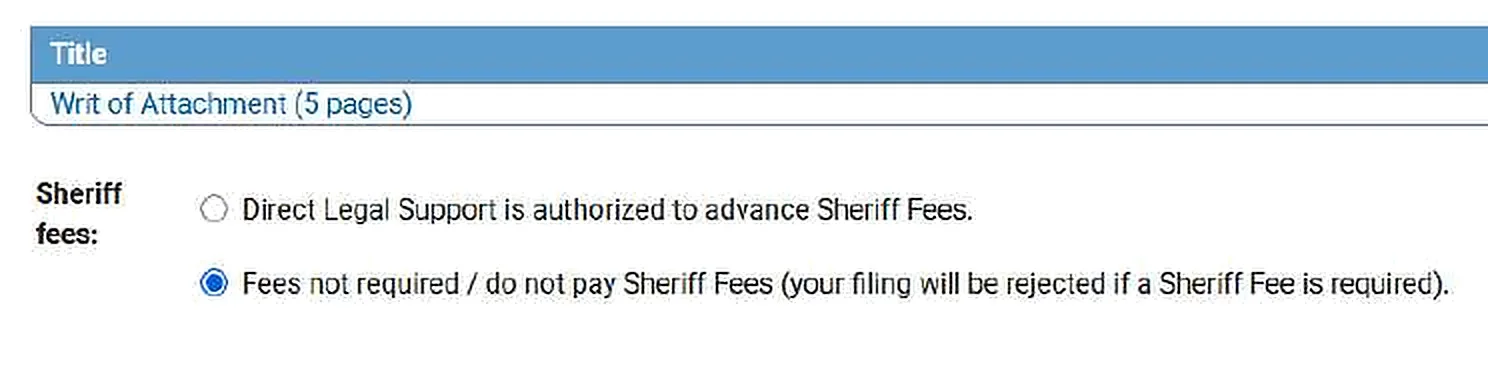
Your documents are listed under Title. Under Sheriff fees, choose whether Direct Legal Support may advance the sheriff’s fees. If you choose not to pay sheriff fees and the sheriff requires one, the filing is rejected. Click Next.
8A Or upload from Clio or NetDocuments
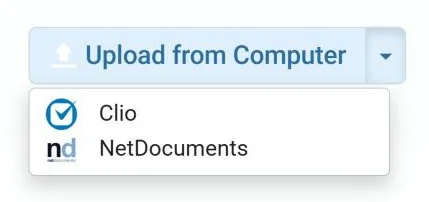
If your firm keeps its files in Clio or NetDocuments, you can attach the document from there instead of from your computer. Click the arrow next to Upload from Computer and choose Clio or NetDocuments. Sign in if asked, then pick the file.
For the full steps, see Using Clio with Direct Legal Support or Using NetDocuments with Direct Legal Support.
9 Add the other parties to notify
On the Notice to Other Parties tab, click Add and enter the name, role and address of each interested party to notify, such as the judgment debtor. Click Next.

10 Choose the service levels
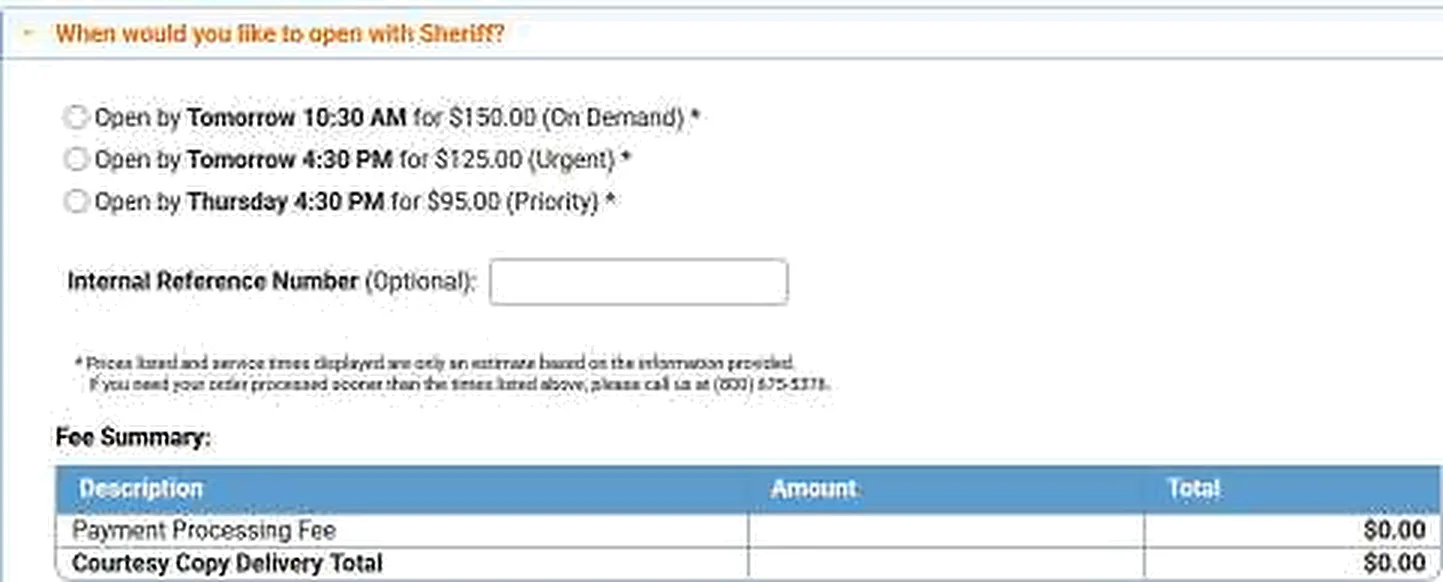
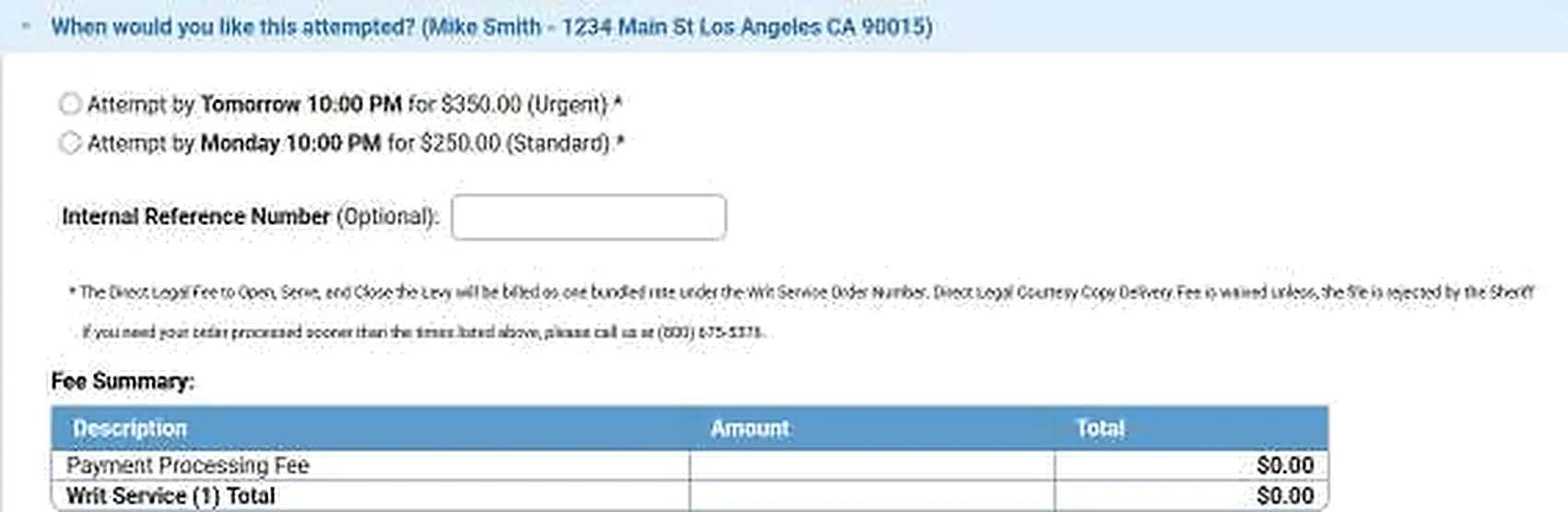
On the Order Details tab, choose when the writ should be opened with the sheriff, and then when the party should be served. The portal shows the price of each choice.
11 Add instructions and submit
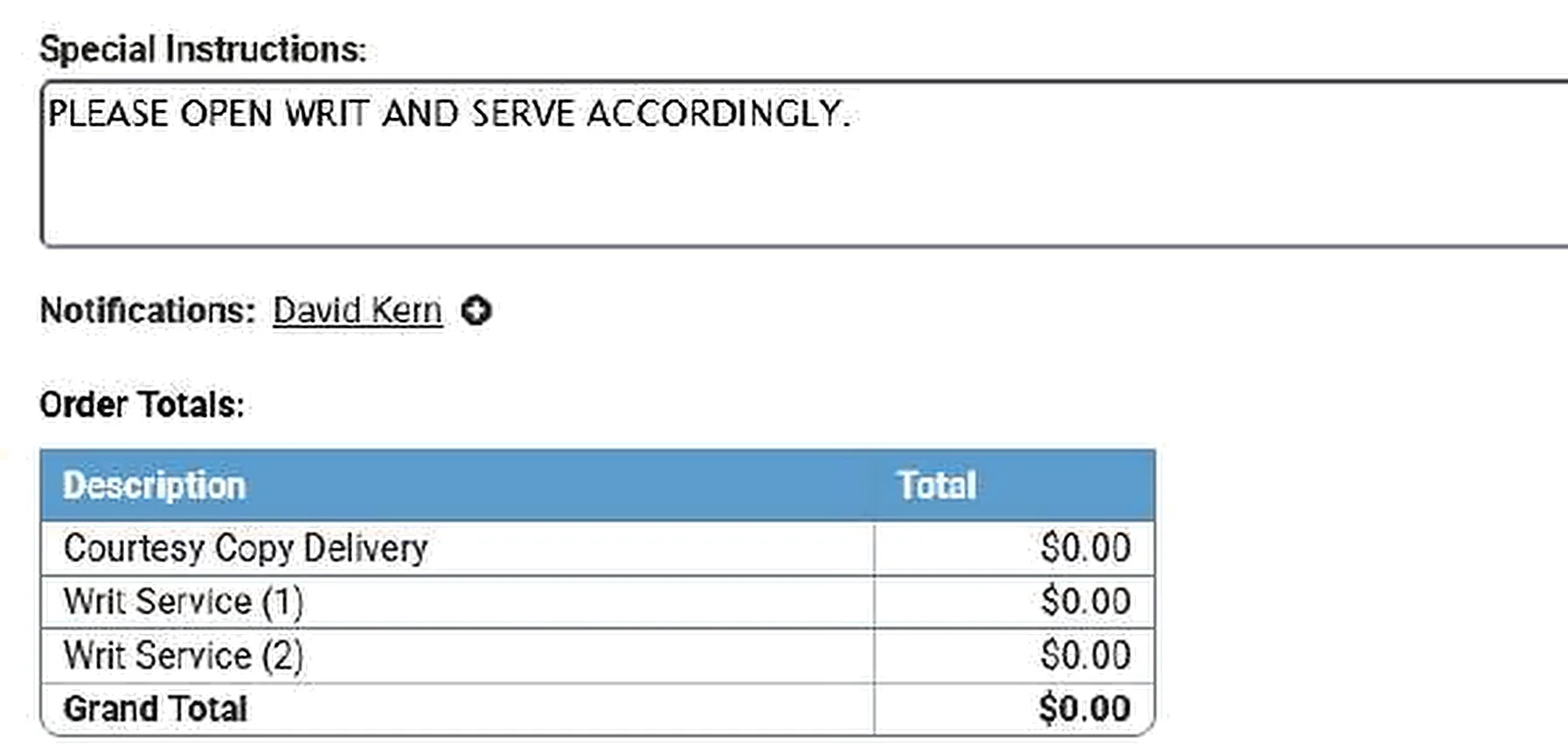
Type any Special Instructions for us (1) and choose who gets Notifications about the order (2). The portal shows your estimated fees under Order Totals. Click Submit.
12 Print the confirmation for your writ package
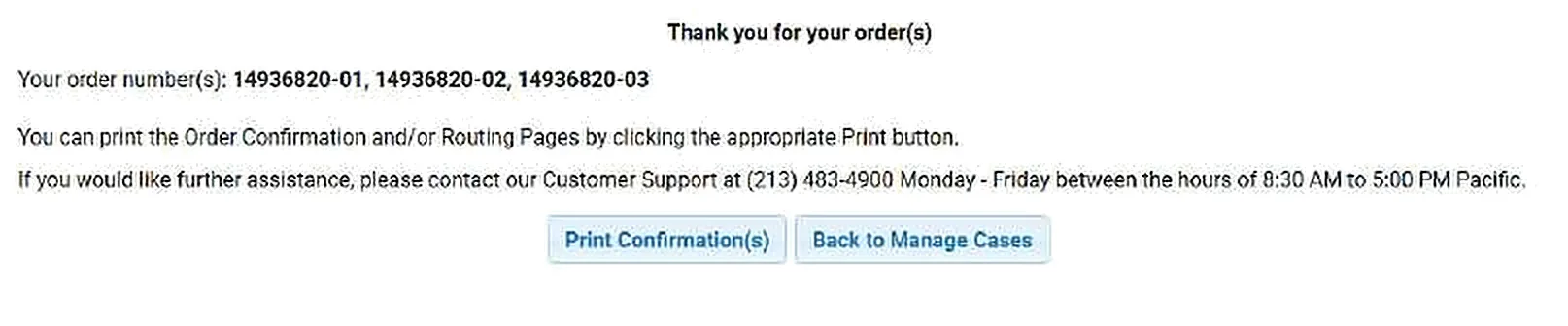
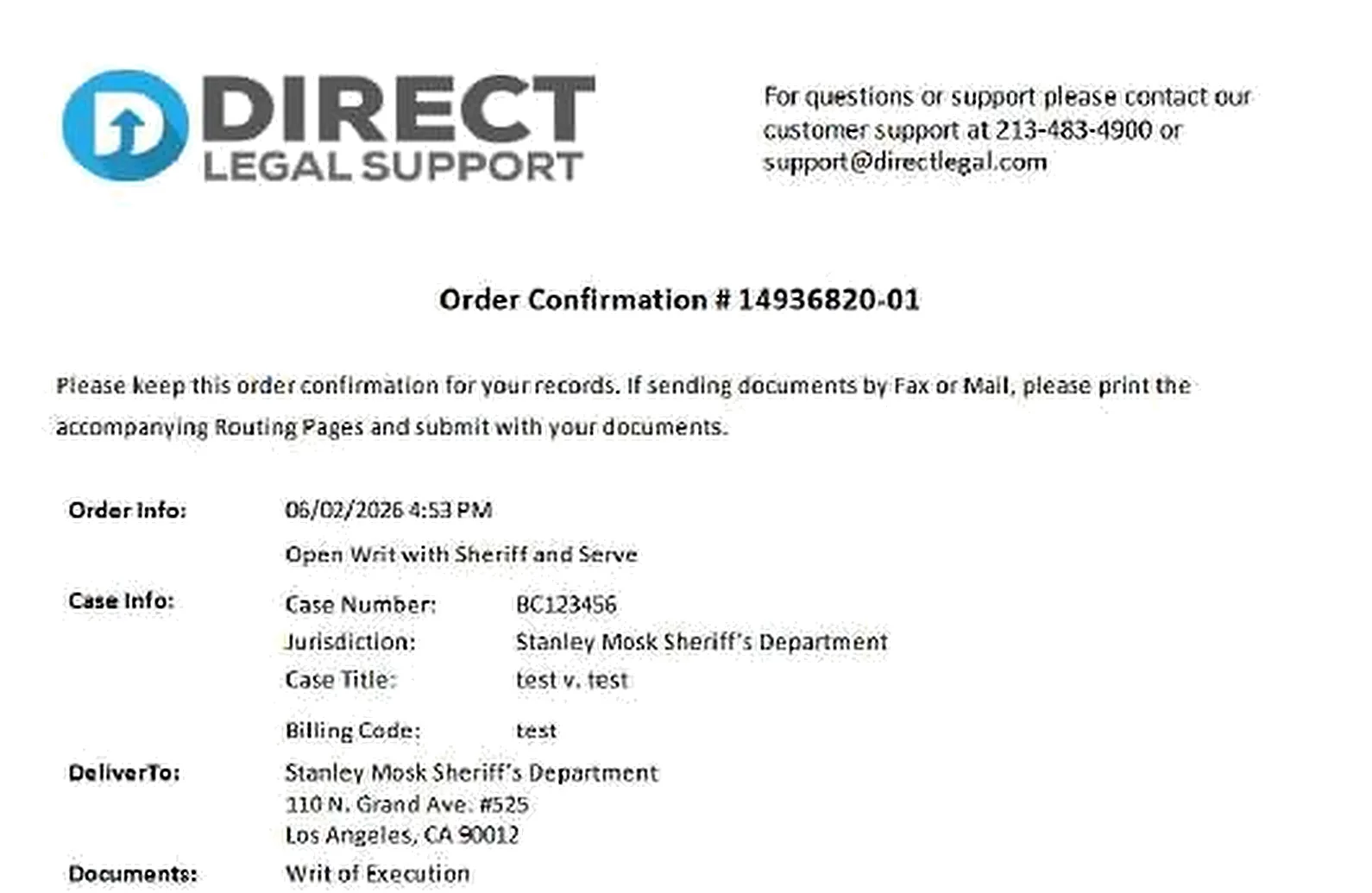
Your order numbers appear. Click Print Confirmation(s). If you are mailing us an original signed writ, put the order confirmation in the envelope with it.
After you order
- If you have an original signed writ (a wet writ), mail it to our Monterey Park office with the order confirmation
- Follow your order under Pending Orders on your dashboard
- Find completed orders and their documents under Closed Orders
Good to know
Which documents go with each levy? See our Writ Levy Document Checklist.
Rates and sheriff rules: see directlegal.com/writ-levies or call us at (800) 675-5376.
Questions? We’re here to help.
Call our Litigation Division Monday to Friday, 8:30 a.m. to 5:00 p.m. Pacific, or email info@directlegal.com. Ready to order? Log in to the portal.
Prefer paper? Download this guide as a PDF to print or save. More guides: Client Portal Guides.